Text messages often hold things you don’t want to lose like bank codes, delivery details, work conversations, or years of family chats. You may also need a copy for personal or work reasons.
Android has no single “export to PC” button, but there are several reliable ways to get your texts onto a Windows PC or Mac. This guide covers which method to use, how to do it step by step, and a few 2026 changes (RCS chats and Android 17) that can quietly leave messages out of your backup.

How to Save Text Messages from Android to Computer
The most reliable free way is the SMS Backup & Restore app. It saves all your texts into one file that you can copy to your computer, read in a browser, and print or save as a PDF. If you only need to read or copy a few conversations on your computer, use Google Messages for web.
Which Method Should You Use?
| Method | Best for | Readable on PC? | Cost |
|---|---|---|---|
| SMS Backup & Restore | Full backup, printing, PDF records | Yes (browser viewer) | Free (Pro version optional) |
| Google Messages for web | Reading and copying specific chats | Yes, while your phone is connected | Free |
| Phone Link (Windows) | Viewing recent texts on a Windows PC | Yes, recent messages only | Free |
| Copy, email, or screenshot | One or two important messages | Yes | Free |
| Samsung Smart Switch | Full phone backup on Samsung devices | No (restore only) | Free |
A note on Google’s built-in backup: Android backs up your SMS to your Google account automatically, but that backup can’t be downloaded or opened on a computer. It only restores to a phone during setup. Keep it switched on as a safety net, but don’t rely on it if you need a copy on your PC.
Method 1: Use SMS Backup & Restore (Best Overall)
SMS Backup & Restore by SyncTech has been the go-to Android texting backup app for years. It saves your SMS, MMS (picture and group messages), and supported RCS chats into a single XML file. You can then move that file to your computer and read it like a normal conversation.
Step 1: Create the backup on your phone
- Install SMS Backup & Restore from the Google Play Store and open it.
- Tap Get Started and allow the permissions it requests (messages, contacts, and call logs).
- Tap Set up a backup.
- Turn on Messages. Turn off Phone calls if you don’t need your call history. Tap Next.
- Choose where to save the backup. Picking Google Drive, Dropbox, or OneDrive is the easiest way to get the file onto your computer. You can also keep a copy on the phone.
- Tap Next, choose whether to schedule automatic backups, and tap Back up now.

Tip: If some conversations are missing from your backup, go to Menu > Settings > Backup settings, make sure MMS is turned on.
Step 2: Move the backup file to your computer
Choose whichever option is easiest for you:
Cloud: If you backed up to Google Drive, Dropbox, or OneDrive, open that service on your computer and download the XML file.
Email: In the app, go to Menu > View backups, open the Local tab, tap the three-dot menu, and choose Send File. Email services limit attachment size, so this works best for smaller backups.

USB cable: Connect your phone, choose File transfer on the phone’s USB prompt, and look for the SMSBackupRestore folder in the phone’s storage. On a Mac, you’ll need a file-transfer tool such as OpenMTP or Android File Transfer first.
Step 3: Read, print, or save the messages as a PDF
- On your computer, open the SyncTech backup viewer in your browser.
- Select your XML backup file. The file is processed inside your browser and isn’t uploaded to SyncTech.
- Click a contact to open the conversation.
- To keep a readable copy, use your browser’s print option (Ctrl + P on Windows, Cmd + P on Mac) and choose Save as PDF.
If your backup is very large and the viewer freezes, reload the page and turn off Load images and other media before opening the file.
You can also print directly from the phone.
In the app, go to Menu > Print from backups, pick a conversation, and save it as a PDF.
Important in 2026: Why Some Texts Don’t Get Backed Up
Most Android phones now send chats over RCS (the modern replacement for SMS, sometimes shown as “Chat” or “RCS message”) through Google Messages. This matters for backups in three ways:
- Encrypted RCS chats on Android 17: Android now marks end-to-end encrypted RCS messages as restricted. Only your default texting app can read them, so backup apps skip them. To include them, update SMS Backup & Restore and run a manual backup. The app will ask to become your default texting app temporarily. Allow it, then switch back to Google Messages when the backup finishes. For incremental or archive-mode backups, turn on Menu > Settings > Backup settings > Back up as default SMS app. Scheduled automatic backups can’t capture these messages.
- Sent RCS messages missing: A Google Messages update in mid-2026 stopped saving sent RCS messages to the part of the phone that backup apps read. They’re still visible in Google Messages, but they won’t appear in your backup until Google fixes the issue. If you need a record of your side of a conversation, use Method 2 or take screenshots.
- Samsung users: Samsung Messages was discontinued in the US in July 2026, and Galaxy phones now use Google Messages. If you see duplicate messages in your backups, turn off RCS backup in the app’s backup settings.
Before relying on any backup, open it in the viewer and check that your most important conversations are actually there.
Method 2: Use Google Messages for Web
If you use Google Messages (the default texting app on most Android phones), you can open your conversations in any browser on your computer. This works well when you want to read, copy, or screenshot specific chats, including RCS messages.
- On your computer, go to messages.google.com/web.
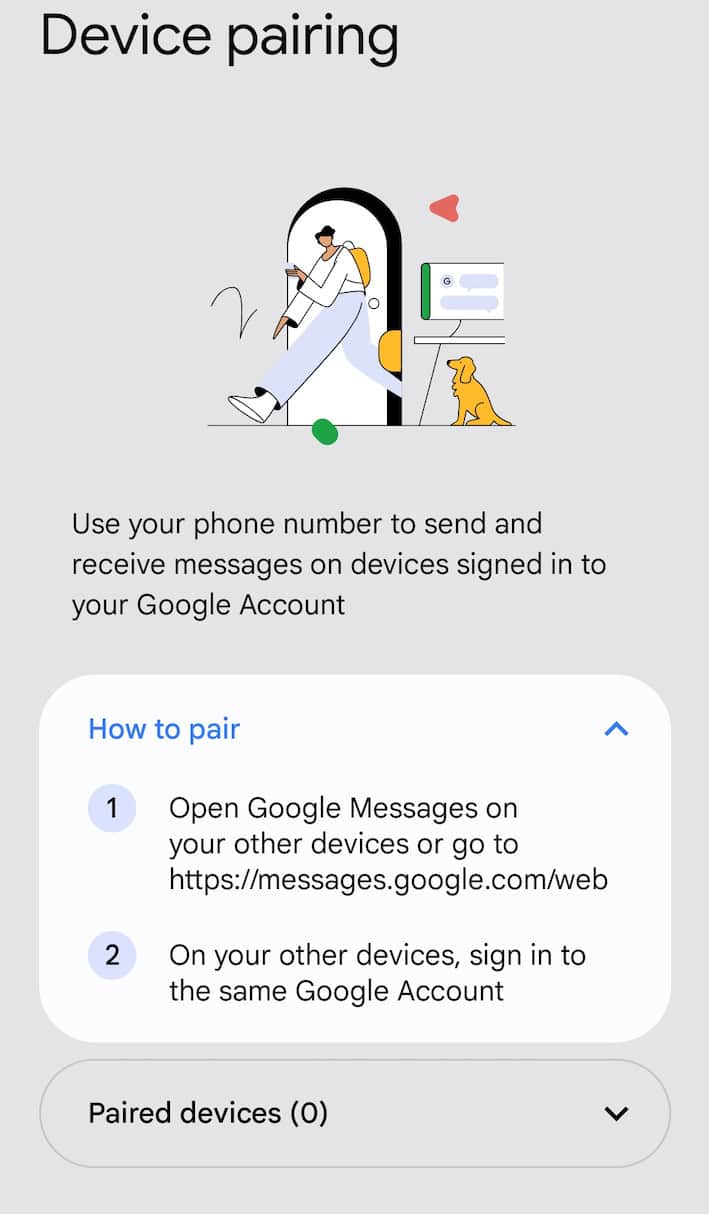
- On your phone, open Google Messages, tap your profile picture, and select Device pairing.
- Tap QR code scanner and scan the code shown on your computer.
- Your conversations will load in the browser. Open the chat you need.
- Select the text and copy it into a document, or take screenshots (Win + Shift + S on Windows, Cmd + Shift + 4 on Mac).
There’s no built-in “export conversation” button. If you need a cleaner record, some third-party Chrome extensions can turn a Google Messages web conversation into a PDF or CSV file.
When you’re done on a shared or work computer, open the menu in Messages for web and select Unpair.
Method 3: Use Phone Link on Windows
Phone Link comes built into Windows 11 and shows your Android texts alongside your notifications, photos, and calls. It’s convenient for day-to-day access, but it only shows recent messages, so it isn’t a real backup.
Requirements: Windows 11, or Windows 10 with the October 2022 update or later, plus a phone running Android 10 or later. Both devices should be on the same Wi-Fi network.
- On your PC, open Phone Link from the Start menu and choose Android.
- Scan the QR code with your phone’s camera. This installs or opens the Link to Windows app.
- Sign in with the same Microsoft account on both devices and allow the requested permissions, including SMS.
- Open the Messages tab in Phone Link to see your texts.
From here, you can copy text or take screenshots.
Workaround A: Copy, Email, or Screenshot a Few Messages
If you only need one or two messages, such as an order number, a one-time code, or a single important text, you don’t need an app.
- Open the conversation in Google Messages.
- Touch and hold the message until it’s highlighted.
- Tap the Copy icon at the top of the screen.
- Paste the text into a new email to yourself in Gmail or any email app, then send it.
- Open the email on your computer and save or print it.
Workaround B: Back Up a Samsung Phone with Smart Switch
Samsung’s free Smart Switch software for Windows and Mac can back up your entire phone, including messages, to your computer. The backup is in Samsung’s own format, so you can’t read your texts on the PC. You can only restore them to a Galaxy phone later. Use this method for a complete safety copy, not for reading or printing.
- Download and install Smart Switch for PC or Mac.
- Connect your Galaxy phone with a USB cable and tap Allow on the phone.
- In Smart Switch, click Backup.
- Select Messages along with anything else you want to save, then start the backup.
Frequently Asked Questions
Can I download my text messages from Google Drive?
No. The SMS backup Android creates in your Google account can only be restored to a phone. To get a file you can open on your computer, use an app like SMS Backup & Restore and save the backup to Google Drive, or download it from there.
Does this work for WhatsApp, Telegram, or Signal?
No. Those apps don’t use your phone’s SMS system. Each has its own export or backup option. In WhatsApp, for example, open the chat, tap the three-dot menu, then More > Export chat.
Will the backup include photos and videos from my texts?
Yes, if MMS backup is turned on in SMS Backup & Restore. Media makes the backup file much larger, so saving it to the cloud or copying it over USB works better than email.
Can I recover texts I already deleted?
Only if they were in a backup made before you deleted them. Backup apps can’t recover messages that were never backed up.
Also Read: How to Find Your Phone Number on Android and iPhone Device
For most people, the best approach is to set up SMS Backup & Restore with a weekly scheduled backup to Google Drive, then run a manual backup whenever you need a complete, up-to-date copy. Use Google Messages for web when you just need to read or copy a conversation on your computer. Whichever method you choose, open the backup and confirm your important chats are in it, especially if you use RCS on Android 17.