
Managing Linux servers is one of those tasks that sounds straightforward until you are actually doing it at 2 AM with a production outage on your hands, five terminal windows open, and no idea which one is connected to which server. If you have been there, you know the problem. And CtrlOps was built specifically to fix it. This review covers what CtrlOps does, who it is built for, how each feature works in practice, and whether it is worth switching to from your current setup.
CtrlOps Review: The AI-Powered Desktop App That Makes Linux Server Management Simple
What Is CtrlOps?
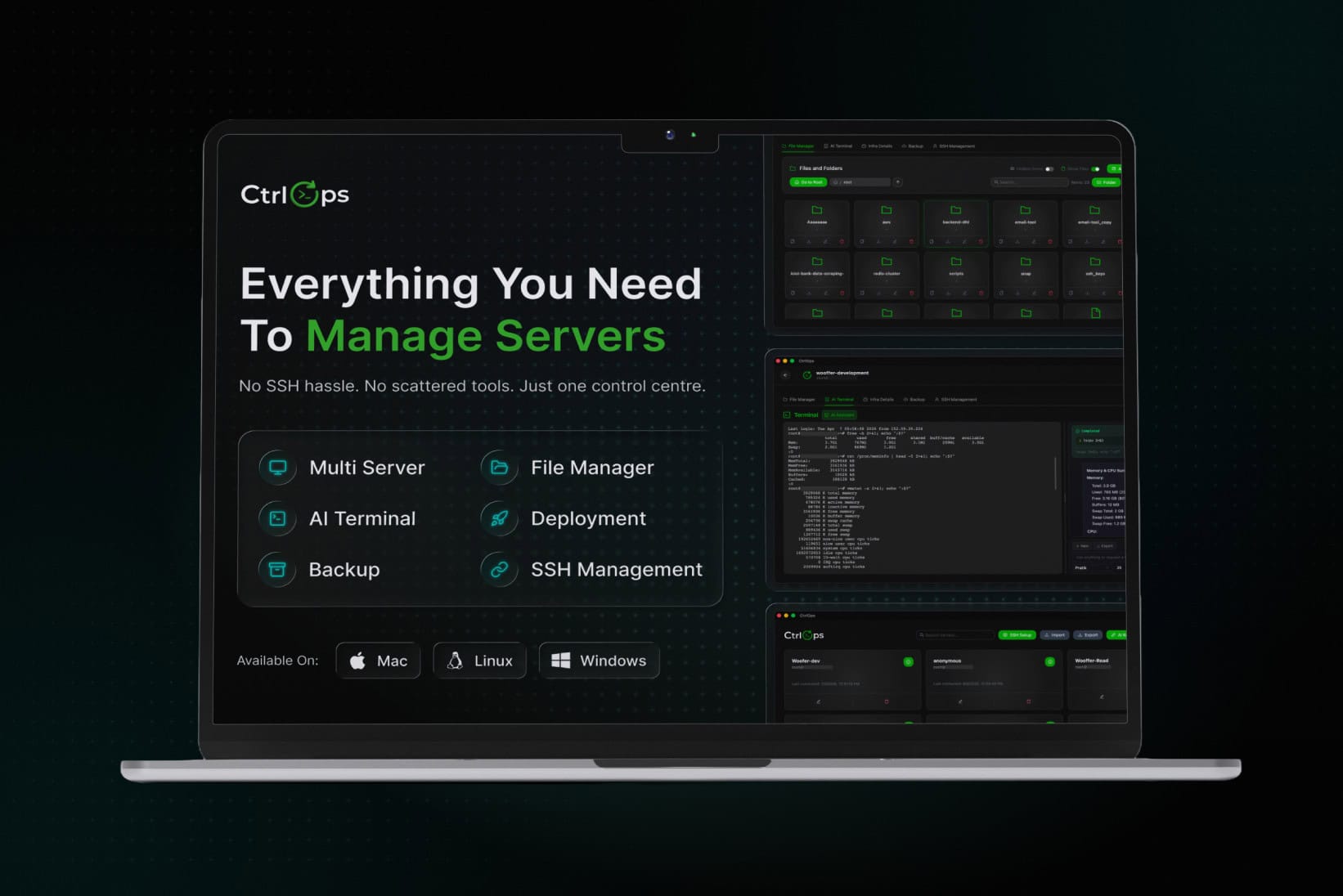
CtrlOps is a desktop application for macOS, Windows, and Linux that brings all your server management tasks into one place. It connects to any Linux server over SSH and gives you a visual interface for things that would otherwise require memorising and running terminal commands.
The headline features are a multi-server directory, an AI-powered terminal, a built-in file manager, one-click app deployment, and a live infrastructure monitoring dashboard. All of it runs entirely on your local machine. Nothing is stored in the cloud.
The product is built around one core idea: a developer who can write solid code should not need to become a Linux expert just to deploy and manage that code on a server. CtrlOps bridges that gap without removing the terminal for those who want it.
Current stats from the platform:
- 1,250+ servers under management
- 8,940+ deployments completed
- 15,420+ backups executed
- Average deployment time: under 30 seconds
Who Is CtrlOps Actually For?
CtrlOps targets a specific type of user: technically capable but not a dedicated DevOps specialist.
Freelance developers managing multiple client servers are a natural fit. If you currently have a spreadsheet of IP addresses, a sticky note of SSH commands, and three different apps open to do one deployment, CtrlOps collapses all of that into one window.
Small startup teams where the CTO or a senior developer owns the infrastructure by default are another core use case. When one person knows all the server details and nobody else can cover them during an incident, that is a serious operational risk. CtrlOps solves the knowledge-in-one-person problem by making the infrastructure self-serve for the whole team.
Technical founders who built their own product and need to manage the servers without hiring a DevOps engineer will find the AI terminal and one-click deployment particularly useful. The tool reduces what used to be a 60-minute manual process to something that takes under five minutes.
Agencies managing staging and production for multiple clients can use CtrlOps to organise servers by client name, share the setup across team members, and handle deployments without SSH command knowledge at the developer level.
The tool is not aimed at large enterprise teams with dedicated infrastructure departments. Those teams already have Ansible, Terraform, and full CI/CD pipelines. CtrlOps fills the gap for the 2 to 15 person team that does not have that setup and needs something that works right now.
7 Key Features Explained
1. Multi-Server Directory
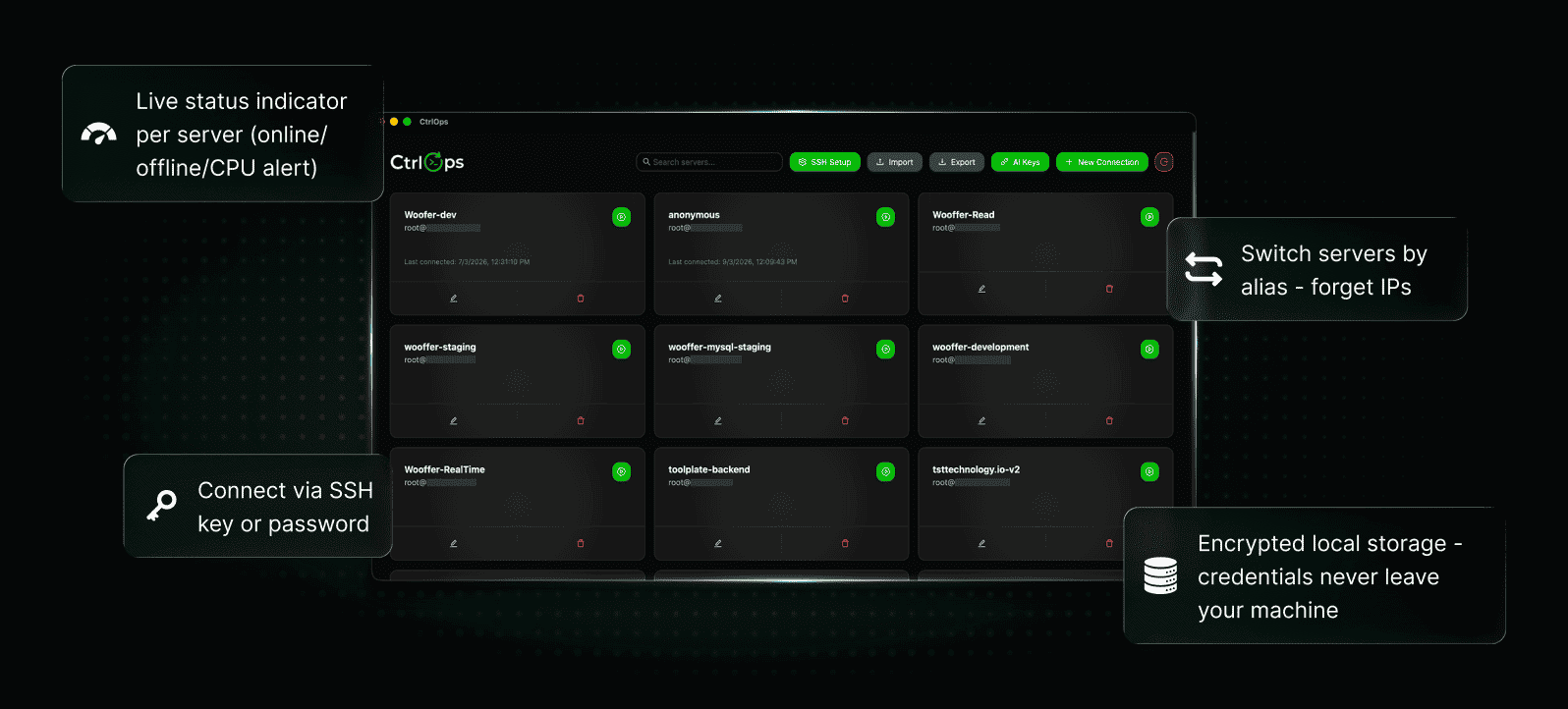
The first thing you see when you open CtrlOps is a dashboard of all your connected servers. Each server appears as a named card: you give it a human-readable label like “prod-api” or “client-xyz-staging” rather than staring at raw IP addresses.
One click on the play button connects you instantly. No typing, no IP lookup, no credential retrieval from a spreadsheet. Connection status, last connected time, and server name are shown clearly on each card.
You can connect via standard SSH key or upload a .pem file directly for AWS-style authentication. Server lists can be exported and imported, so onboarding a new team member means sharing a file rather than walking them through a setup session.
This single feature alone fixes what is probably the most common small-team pain point: maintaining a shared Google Sheet or Notion page of server IPs that goes stale, gets corrupted, or requires a degree of trust to share securely. The directory makes the spreadsheet unnecessary.
2. AI Terminal
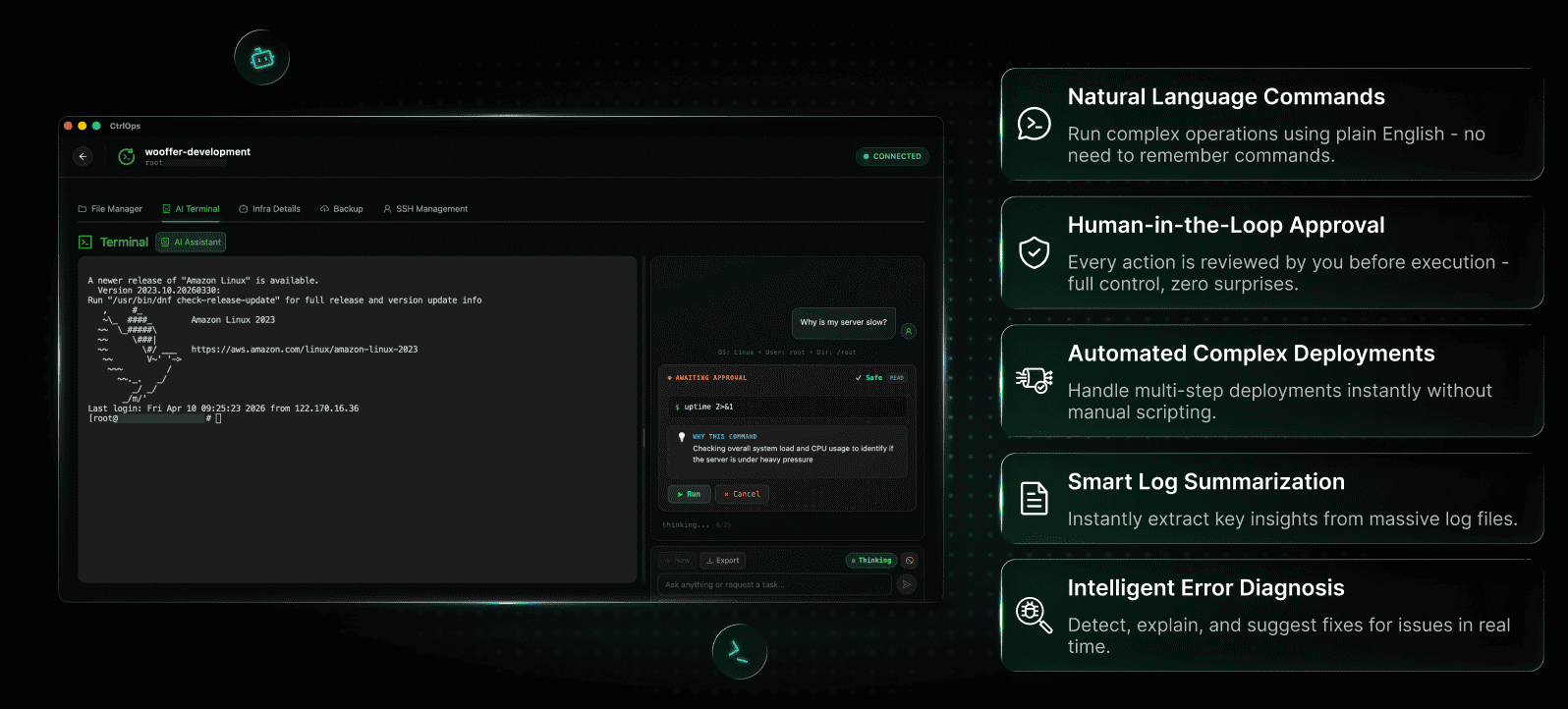
The AI Terminal is the feature that makes CtrlOps genuinely different from every other SSH client on the market.
It works like this: you type what you want to do in plain English. The AI generates the appropriate shell command. You see the command before it runs, review it, and click approve. The command executes on your server via the live SSH session, and the AI then gives you a human-readable summary of the output.
Some example prompts that work out of the box:
- “Why is my server slow?”
- “Check memory and CPU”
- “Show recent error logs”
- “Restart the crashed service”
- “Clean up disk space safely”
The AI has live access to your server’s processes, logs, and metrics. That is the critical difference from copying and pasting logs into ChatGPT in a separate tab. When you ask “why is CPU at 87%?”, the AI is already looking at your actual running processes and gives you a specific answer, not a generic one.
CtrlOps supports multiple AI providers through your own API key. You can connect OpenAI (GPT-4o and others), Google Gemini, Anthropic Claude, or any OpenAI-compatible provider like Groq or local models. You control which model you use and what you pay for AI access. CtrlOps does not mark up or monetise your AI usage.
For power users who do not want to approve every command, there is an Auto-Run mode that skips the approval gate. This is off by default, which is sensible: the default experience keeps a human in the loop before anything touches your server.
The AI Terminal is particularly useful during incidents. A developer who is not a Linux expert can describe a symptom in plain English and get a step-by-step investigation and fix, without needing to know whether they should be running journalctl or dmesg or top.
3. One-Click App Deployment
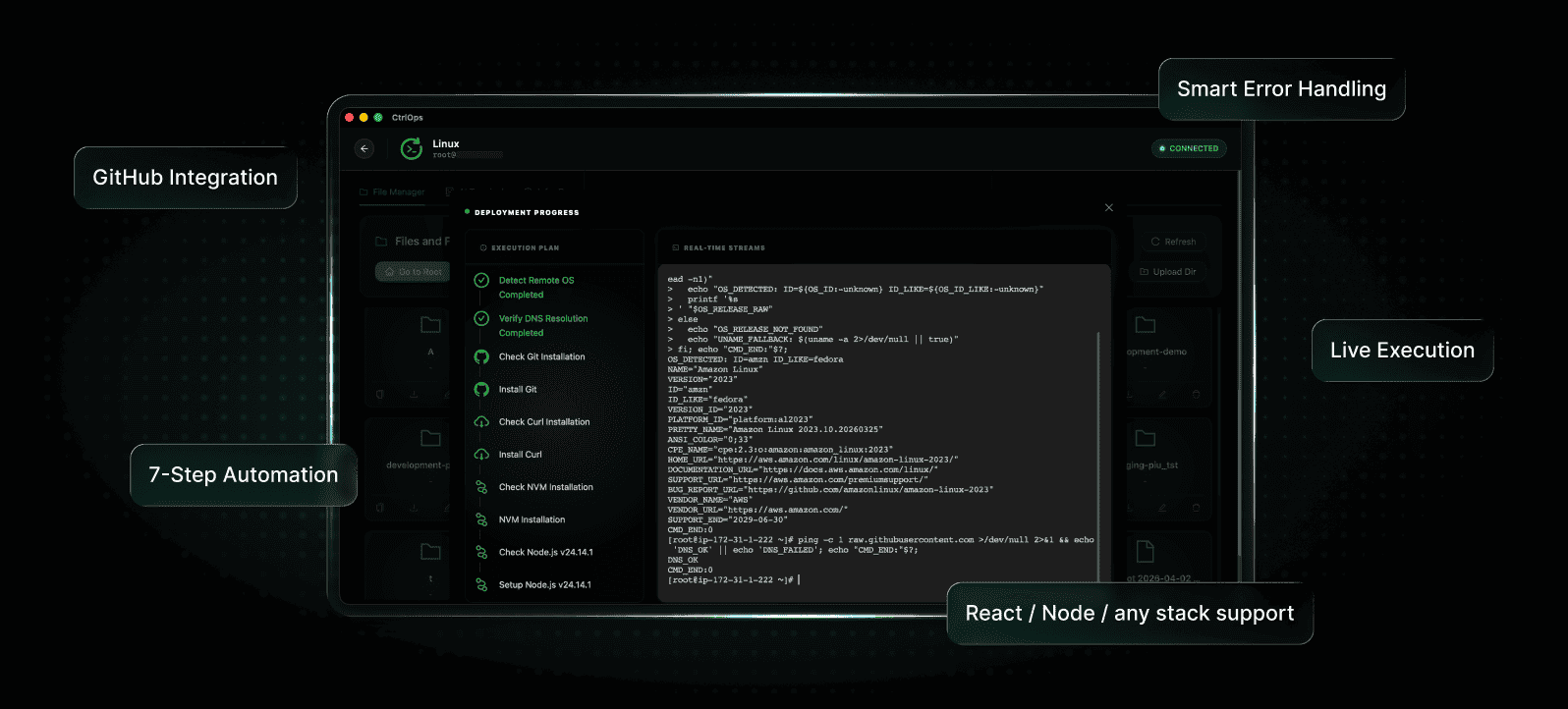
Deploying a Node.js, React, or Next.js app to a VPS manually is one of the more frustrating experiences in web development. You clone the repo, install the correct Node version, run the build, configure PM2 for process management, set up Nginx as a reverse proxy, open firewall ports, run Certbot for SSL, and then wonder why it is not working. Most developers have to stitch together six or seven different guides to get it right the first time.
CtrlOps replaces all of that with a form.
From the File Manager, click “Add Application” and fill in the following:
- Application name and environment (Development, Staging, or Production)
- GitHub repository URL (supports private repos via GitHub token)
- Node.js version
- Application type: Node.js, React, Next.js, or build folder
- Environment variables (paste your entire .env file at once via bulk paste)
- Domain name
- SSL via Certbot (toggle on/off)
Click Create, and CtrlOps handles the build, PM2 process setup, Nginx configuration, and SSL certificate installation automatically. Average deployment time is under 30 seconds.
For teams currently paying for Heroku, Render, or Railway to avoid this complexity, this feature alone makes the switch to a cheaper VPS realistic. A Next.js app that costs thousands per month on a managed platform can run on a VPS for a fraction of the price, with CtrlOps handling the deployment complexity that made self-hosting feel too risky.
Also Read: 15 Best IRC Clients for Mac and Linux
4. Built-In File Manager
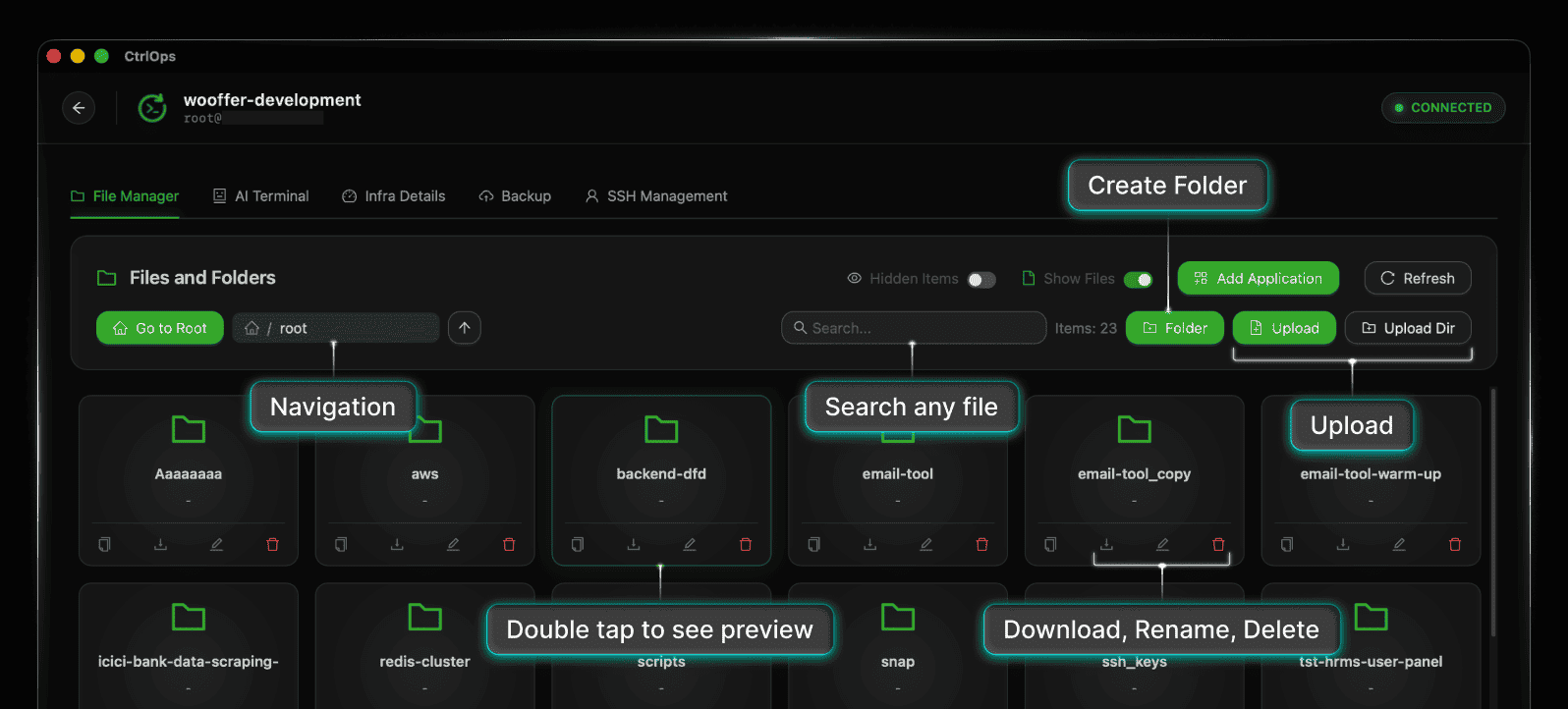
The File Manager is a full GUI browser for your server’s file system, like Finder or Windows Explorer but for your remote server. It opens as the first tab when you connect to any server.
You can browse the entire directory tree visually, toggle hidden files on or off, search by name, and see item counts per directory. Every file and folder supports download, upload, create, rename, delete, and edit operations from within the interface.
For teams that previously used WinSCP, Cyberduck, or manual SCP commands for file transfers, this removes an entire separate tool from the workflow. Updating an Nginx config, uploading a build artifact, or clearing old log files all happen inside the same application you are already using for SSH access.
5. Infra Monitoring Dashboard
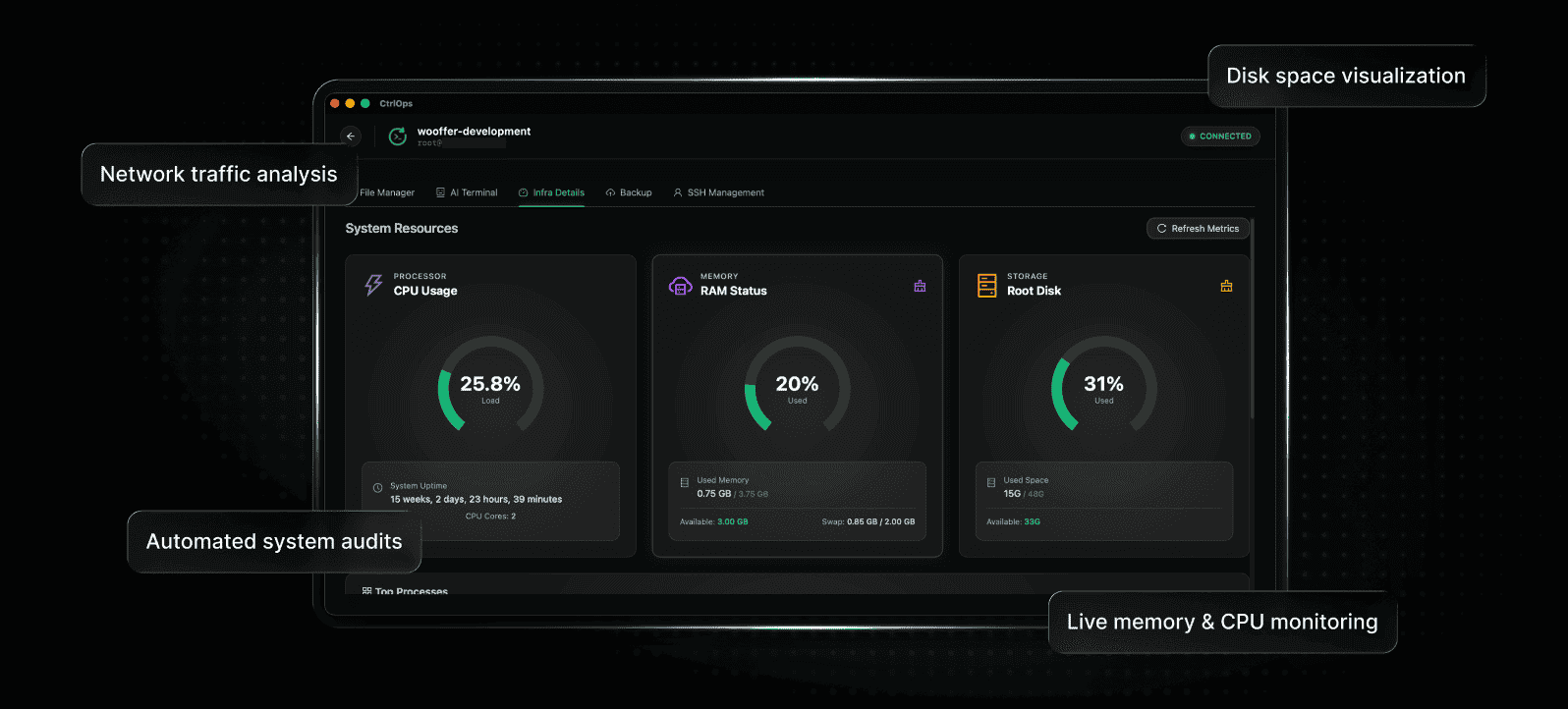
The Infra Details tab gives you a real-time view of CPU usage, RAM status (used, available, swap), disk storage, and a table of all running processes with their CPU and memory percentages.
Two practical one-click actions are available: Clean Cache (clears RAM cache) and Clean Old Buffers (frees up disk buffer memory). These are the kinds of quick fixes that would otherwise require knowing the exact commands and flags to run safely.
For teams without a dedicated monitoring tool, this gives enough visibility to catch problems before users do. You can see that disk is climbing toward full capacity before an app throws 500 errors. You can spot a runaway process eating memory before the server becomes unresponsive.
It is not a replacement for a dedicated monitoring service on large fleets. But for a team managing three to twenty servers, it is exactly the level of visibility needed without the overhead of setting up something like Prometheus and Grafana from scratch.
6. Automated Backups
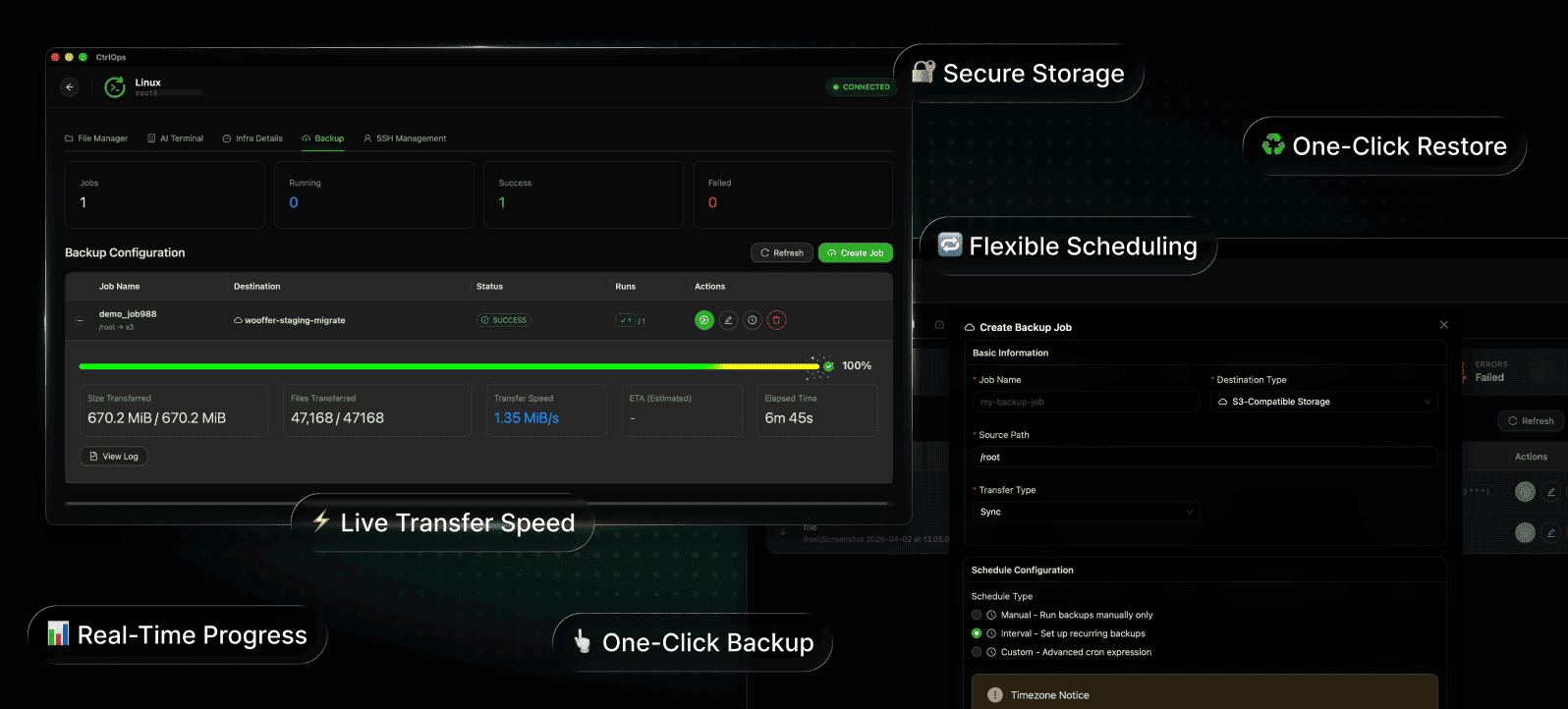
Automated backups are included as a core feature within each connected server view. You configure the schedule once and CtrlOps handles execution and logging.
This matters because backup setup is the task that most small teams know they should do and almost never actually do. It is genuinely easy to defer until a disk fails. CtrlOps removes the excuse by making it a first-class feature that takes minutes to configure rather than a project in itself.
The dashboard tracks backup history and execution status, so you can verify that backups are running correctly without having to SSH in and check manually.
7. SSH Setup Wizard
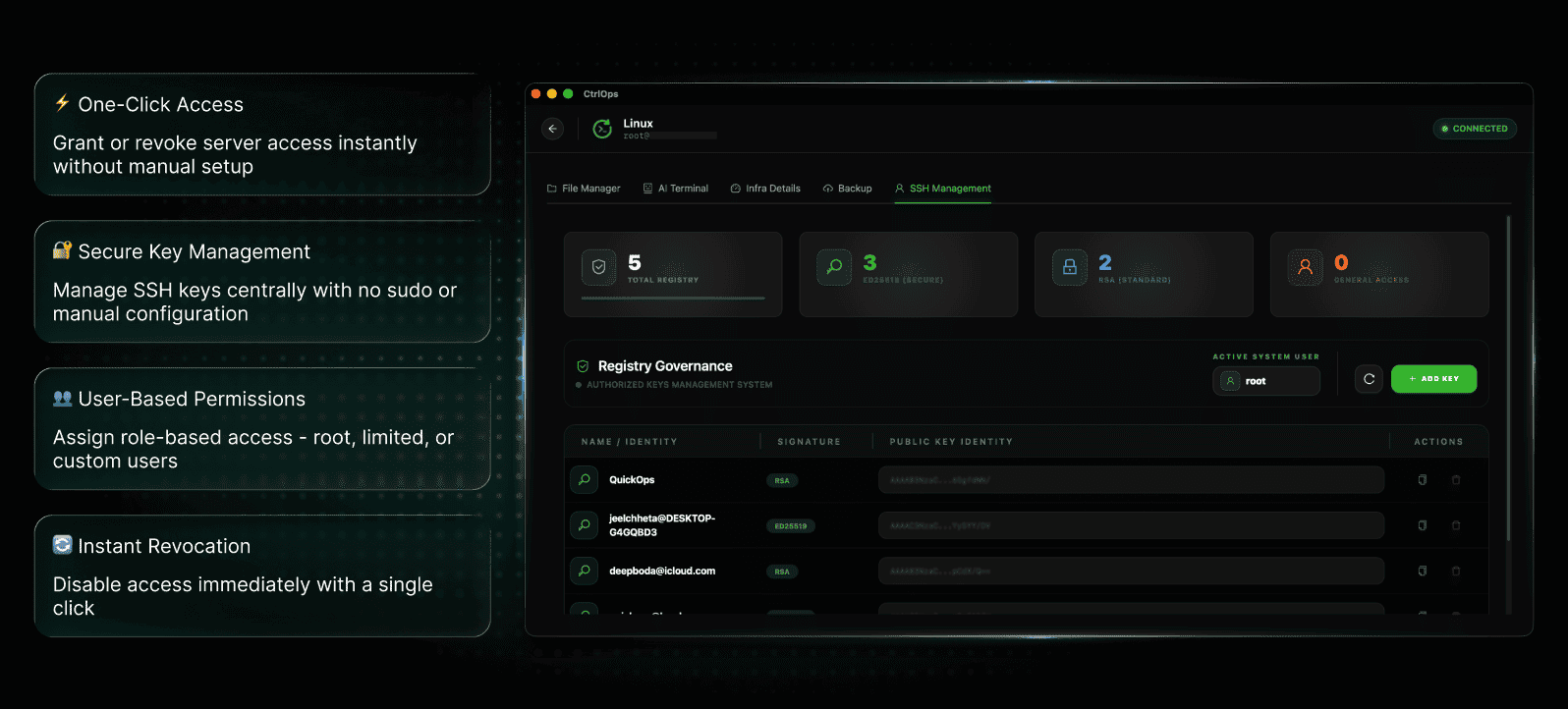
For users who are new to SSH or setting up a new machine, CtrlOps includes a guided SSH setup wizard. It walks through SSH installation, key generation, and the exact steps to add your public key to a server, with one-click copy buttons for each key and pre-filled commands for the manual setup path.
This is a small feature but a meaningful one. SSH key setup trips up a lot of developers who are otherwise capable. Having the guidance built into the same tool where you will use the keys removes the context switch to Stack Overflow and reduces setup errors.
How CtrlOps Handles Security
The security model is worth understanding before adopting any tool that touches production servers.
CtrlOps is local-first by design. Every piece of sensitive data: SSH keys, server IPs, credentials, and connection details stays encrypted on your local machine. Nothing is uploaded to CtrlOps servers. The company states they literally cannot see your data.
This is a meaningfully different security posture from tools like Termius, which sync keys to the cloud. If your client contracts or compliance requirements prohibit storing credentials on third-party infrastructure, CtrlOps is compliant where those tools are not.
The AI terminal follows an approve-before-execute model. Every command the AI generates is shown to you before it runs. You see exactly what will be executed, on which server, and you decide whether to run it. This prevents the kind of mistake where an AI confidently generates a dangerous command and runs it without giving you a chance to review it.
CtrlOps only requires an SSH key to connect to your servers. It does not need your AWS IAM credentials, GCP service account, or Azure credentials. The access scope is limited to the server over SSH, which limits the blast radius significantly if anything were to go wrong.
AI provider keys (for the AI Terminal) are encrypted at rest with AES-256 and stored locally. They are never sent to CtrlOps servers.
CtrlOps vs. Alternatives
Here is how CtrlOps sits relative to the tools it most commonly replaces:
vs. PuTTY + WinSCP + separate monitoring + ChatGPT
This is the four-app combination that most solo developers and small teams currently use. CtrlOps replaces all of it with a single application. The time saved from tool-switching alone is significant across a week of work.
vs. Termius
Termius is the most direct comparison as an SSH client. Termius offers clean SSH access and multi-device sync. CtrlOps adds AI-assisted debugging, one-click deployment, a built-in file manager, and infra monitoring that Termius does not have. The other key difference is local vs. cloud: CtrlOps keeps credentials on your machine; Termius syncs them to the cloud.
vs. MobaXterm
MobaXterm is Windows-only and feature-heavy in a way that makes it complex to navigate. CtrlOps is cross-platform, more modern in its interface, and adds the AI terminal layer that MobaXterm lacks.
vs. Ansible/Terraform/full CI/CD pipelines
Enterprise-grade infrastructure tools are a completely different category. They require significant setup time and DevOps knowledge to use correctly. CtrlOps is not competing with these tools for teams that already have them. It is the option for teams that do not have the budget, time, or headcount to implement enterprise tooling and need something that works today.
Pricing
CtrlOps offers a 28-day free trial with no credit card required.
Monthly plan: $3.50/month (approx.) or INR 299/month
Includes unlimited server connections, AI Terminal, advanced File Manager, multi-server fleet management, one-click deployments, simplified user registry, and all updates.
Annual plan: $35/year (approx.) or INR 2,999/year
Everything in the monthly plan plus a 20% discount, priority email support, and early access to new features. Works out to roughly INR 250 per month.
Enterprise: Coming soon
Will include dedicated account management, SLA guarantee (99.9% uptime), custom integrations and API, SSO/team provisioning, and on-premise deployment.
No auto-renewal without notice. No hidden fees.
For context, this is less than the cost of one hour of freelance DevOps work. For a team replacing manual deployments that take 30 to 60 minutes each, the time savings make the pricing straightforward to justify.
How to Get Started
Setup takes under five minutes:
- Go to ctrlops.io and download the version for your platform (macOS Apple Silicon, macOS Intel, Windows, or Linux).
- Install and open the app. It will ask for a license key on first launch.
- Go to ctrlops.io, sign in with Google or email, and retrieve your license key from the dashboard. The trial is active immediately with no credit card required.
- Paste the license key into the app and activate it.
- Click “+ New Connection,” enter your server details (SSH or .pem), and connect.
Your first server is added and accessible in one click from that point forward.
FAQ
Is CtrlOps completely free to start?
Yes. The 28-day free trial requires no credit card. You get full access to all features during the trial period.
Does CtrlOps store my SSH keys or passwords on their servers?
No. SSH keys, server credentials, and all connection data are stored encrypted on your local machine only. CtrlOps has no access to this data.
Which operating systems does CtrlOps support?
CtrlOps runs natively on macOS (both Apple Silicon and Intel), Windows, and Linux.
Do I need to install any software on my servers to use CtrlOps?
No. CtrlOps is completely agentless. It communicates over standard SSH, which is already present on any Linux server. Nothing needs to be installed or maintained on the remote server.
Which cloud providers does CtrlOps work with?
Any server accessible via SSH. This includes AWS EC2, Google Cloud, Azure, DigitalOcean, Linode, Vultr, Hetzner, any VPS provider, and bare metal servers. If SSH is enabled and the server runs Linux, CtrlOps can manage it.
What AI providers work with the AI Terminal?
OpenAI (GPT-4o and other models), Google Gemini, Anthropic Claude, and any OpenAI-compatible API including Groq and local models. You supply your own API key and the key is stored locally.
Can non-technical team members use CtrlOps?
Yes, that is one of its core design goals. The visual interface, named server aliases, one-click deployments, and AI Terminal make it possible for developers without Linux knowledge to handle common server tasks independently.
How is CtrlOps different from a CI/CD pipeline?
CI/CD pipelines handle automated code delivery. CtrlOps handles live server management: SSH access, file operations, monitoring, diagnostics, and the gaps between your deployment pipeline and your production environment. They serve different purposes and many teams use both.
Does CtrlOps work offline?
After installation, the app works without internet for any task that goes through your local SSH connection to your server. Server data, credentials, and aliases are all stored locally.
Is there an enterprise or team plan?
An enterprise tier is coming soon and will include team provisioning, SLA guarantees, custom integrations, and on-premise deployment options. Current teams can use the Pro plan and share server configurations via the export/import feature.
CtrlOps is genuinely useful for a well-defined audience: developers and small teams who manage Linux servers without a dedicated DevOps person and are tired of the overhead of juggling multiple tools.
The AI Terminal is the standout feature, not because AI is a novel addition everywhere, but because having an AI assistant that already has context about your actual server is meaningfully different from switching to ChatGPT in another tab. The approve-before-execute model keeps it safe for production use.
The local-first security approach is the right architectural decision for this category of tool. Credentials on your own machine, nowhere else, is a strong default.
The pricing is easy to justify given the time savings, especially for freelancers billing by the hour and startup teams where a senior developer’s time is expensive to spend on manual deployments.
If your current server management workflow involves a spreadsheet of IPs, four open terminal windows, and manual git pull deployments, CtrlOps is worth the 28-day trial to see how much of that you can replace.
Try CtrlOps: ctrlops.io | Free 28-day trial, no credit card required.
Disclaimer: This article is based on publicly available product information and is intended for informational purposes. Readers should verify pricing, features, and availability directly with the vendor before making purchasing decisions.



Thanks for this insightful post! At Trellis2 we’re working on AI-powered 3D generation and found your perspective valuable.