Are certain websites failing to load properly even though your internet connection appears to be working? You may also notice problems such as VPN disconnections, online games getting stuck, downloads stopping unexpectedly, or some applications working while others fail.
In some cases, these issues can occur when the Maximum Transmission Unit, or MTU, is not suitable for the network path being used.
Windows 10 allows you to view and change the MTU using Command Prompt or PowerShell. However, you should determine the correct value before changing it because an unsuitable MTU may create additional connection problems.
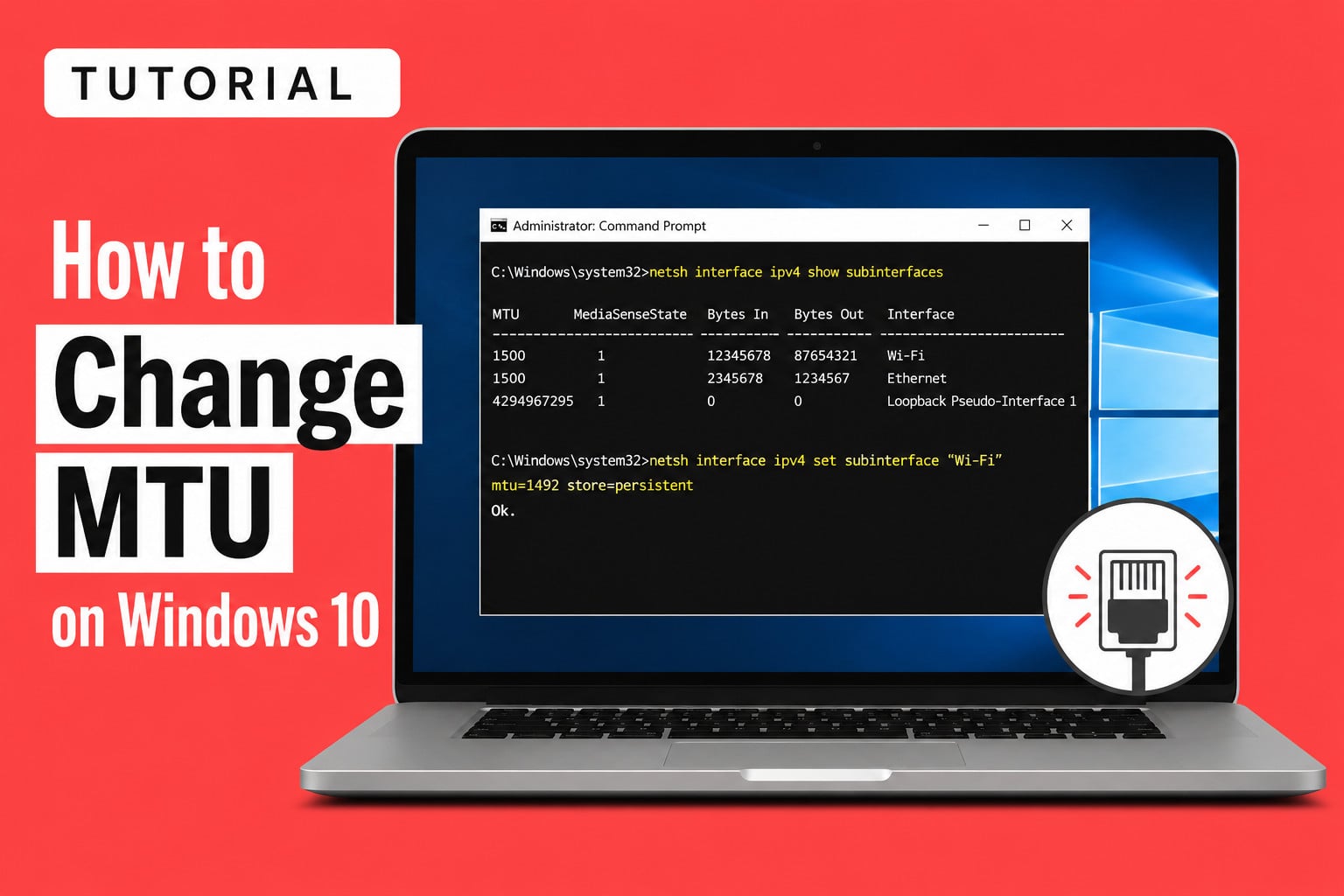
How to Change MTU on Windows 10
MTU stands for Maximum Transmission Unit. It defines the largest network-layer packet that an interface can transmit without dividing it into smaller fragments.
The best usable packet size for an internet connection depends on the smallest MTU supported by any device or network segment between your computer and the destination. This is known as the Path MTU.
A typical Ethernet connection commonly uses an MTU of 1500 bytes. However, VPNs, tunnels, PPPoE connections, mobile networks, and other forms of encapsulation may require a smaller value.
Changing the MTU does not automatically increase internet speed. It is primarily useful when diagnosing problems caused by packet fragmentation or an incorrect path MTU.
Quick Answer
To change the IPv4 MTU on Windows 10, open Command Prompt as administrator and run:
netsh interface ipv4 show subinterfaces
Note the exact name of your active network interface, such as Wi-Fi or Ethernet, and then run:
netsh interface ipv4 set subinterface "Wi-Fi" mtu=1500 store=persistent
Note: Replace Wi-Fi and 1500 with your interface name and required MTU value. Microsoft documents store=persistent as the option that retains the setting after restarting Windows.
Before You Change the MTU
Before proceeding, keep the following points in mind:
- Record your current MTU so that you can restore it later.
- Change only the network interface you actually use.
- Do not enter 9000 unless you are intentionally configuring jumbo frames on a compatible private network.
- Test the connection after making the change.
- Use an administrator account because changing network settings requires elevated permissions.
Is it Safe to Change MTU on Windows 10?
Changing MTU is generally reversible, but an incorrect value can interfere with the network connection.
An MTU that is too large for the path may result in:
- Websites loading partially
- VPN connections failing
- Downloads freezing
- Games disconnecting
- Some applications working while others do not
An unnecessarily small value creates more packets for the same amount of data, which adds overhead and may reduce efficiency.
Record the original value, change only the active interface, and restore the old MTU when the new value does not resolve the problem.
How to Check the Current MTU on Windows 10
Follow these steps to view the existing MTU for each network interface:
1. Press the Windows key and search for Command Prompt.
2. Select Run as administrator.
3. Click Yes in the User Account Control prompt.
4. Enter the following command:
netsh interface ipv4 show subinterfaces
Windows will display a list containing the MTU, interface name, and network traffic information for each IPv4 subinterface. The Microsoft netsh documentation lists show subinterfaces as the command for displaying these settings.
Look for the interface currently connected to the internet. It will usually be named:
- Wi-Fi
- Ethernet
- A VPN adapter name
- A custom name assigned by the user or network software
Write down both its name and current MTU value.
How to Change MTU on Windows 10 via Command Prompt
You can change the MTU settings through your command prompt. Follow the steps mentioned below to do the same:
1. Open Command Prompt from search and click on Run as administrator.
2. Select Yes to confirm your action.
3. Run the following command to confirm your interface name:
netsh interface ipv4 show subinterfaces
4. Next, enter the following command:
netsh interface ipv4 set subinterface "INTERFACE-NAME" mtu=MTU-VALUE store=persistent
For example, to set the Wi-Fi interface to an MTU of 1492, enter:
netsh interface ipv4 set subinterface "Wi-Fi" mtu=1492 store=persistent
For an Ethernet interface, the command may look like:
netsh interface ipv4 set subinterface "Ethernet" mtu=1500 store=persistent
Replace the interface name with the exact name shown on your computer. Keep the quotation marks when the interface name contains spaces.
Microsoft defines the mtu parameter as the MTU assigned to the IPv4 subinterface. The persistent store keeps the change after a restart, while the active store applies it only until the next reboot.
5. You should see an Ok. confirmation.
6. Run the following command again to verify the new value:
netsh interface ipv4 show subinterfaces
7. Restart the affected application or reconnect the network. Restarting Windows is usually not required, although it can help if an application continues using an existing connection.
This is the easiest way to check and change your MTU settings in Windows 10.
How to Determine the Best MTU Value
You should not choose an MTU randomly. Windows includes a ping option that can help test the largest IPv4 packet that reaches a destination without fragmentation.
The Windows ping command supports:
- /l to specify the amount of data in the ICMP Echo Request
- /f to set the IPv4 Do Not Fragment flag
Microsoft specifically identifies the /f option as useful for troubleshooting Path MTU problems.
Step 1: Start With a 1472-Byte Payload
Open Command Prompt and enter:
ping 1.1.1.1 -f -l 1472
You may also test a server or domain involved in the connection problem:
ping example.com -f -l 1472
The value 1472 represents the ping data payload rather than the entire IPv4 packet.
Step 2: Check the Result
When the packet succeeds, you should see replies similar to:
Reply from 1.1.1.1: bytes=1472 time=...
When it is too large for the path, Windows may display a message similar to:
Packet needs to be fragmented but DF set.
Step 3: Reduce the Payload Size
If 1472 fails, reduce it gradually:
ping 1.1.1.1 -f -l 1462
Then try:
ping 1.1.1.1 -f -l 1452
Continue reducing the number until you receive successful replies.
After finding a working number, increase it one byte at a time to identify the largest payload that succeeds consistently.
For example:
ping 1.1.1.1 -f -l 1453
ping 1.1.1.1 -f -l 1454
ping 1.1.1.1 -f -l 1455
Step 4: Add 28 Bytes
Windows /l parameter controls only the data field of the ping request, not the complete packet. A standard IPv4 ping normally adds:
- 20 bytes for the IPv4 header
- 8 bytes for the ICMP header
Therefore:
Recommended MTU = Largest successful ping payload + 28
RFC 791 describes a typical IPv4 header as 20 bytes, while the ICMP Echo format defined by RFC 792 contains an 8-byte header before its data field.
For example, when the largest successful payload is 1464:
1464 + 28 = 1492
You can then test an MTU of 1492 on that interface.
Important Limitation of the Ping Test
The result applies to the network path between your computer and the destination you tested. A different website, VPN server, game server, or application may use another route with a different Path MTU. The Path MTU is determined by the smallest supported MTU across the hops used to reach that particular destination.
Do not reduce the Windows MTU based on a single unsuccessful ping unless the connection problem is repeatable and the destination normally responds to ping requests.
How to Restore the Previous MTU
Use the value you recorded before changing the setting.
For example:
netsh interface ipv4 set subinterface "Wi-Fi" mtu=1500 store=persistent
You can also restore it with PowerShell:
Set-NetIPInterface -InterfaceAlias "Wi-Fi" -AddressFamily IPv4 -NlMtuBytes 1500
After restoring the value, disable and re-enable the network connection or restart Windows.
Also Read: How to Download Synaptic TouchPad Driver on Windows 10/11 64-bit
Windows 10 allows you to change the MTU using either Command Prompt or PowerShell. The recommended approach is to first view the current interface settings, use an IPv4 ping test to estimate a suitable Path MTU, and then apply the new value only to the affected interface.