Windows now ships with OpenSSH built in. But anyone managing more than a couple of servers knows the built-in option runs out of road fast.
You end up with six PowerShell windows open, a spreadsheet of IP addresses, and no idea which tab is connected to production. One wrong command in the wrong window and you restart a production database instead of the staging app. Or you run rm -rf on a directory that turns out to be live customer uploads.
The problem is not the terminal itself. It is that nothing stops you from mixing up which server you are connected to.
The good news: the SSH client landscape on Windows has changed a lot. Some tools now include AI terminals, visual file managers, and live server monitoring. These features did not exist in this category even two years ago.
So we have complied a list of best SSH clients for Windows and we’ve tested each tool below against the same real-world tasks: connecting to multiple servers, transferring files, and debugging a live issue under time pressure.
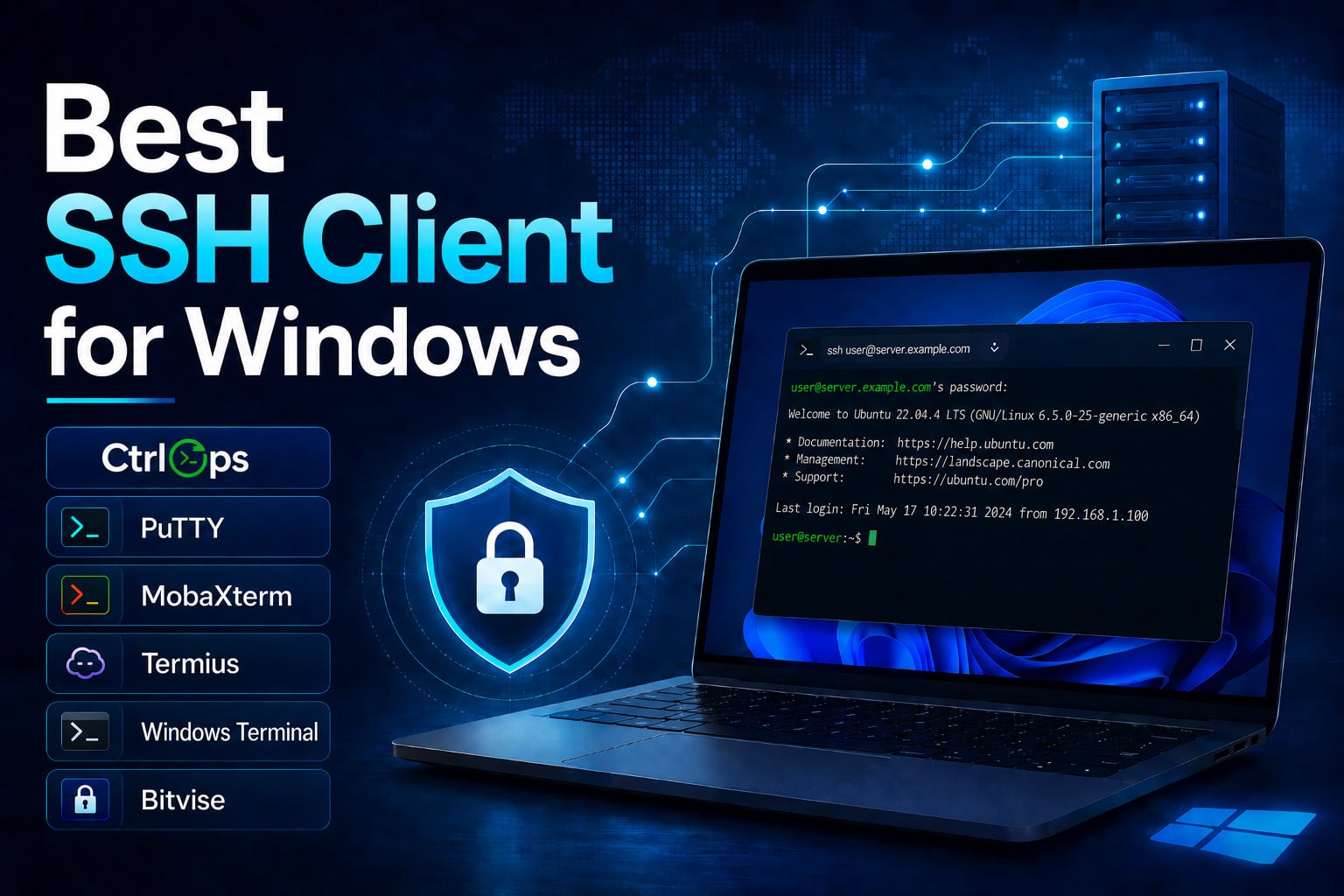
7 Best SSH Clients for Windows in 2026
The best SSH clients for Windows in 2026 are CtrlOps, PuTTY, MobaXterm, Termius, Windows Terminal + OpenSSH, Bitvise SSH Client, and Warp. CtrlOps leads the list with a full server management platform that combines an approval-gated AI terminal, visual file manager, one-click deployment, log management, and fleet-wide access control in a single desktop app. PuTTY remains the go-to free option for quick connections. Termius is best for cross-device sync. Warp offers the most modern AI-powered terminal experience.
Here are the 7 best SSH clients for Windows in 2026, ranked by how well they handle actual day-to-day server work.
1. CtrlOps
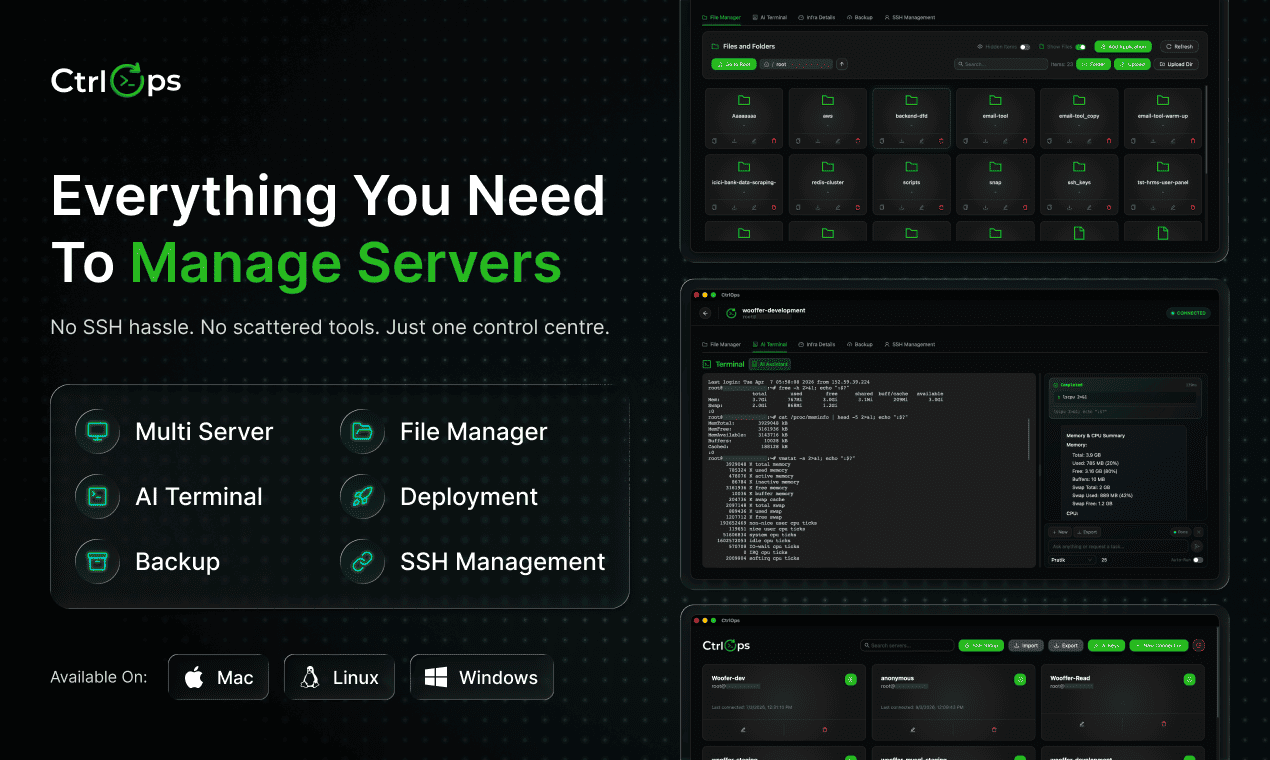
CtrlOps is not just an SSH client. It is a full server management platform built as a desktop app for Windows, macOS, and Linux.
Where traditional SSH clients stop at giving you a terminal connection, CtrlOps goes further. It adds an AI-powered terminal with real-time web search and MCP integration, a visual file manager, one-click app deployment, infrastructure monitoring, automated backups, log management, SSH key governance, fleet-wide access control, and a reusable script directory. All of it runs inside a single window with multi-tab support for simultaneous server sessions.
AI Terminal with Live Server Context
The standout feature is the AI Terminal. Type what you want to do in plain English, like “why is my server slow?” or “show recent error logs.”
The AI generates the exact shell command, shows it to you for review, and only runs it after you approve. Unlike pasting logs into ChatGPT in a separate tab, this AI already has live context about your actual server. It knows your running processes, memory usage, and active services. Answers are specific, not generic.
The AI Terminal supports multiple providers through your own API key: OpenAI, Anthropic Claude, Google Gemini, and any OpenAI-compatible provider.
You control which model you use and what you pay.
Real-Time Web Search and MCP Integration
The AI Terminal also supports real-time web search through Tavily, Brave, or DuckDuckGo. When enabled, the AI searches the latest documentation before generating commands. You never get outdated install instructions from a stale training cutoff.
MCP (Model Context Protocol) integration takes this further. Connect Context7 for official docs, GitHub for your repositories, or your local filesystem. The AI reads your actual context before suggesting anything. Custom MCP servers over HTTP, SSE, or local process are also supported.
Command Auto-Suggestions
The console includes inline command auto-suggestions. As you type, CtrlOps shows matching commands in a dropdown with plain-English descriptions. You can tell pm2 logs apart from pm2 login before you hit enter.
Local-First Security
CtrlOps stores all SSH keys and credentials in encrypted local storage on your machine. Nothing ever syncs to the cloud.
For freelancers and agencies handling client infrastructure, this local-first approach means you are compliant with strict security requirements out of the box.
One-Click Deployment
One-click deployment handles Node.js, React, and Next.js apps. Fill in a form with your GitHub repo, Node version, domain, and environment variables.
CtrlOps handles PM2 process setup, Nginx configuration, and Certbot SSL installation automatically. What takes 30-45 minutes manually is done in under 5 minutes.
Script Directory
The Script Directory lets you write shell scripts once and reuse them across every server. Use {{variablename}} placeholders for values that change between servers.
CtrlOps prompts you for each value at runtime and shows the final command before executing. No more copy-pasting the same nginx install commands across 10 servers.
SSH Management and Access Control
SSH Management gives you a per-server key registry. See every authorized key, its type (ED25519 or RSA), and the system role it is assigned to. Create custom user roles with read-write or read-only permissions, and revoke keys with one click.
Access Management scales this across your fleet. View every person who can access any server. Onboard a teammate to multiple servers at once, or offboard someone from all servers in a single confirmed action. Export an audit snapshot anytime for compliance.
Log Management
The Logs tab auto-discovers every log file on your server. It groups them by source: Nginx access and error logs, PM2 process logs, and everything else running.
Open any log in a built-in viewer with search, adjustable line count (200 to 5,000), live follow mode (like tail -f without holding an SSH session), one-click download, and the option to clear old logs to reclaim disk space.
No path hunting. No grep fluency required.
Multi-Tab Windows
Multi-tab windows let you connect to multiple servers simultaneously. Each server opens in its own isolated tab with its own File Manager, Console, AI Terminal, and Logs.
Nothing bleeds across tabs. You always know whether you are looking at prod or staging before you type.
Pricing: $7/user/month (monthly) or $70/user/year (yearly). 1 month free trial, no credit card required.
Platforms: Windows, macOS (Apple Silicon + Intel), Linux
Best for: Developers and small teams who manage Linux servers and want SSH, file management, deployment, monitoring, log viewing, access control, and reusable scripts in one app.
Also Read: CtrlOps Review: AI-Powered Linux Server Management Tool
2. PuTTY
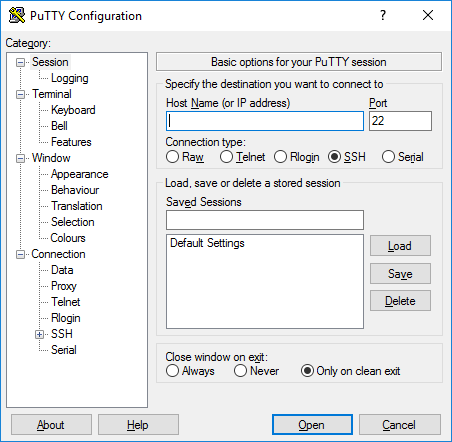
PuTTY has been the default free SSH client on Windows for over two decades. It still works exactly the way it always has: lightweight, open source, and focused on one thing. It gives you a terminal connection to a remote server over SSH, Telnet, or serial port.
The interface looks like it was designed in 2002, because it was. There is no tab support, no built-in file manager, and no modern conveniences. Each connection opens in its own window. You configure sessions manually through a dialog box and can save them for later. Key management is handled through its companion tool, PuTTYgen.
That said, PuTTY remains popular for a reason. It is tiny (under 2 MB), needs no installation (the portable version runs from a USB stick), and has zero dependencies. If all you need is a quick SSH connection with no setup overhead, PuTTY still gets the job done.
Pricing: Free, open source
Platforms: Windows (primary), Linux, macOS (via ports)
Best for: Quick, one-off SSH connections where you do not need session management or file transfers.
3. MobaXterm
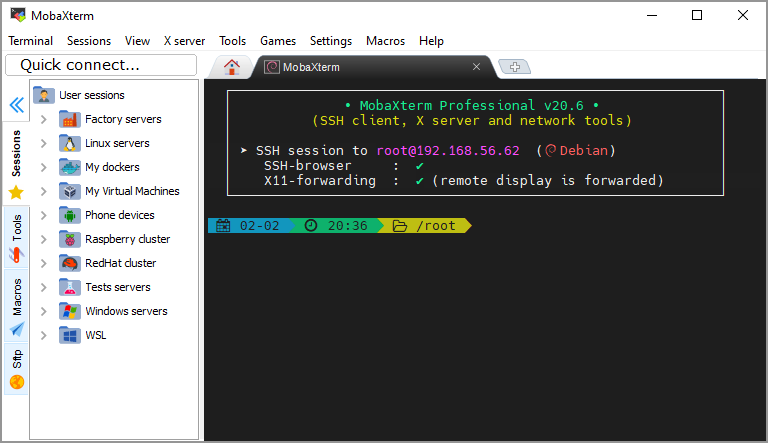
MobaXterm is the Swiss Army knife of Windows SSH clients. It packs SSH, RDP, VNC, FTP, SFTP, X11 forwarding, and a local Unix-like terminal into a single application. If you need to connect to a server using multiple protocols without installing separate tools, MobaXterm handles all of it.
The free Home Edition supports up to 12 saved sessions and 2 SSH tunnels. That is enough for personal use. The tabbed interface lets you run multiple connections side by side. The built-in SFTP browser automatically shows the remote file system whenever you connect.
An embedded X server lets you run graphical Linux applications directly on your Windows desktop. This feature is unique to MobaXterm in this list.
The downside is complexity. With so many protocols and features packed into one window, the interface can feel overwhelming to new users. There is also no AI assistance, no deployment automation, and no infrastructure monitoring.
Pricing: Free (Home Edition, personal use only). Professional Edition starts at $69/user (one-time license).
Platforms: Windows only
Best for: Windows power users and sysadmins who need multi-protocol support (SSH + RDP + VNC + X11) in one application.
4. Termius

Termius is the most polished cross-platform SSH client available. It runs on Windows, macOS, Linux, iOS, and Android.
Its headline feature is cloud-synced credentials. Save a server connection on your laptop and it appears on your phone instantly. The interface is modern, clean, and feels like a product built in the 2020s rather than the early 2000s.
Trusted by over 2 million engineers, Termius supports organized host groups, command snippets, and a built-in SFTP client. The Pro plan adds end-to-end encrypted vault sync and team sharing. This makes it particularly useful for distributed teams that need to share server access securely.
Termius also includes Gloria, a cloud-based AI agent. Gloria provides AI-powered autocomplete and command suggestions. However, it does not have live server context the way CtrlOps does. It is more of a smart autocomplete than an interactive debugger.
The trade-off: Termius syncs your SSH keys and credentials to its cloud. For users with strict compliance requirements or client contracts that prohibit third-party credential storage, this can be a dealbreaker. The free plan is limited and locks most useful features behind the Pro subscription.
Pricing: Free plan (limited). Pro starts at $10/month. Team and Business plans available.
Platforms: Windows, macOS, Linux, iOS, Android
Best for: Engineers who work across multiple devices and need their server connections synced everywhere.
5. Windows Terminal + OpenSSH
Starting with Windows 10, Microsoft ships OpenSSH as a built-in optional feature. Combined with Windows Terminal, a modern tabbed terminal application, you get a capable SSH client with zero additional software to install.
Windows Terminal supports multiple tabs, split panes, customizable themes, and GPU-accelerated text rendering. You can run PowerShell, Command Prompt, WSL, and SSH sessions all in the same window. For basic connections, just type ssh user@server-ip and you are in.
The limitation: this is purely a terminal. There is no session manager for saved connections. You manage those through your SSH config file manually. No GUI file browser. No monitoring dashboard. No AI features.
It works, but it requires you to be comfortable writing and editing config files yourself. For power users who live in the command line anyway, this is more than enough. For everyone else, it is a solid starting point before upgrading to a dedicated tool.
Pricing: Free (included with Windows 10 and 11)
Platforms: Windows
Best for: Developers who are comfortable with the command line and want a zero-cost, zero-install SSH option.
6. Bitvise SSH Client
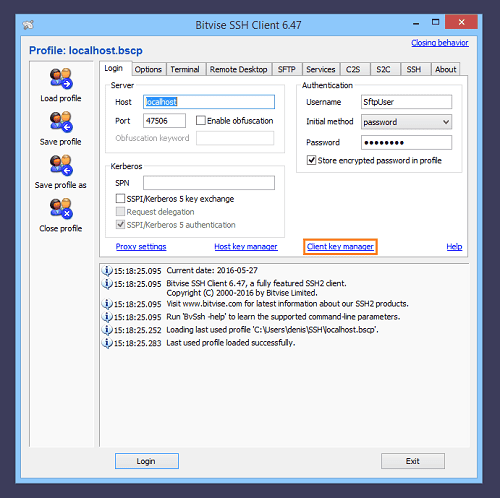
Bitvise SSH Client is a Windows-native SSH and SFTP client focused on security and enterprise-grade features. It supports SSH2 with strong encryption, two-factor authentication (works with Google Authenticator, Microsoft Authenticator, and LastPass), and port forwarding for creating secure tunnels.
The interface splits into two main areas: a terminal console for command-line work and a graphical SFTP window for drag-and-drop file transfers. This dual-pane approach makes it easy to switch between running commands and managing files without opening a separate application.
Bitvise also supports FTP-to-SFTP bridging. Legacy FTP applications can transfer files securely through an SFTP connection. For organizations with older systems that still rely on FTP, this is a practical migration path.
The client is free for personal use. Commercial use requires a license at $99.95 per machine. There is no AI, no deployment automation, and no monitoring. Bitvise stays focused on doing SSH and SFTP connections well.
Pricing: Free for personal, non-commercial use. Commercial license: $99.95 (one-time, per installation).
Platforms: Windows only
Best for: IT professionals and enterprises that need strong security features, two-factor authentication, and secure file transfers on Windows.
7. Warp
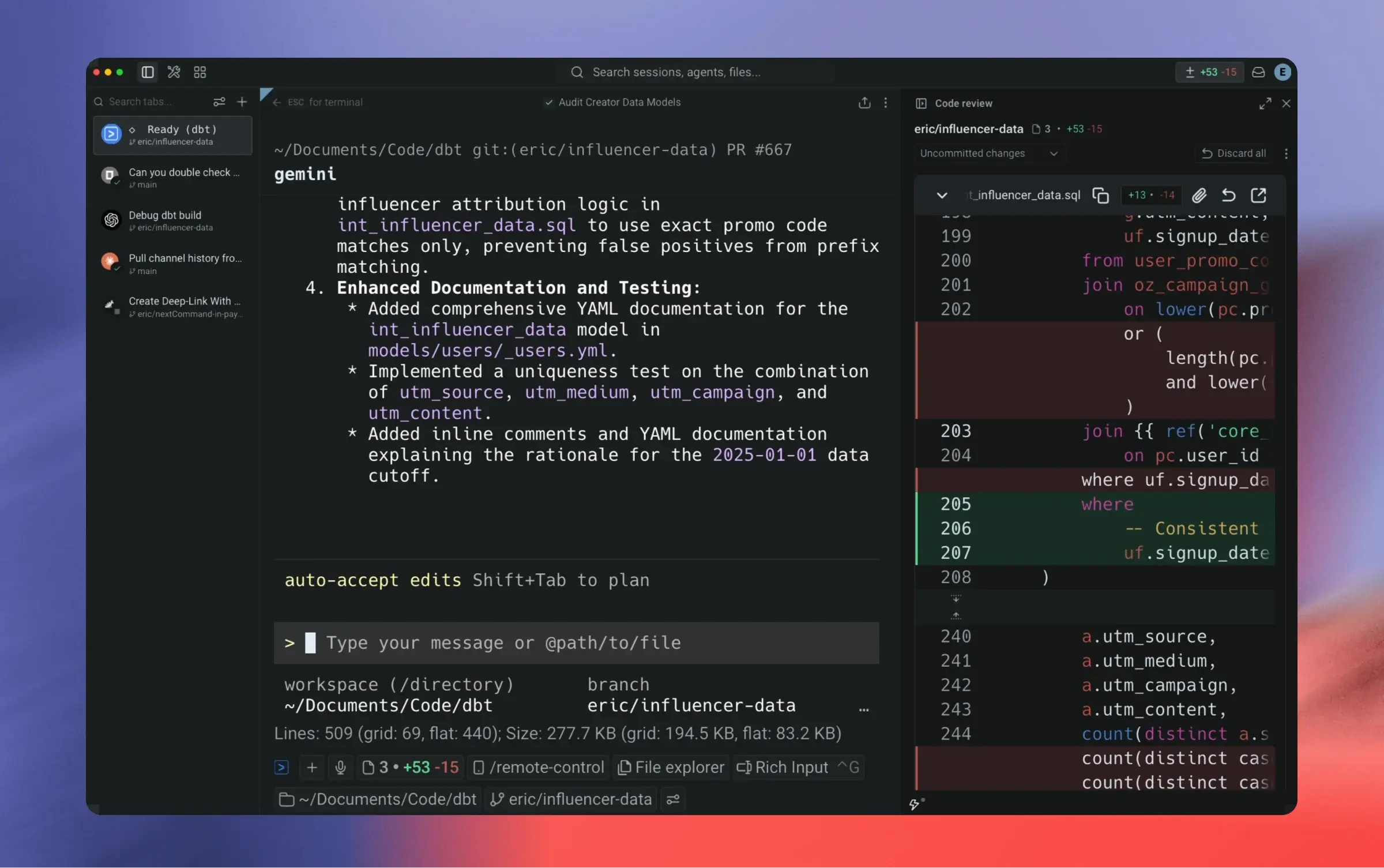
Warp is a modern terminal built from scratch in Rust with AI assistance at its core. It treats the terminal like a text editor. You get blocks of output, inline command editing, and AI-powered command suggestions baked into the interface. It is the most visually striking terminal on this list.
The AI integration is deep. You can ask questions in natural language, get command suggestions, and let Warp’s AI agents handle multi-step tasks. Warp Drive lets you save and share command workflows with your team. It turns tribal knowledge into reusable templates.
That said, Warp is a coding terminal, not a server management tool. There is no built-in file manager, no infrastructure dashboard, and no one-click deployment. It is designed for developers who want a better local terminal experience with AI, not sysadmins who need to manage remote servers at scale.
Windows support arrived in preview in 2026. It is still catching up to the macOS experience. The free tier gives you limited AI credits (75-150 per month). The paid Build plan at $20/month adds 1,500 credits. Warp requires a GitHub or Google login to use, which some users find unnecessary for a terminal application.
Pricing: Free (limited AI credits). Build plan: $20/month. Teams: $50/user/month.
Platforms: macOS, Linux, Windows (preview)
Best for: Developers who want a modern, AI-enhanced terminal for local coding work and are willing to pay for the AI features.
How to Choose the Right SSH Client for Your Workflow
Picking the right SSH client comes down to what you actually do with it every day.
If you just need a quick terminal connection and nothing else, PuTTY or Windows Terminal gets the job done for free. If you work across multiple devices and want your sessions everywhere, Termius is purpose-built for that.
For Windows power users who need SSH alongside RDP, VNC, and X11, MobaXterm bundles everything into one window. For security-focused enterprise environments with 2FA requirements, Bitvise is a solid pick.
If you are managing multiple servers and want to stop juggling separate tools for SSH, file transfers, monitoring, deployment, and log reading, CtrlOps collapses all of that into a single desktop app. The AI terminal with live server context, real-time web search, MCP integration, fleet-wide access control, and a reusable script directory is something no other SSH client on this list offers.
Developers who want the most modern local terminal experience with AI coding assistance will appreciate what Warp is building.
The best SSH client for Windows in 2026 is the one that matches how you actually work. Not just the one with the longest feature list.
Also read: 12+ Best Android Emulator for Windows
FAQs
What is the best free SSH client for Windows?
PuTTY is the best free SSH client for Windows. It is lightweight, open source, portable, and requires no installation. For a more modern option, Windows Terminal with built-in OpenSSH also works well and comes pre-installed on Windows 10 and 11.
Which SSH client for Windows has AI features?
CtrlOps and Warp both include AI features. CtrlOps offers an approval-gated AI terminal with live server context, real-time web search, and MCP integration. Warp provides AI-powered command suggestions and multi-step AI agents. Termius includes Gloria, a cloud-based AI autocomplete tool.
Is Windows Terminal good enough for SSH?
Windows Terminal with OpenSSH handles basic SSH connections well. It supports tabs, split panes, and multiple shell types. However, it lacks a session manager, GUI file browser, monitoring dashboard, and AI features. If you manage more than a few servers, a dedicated SSH client saves time.
Which SSH client stores credentials locally instead of the cloud?
CtrlOps, PuTTY, MobaXterm, and Bitvise all store credentials locally on your machine. Termius syncs credentials to its cloud by default. Warp requires a cloud login. For teams with strict compliance requirements, a local-only SSH client avoids third-party credential storage risks.