The app drawer is a very important part of our Android phones, where we can quickly access any installed apps. Arranged in alphabetical order, you can easily find apps that are not present on your home screen. Naturally, it can be pretty frustrating when you go to open it and find the feature missing from your phone. This leads to finding any issue to fix for the apps drawer icon missing in Samsung devices. Don’t worry, today we bring you all the solutions in this guide!

Fix Apps Drawer Icon Missing Issue in Samsung Devices
With these fixes, you will be able to get back to your phone working the normal way as soon as possible.
Method 1: Restart Phone
Sometimes an internal glitch can cause icons to stop showing up on phones. Simply, power off your device for a couple of minutes and turn it back on to see if this minor issue is resolved.
Method 2: Enable App Drawer
Sometimes, the app drawer feature is automatically disabled in many phones. Therefore, enabling it will get the icon to show up.
Note: Not all Android devices have the same interface since they vary from manufacturer to manufacturer. Hence, ensure the correct settings have been selected according to your device’s language.
Option 1A: Via Settings
Some layouts don’t have an app drawer interface. Follow the steps below to enable it:
- Open Settings and tap on Home screen & Lock screen.
- Tap on Home screen.
- Now, select With drawer.
- Then, tap on Apply.
- Select Switch.

The app drawer will be available to use.
Option 2B: Via Settings
You can also do the same from your main settings:
- Open Settings and tap on Home Screen or Launcher.
- Find the App Drawer or App Tray option.
- Turn the toggle on for App Drawer or App Tray. Please note that if this option is not available, then tap on the search icon, enter App Drawer or App Tray, and select the option.
Your problem should be solved.
Method 3: Reset Your Launcher
Resetting your launcher to its default settings will clear out any settings to disable the app drawer.
- Open the Settings app and select Apps.
- Select your launcher app, e.g., Google Now Launcher, One UI Home, Samsung Experience Home, or much more.
- Tap on Clear Data and Clear Cache.
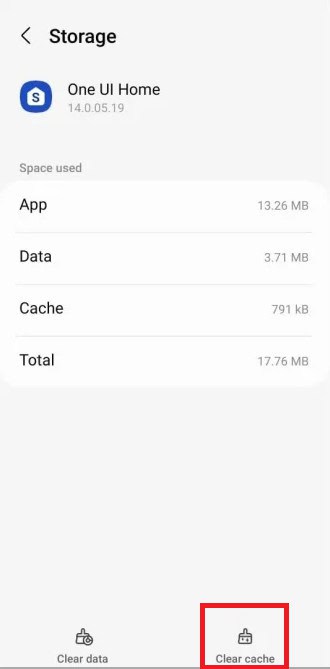
Restart your phone and check whether you can access the app drawer again.
Method 4: Default Launcher
If you are using a third-party or custom launcher, then chances are it does not support the app drawer icon.
- Open Settings and tap on Home Screen or Launcher.
- Tap on Default Launcher or System Launcher.
- Select the launcher of your choice.
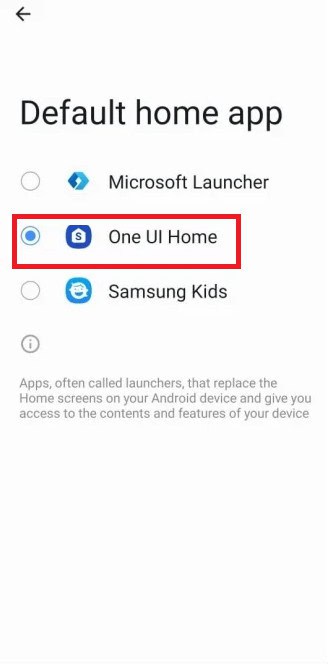
Restart your phone and check if the app drawer is back again.
Also Read: How to Access the App Drawer on Android 10
Now you will no longer have a difficult time figuring out how fix for the apps drawer icon missing issue in Samsung devices after following this guide. For more helpful tips and tricks, stay tuned, and feel free to share your suggestions in the comments below.