If you play on Fortnite, you know how uncommon and exclusive some skins are, and how much players cherish them. But like any other platform in this digital space, someone can always find a way to get into your account and access these. This is why so many players have started to figure out how to enable 2FA for Fortnite so that they can keep their accounts safe. If you are one of them, this guide will be a great help!
How to Enable 2FA for Fortnite
The good news is that Epic Games has a default option to keep your account extra protected. Let’s see where you can get this setting.
- Visit the Epic Games login page and enter your credentials.
- Click on your profile at the top right corner.
- Select Account.
- Click on Password & Security from the menu.
- Scroll down and select Fortnite 2FA.
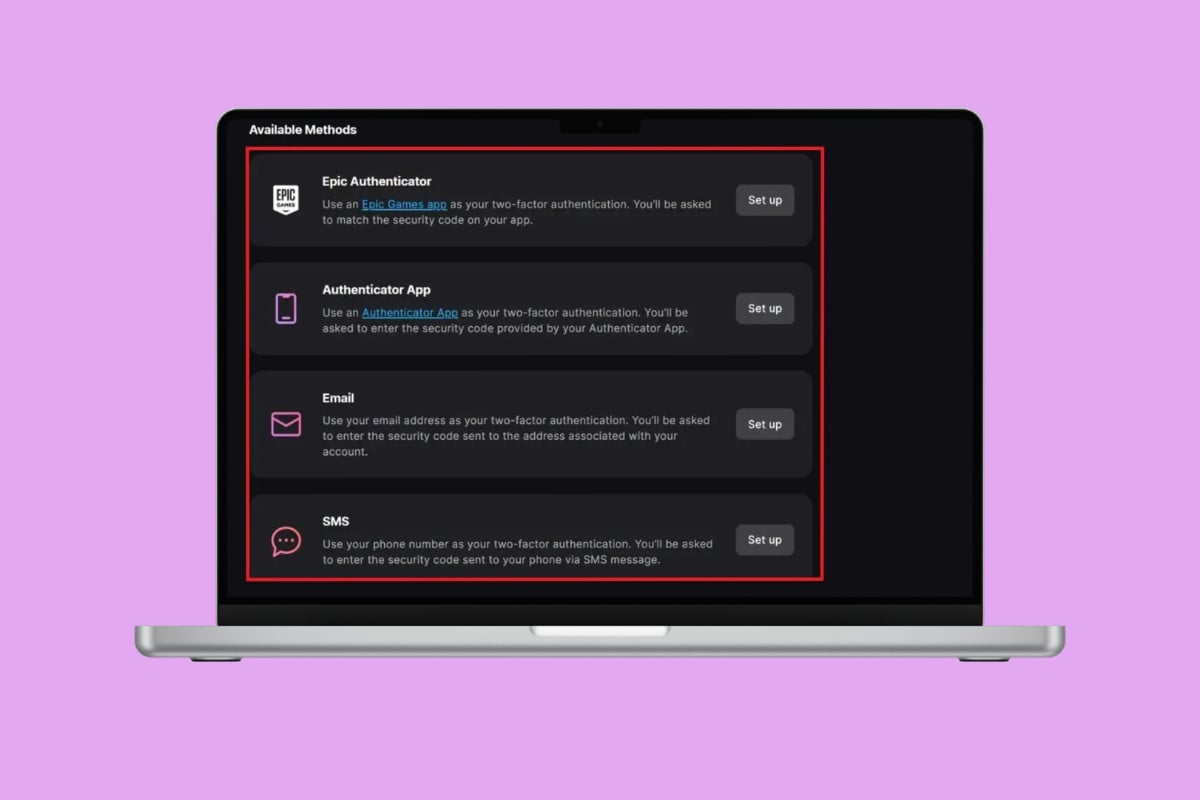
- Click on Set up under Epic Authenticator to enable 2FA from the official Epic app.
- Click on Set up under Authenticator App to enable 2FA from a third-party authenticator app.
- Click on Set up under Email to receive 2FA codes on your registered email.
- Click on Set up under SMS to receive 2FA codes on your registered phone number.
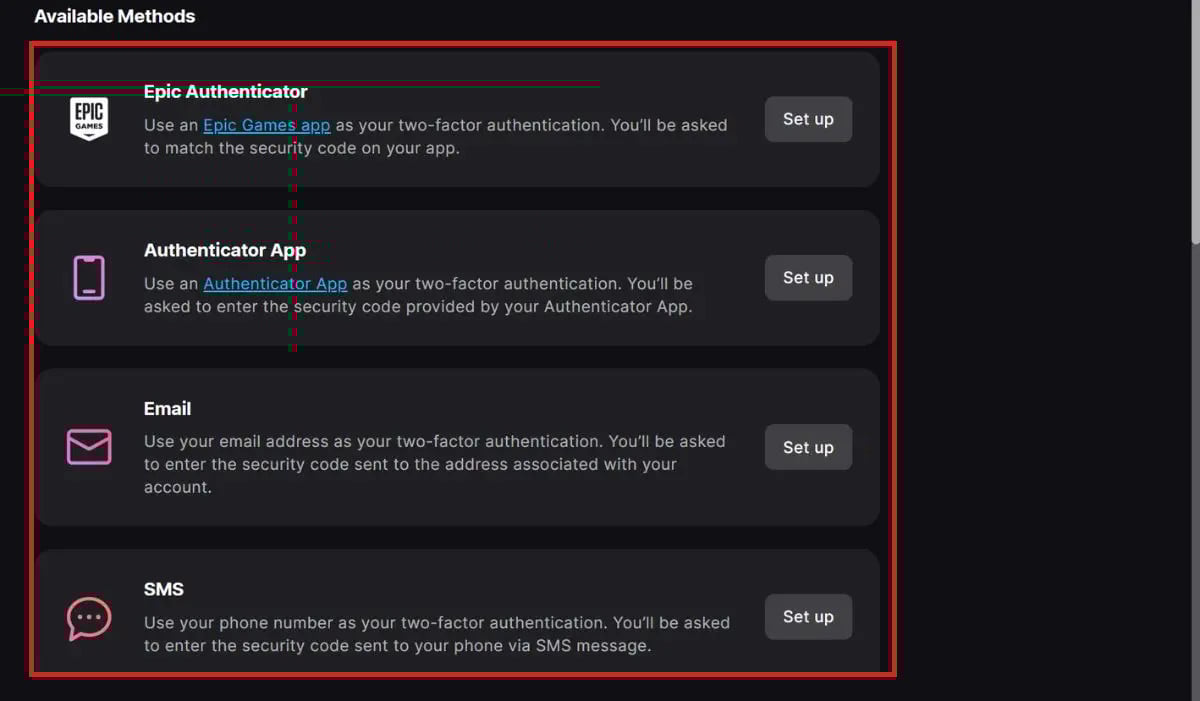
After you select your desired option, your two-factor authentication will be enabled.
Rewards for Enabling Fortnite 2FA
Did you know that you not only protect your account but also get rewards for turning on 2FA on Fortnite? The Boogie Down emote is given to players with 2FA. Additionally, the following things will be given to Fortnite users who own the Save the World campaign:
- 50 Armory Slots
- 1 Legendary Troll Stash Llama
- 10 Backpack Slots
Also Read: How to Fix HWID VPN Kick Error in Fortnite
Now that you have seen how to enable 2FA for Fortnite, we hope your doubts are cleared with the methods shown in this guide. Keep visiting TechCult to know the latest tech walkarounds. If you have any queries or suggestions, do reach out to us in the comment section.