The new Android 10 brought significant design changes and feature updates to our mobile operating system. From new gestures to dark mode, people are learning all about the new interface. One surprisingly common question that trips people up is how to access the app drawer on their Android 10. You’ve got apps installed but can’t figure out where they all went, or the gesture that used to work suddenly does nothing? Don’t worry, here’s all you need to know!

How to Access the App Drawer on Android 10
Let reaching your app drawer become second nature again.
Note: Not all Android devices have the same interface since they vary from manufacturer to manufacturer. Hence, ensure the correct settings have been selected according to your device’s language.
Method 1: Swipe Up on Home Screen
You can get the app drawer by simply swiping up from your home screen. All downloaded apps will be visible once the drawer opens.
Method 2: Swipe Right or Left on Home Screen
While some Android phones open app drawers when you swipe either right or left on your home screen.
Method 3: Via Search Option
If you are unable to access the app drawer from your home screen, open the search feature and type ‘apps’ or ‘app drawer’. This way, you will be able to see all the installed apps at once.
What is App Drawer in Android?
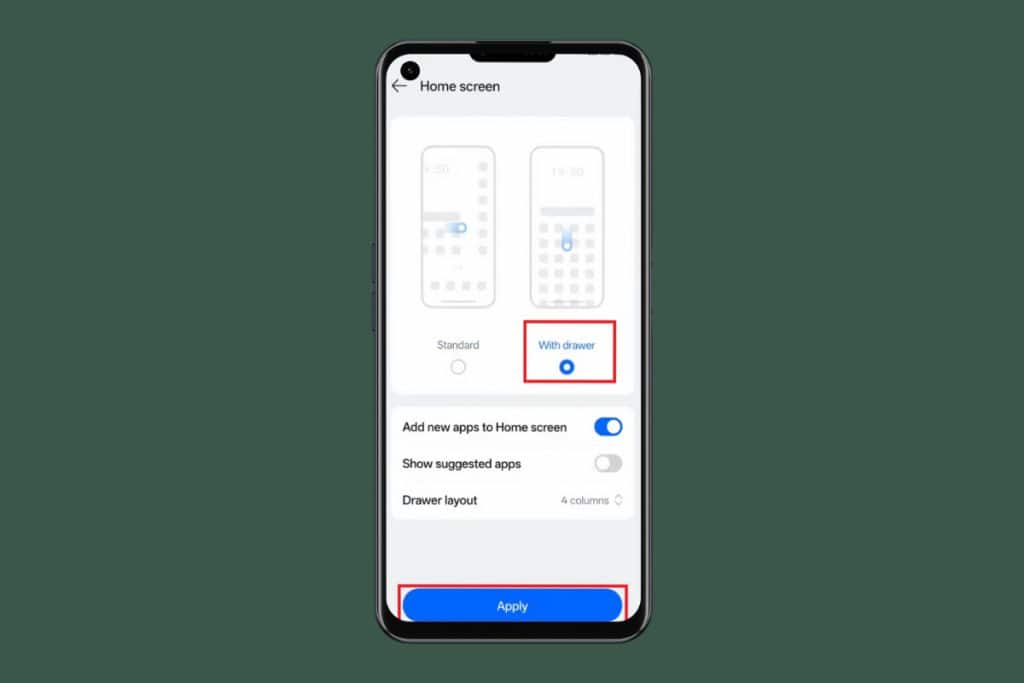
App Drawer on Android is a place where you can see and launch all of your installed apps. All apps are laid out in alphabetical order, making it pretty easy to find your desired app. You can even drag apps from the drawer and drop them on your home screen, creating a shortcut for quick access.
Does Android 12 Have an App Drawer?
Yes, Android 12 also has the App Drawer feature on all phones.
Also Read: 20+ Best Free Live TV Apps for Android and iOS
By following the methods shown in this guide, we hope that you now understand how to access the app drawer on Android 10. Do not hesitate to drop a comment or suggestions in case you have any queries. Keep visiting TechCult to learn more tech-related walkarounds.