Not being able to see colors as organically as possible on your monitor has to be one of the most annoying parts of using a computer. Many people have reported seeing tints on their screens, which make things appear unbalanced and difficult to look at. Since there are numerous reasons why this may occur, today we’ll walk you through every method on how you can fix your computer monitor that has a yellow tint on the screen! Now let’s get started!
How to Fix Computer Monitor Has a Yellow Tint on Screen
Go back to using your screen just how you got this with these solutions.
Method 1: Check Hardware Issues
Before you take big steps, ensure that your device does not have physical damage on its skin or around the display. If the left side of the Microsoft Surface’s screen is yellow or has yellow patches, that indicates hardware damage.
Method 2: Perform a Power Cycle
Turning off your screen for a while can fix any internal glitches. Shut down your desktop, disconnect the cable wires, and wait for 5-10 minutes. After that, restart the device.
Method 3: Adjust the Brightness and Contrast
A yellow tint can sometimes be caused by uneven brightness or contrast levels on your monitor. Press the brightness button on your keyboard and adjust until colors look more natural.
Method 4: Change Color Depth of Monitor
If your screen shows unusual tints, the color depth setting might be too low. Remember, higher depth like 24-bit or 32-bit usually gives smoother and more accurate colors.
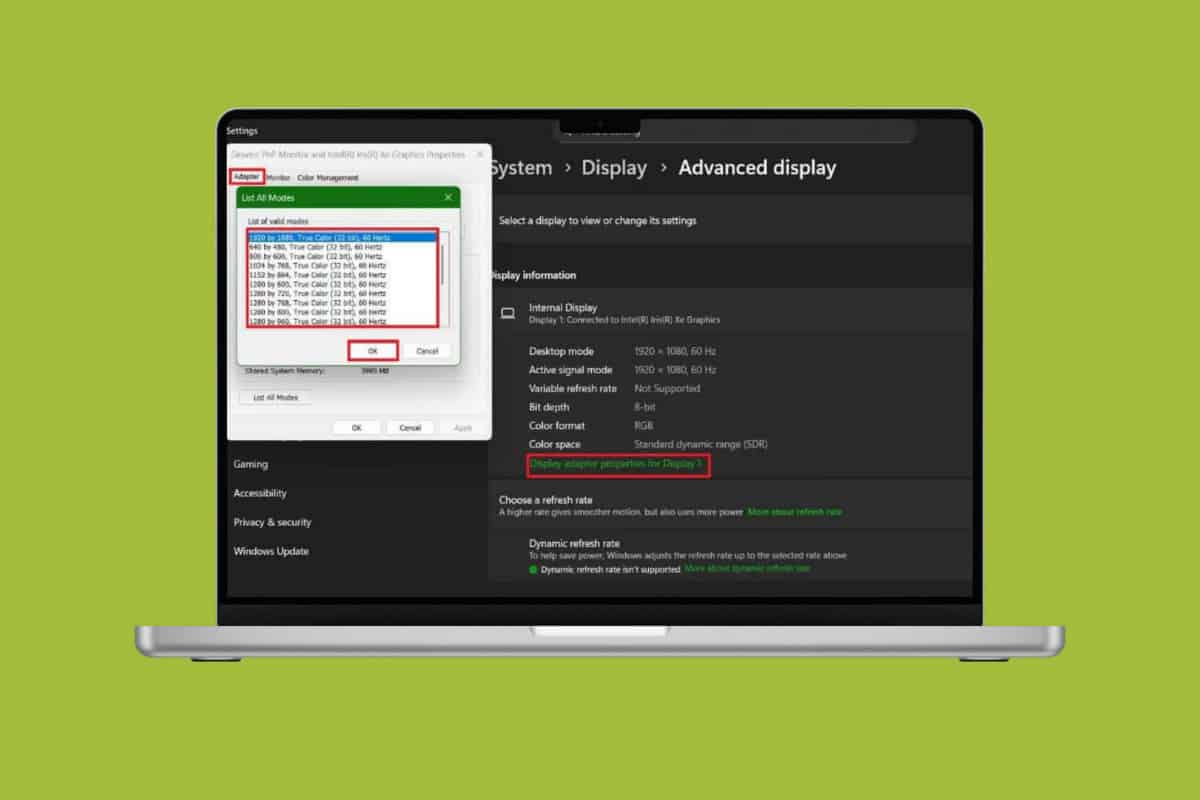
- Open Settings and click on Display.
- Scroll down and click on Advanced display.
- Select Display adapter properties for Display 1 under Display information.
- Then, click on Adapter from the top ribbon.
- Select the depth of your choice.
- Now, click on OK.
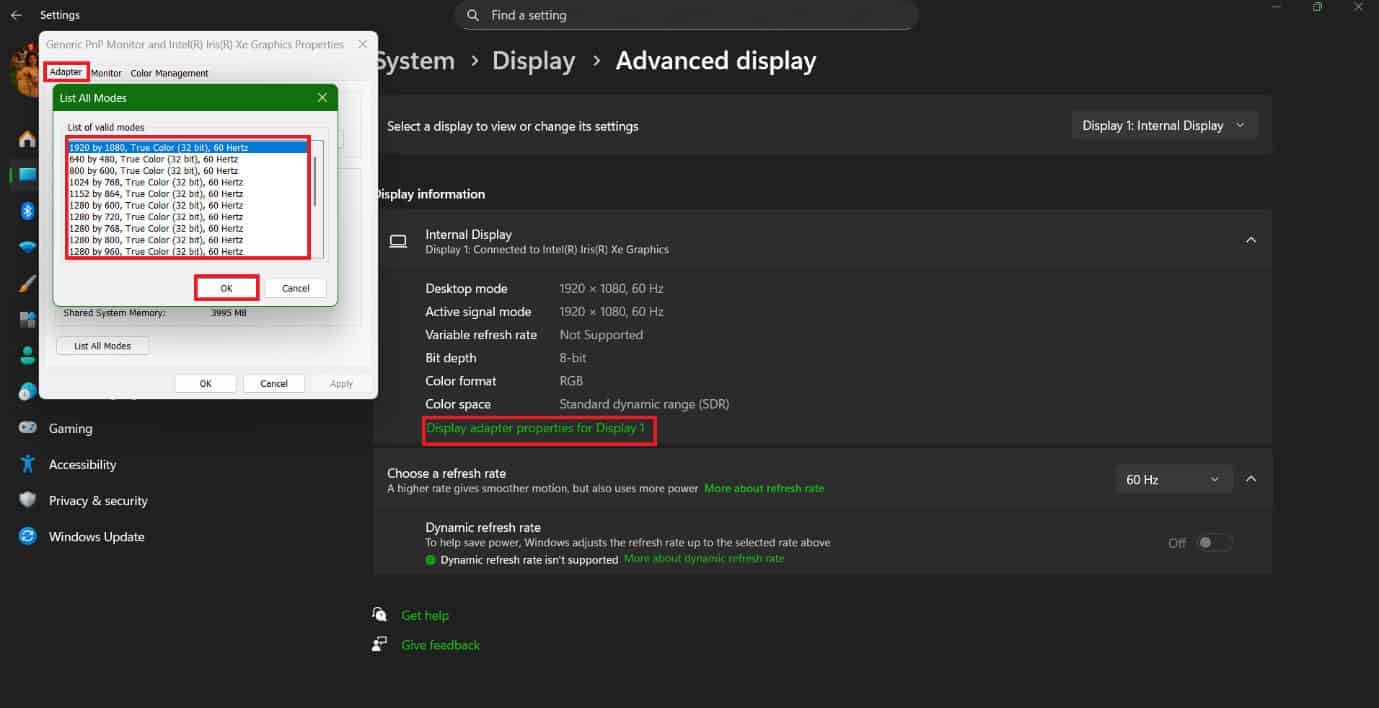
This way you can change depth of your desktop.
Method 5: Adjust White Light
Having a night light also sets the screen to warmer tones.
- Open Settings and click on System.
- Select Display.
- Now, turn the toggle on for Night light.
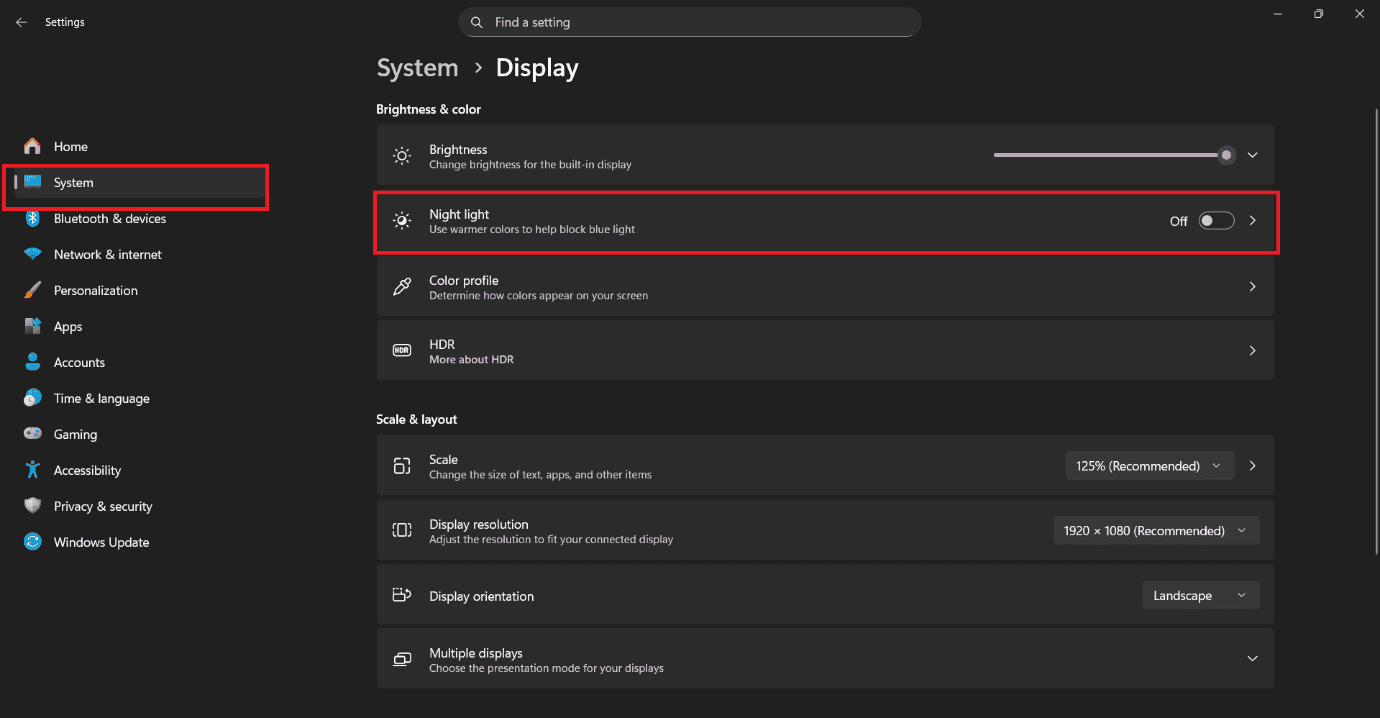
You will get white tones on your screen.
Method 6: Update Graphics Display Drivers
You can also install the latest version of your display driver.
- Open Control Panel and click on Device Manager.
- Select Display Adapters from the left menu.
- Click on the display software.
- Then, click on Driver from the top ribbon.
- Now, select Update Driver.
- Click on OK.
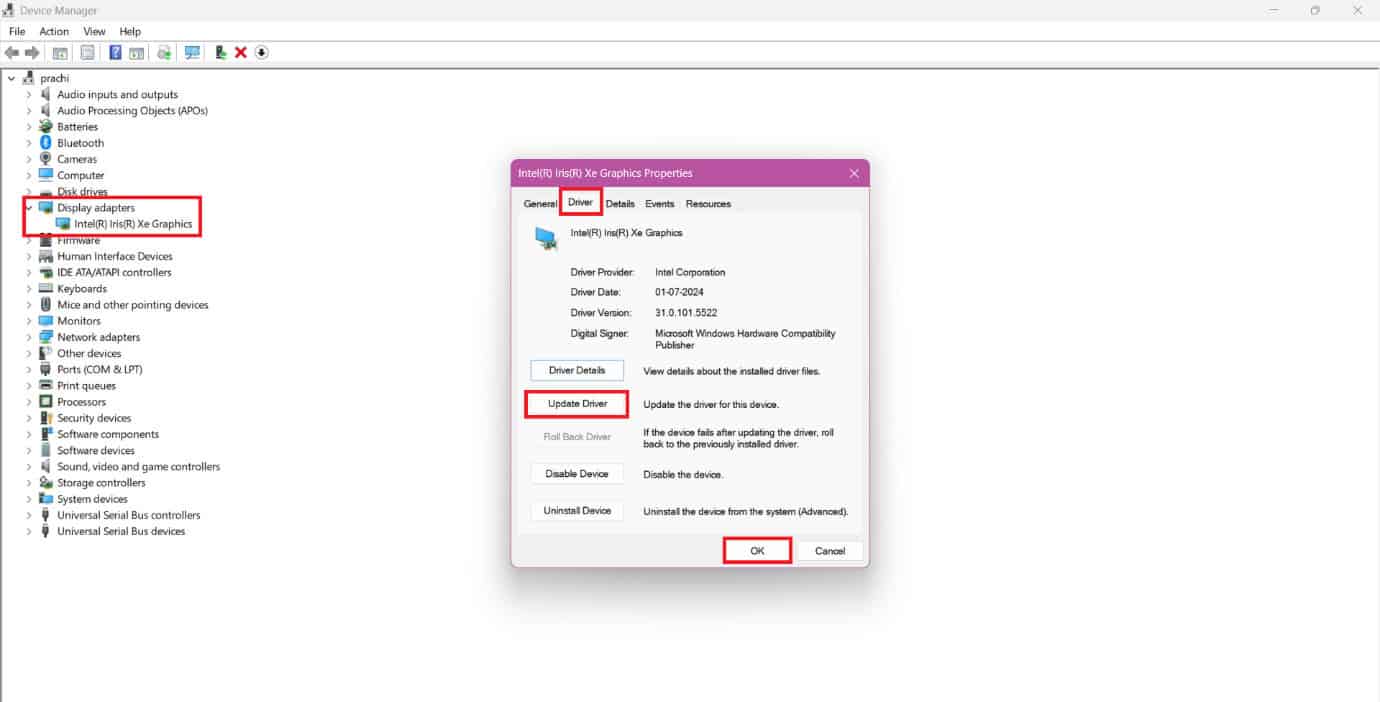
Your problem should be solved.
Method 7: Create New Color Profile Settings
You can also adjust your color profile and add white tones.
- Open Control Panel and search for color management.
- Click on Color Management.
- Select Devices from the top ribbon.
- Select the profile under Profiles associated with this device box.
- Then, click on Set as Default Profile.

Your screen will be displayed in the select display.
Method 8: Adjust Display Calibration
A very simple reason behind the yellow tint can be a change in the color calibration on your system. Let’s fix that:
- Open Control Panel and search for color management.
- Click on Color Management.
- Select Advanced from the top ribbon.
- Then, select Calibrate display under Display Calibration.
- Click on How do I calibrate my display? and follow the on-screen instructions.
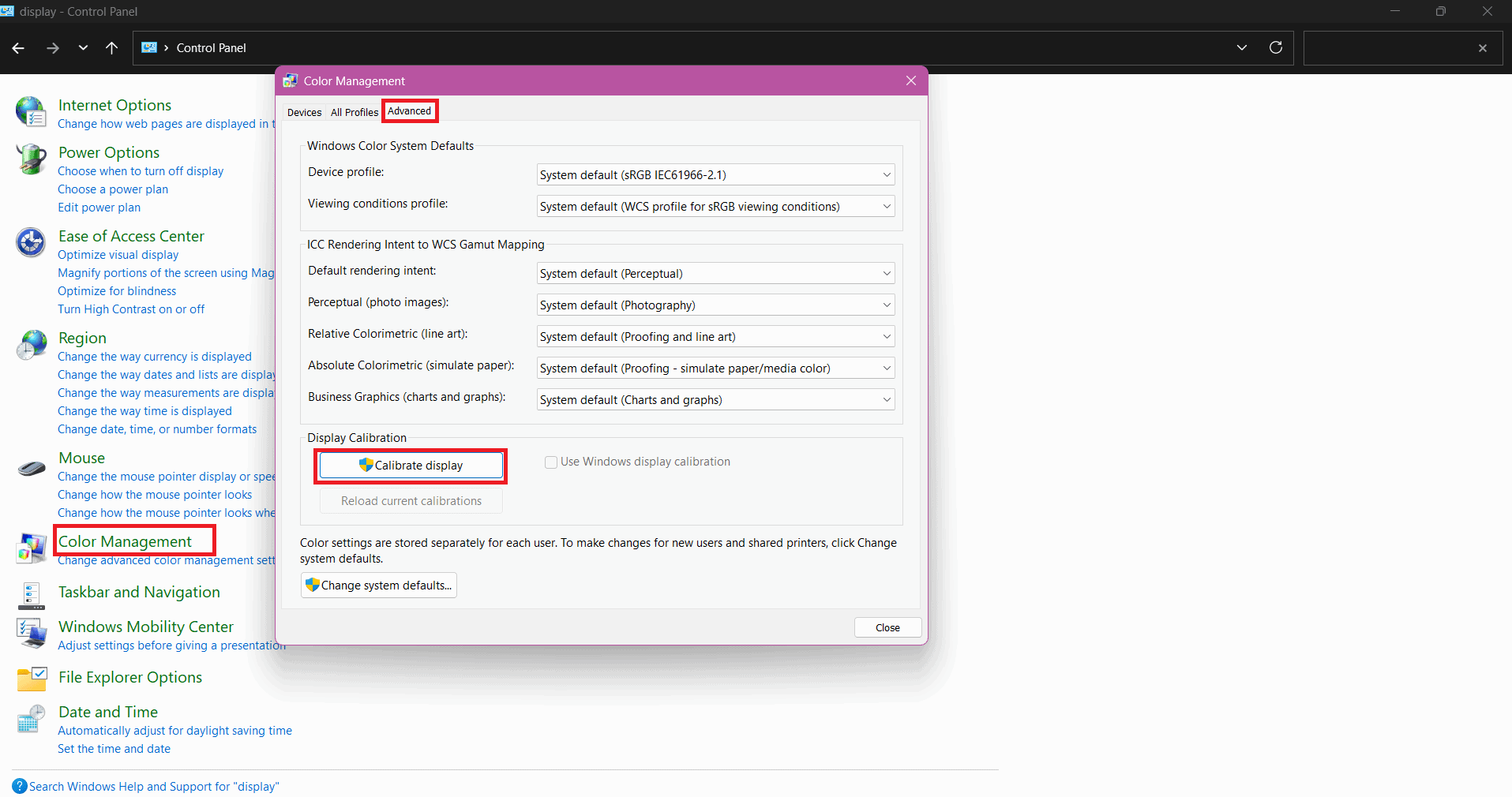
Check if your screen goes back to normal.
Method 9: Remove New Software Installations
If you have recently installed any new softwares and started facing display issues, chances are that they may be causing the problem.
- Press the Windows and R keys together to open the Run dialog.
- Type in appwiz.cpl and press Enter.
- Right-click on the software of your choice.
- Then, select Uninstall.
- Click on Yes.
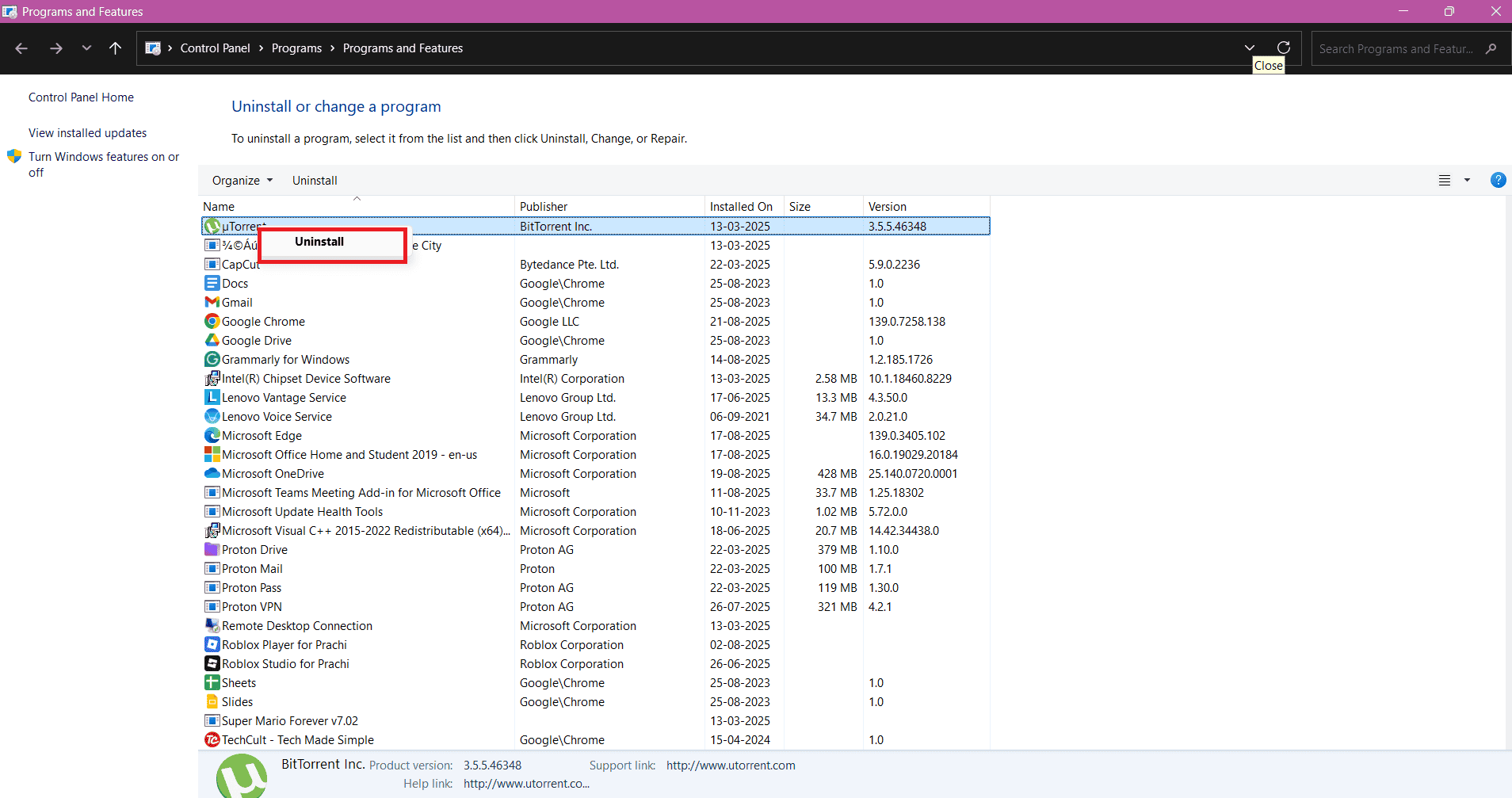
Your issue should be fixed if this is the reason.
Method 10: Set Native Refresh Rate and Screen Resolution
Using the wrong refresh rate or resolution can cause color and display issues on your monitor.
- Open Settings > Display > Advanced display.
- Click on the Choose a refresh rate box and select your option.

Check if your problem is fixed.
Method 11: Use System Restore Point
If nothing worked, there may have been a change made to the configuration that prevents you from changing it at this time. If you have made a system restore point, you must utilize it in that situation since it will restore your system to a time when the problem did not exist. To finish the process, follow these steps:
- Press the Windows and R keys to open Run dialog.
- Search rstrui and hit Enter.
- Select the program of your choice and follow the on-screen instructions.
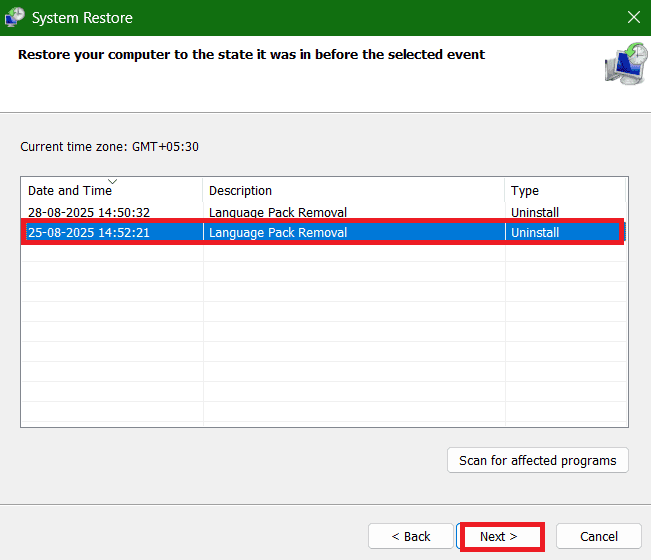
This will solve your issue.
Also Read: How to Update Your Lenovo Laptop
Now you will no longer have a difficult time figuring out how to fix your computer monitor that has a yellow tint on the screen after following this guide. For more helpful tips and tricks, stay tuned, and feel free to share your suggestions in the comments below.