Ever since the dark mode was introduced, it has taken over all types of devices, thanks to being easy on the eyes or for aesthetic purposes. But not all websites support this mode, making it extra work to keep changing the lights from your settings on a computer. If you’re wondering how to enable dark mode with a quick keyboard shortcut, we’re here to show you all the ways it’s possible!
How to Enable Dark Mode with a Keyboard Shortcut
Unfortunately, there is no official way in Windows or MacOS to change dark mode through keyboard shortcuts. But you can download third-party apps to create any customizable shortcut key combinations to change between modes.
Note: We do not endorse the use of third-party apps as they may expose your device to unwanted malware or viruses. User discretion is advised!
- Visit the WinTools website for the Easy Dark Mode software.
- Scroll down and click on Download.
- Open the downloaded file to start running it automatically.
- Click on the Show hidden icons arrow in the taskbar.
- Right-click on the Easy Dark Mode icon.
- Select Hotkey.
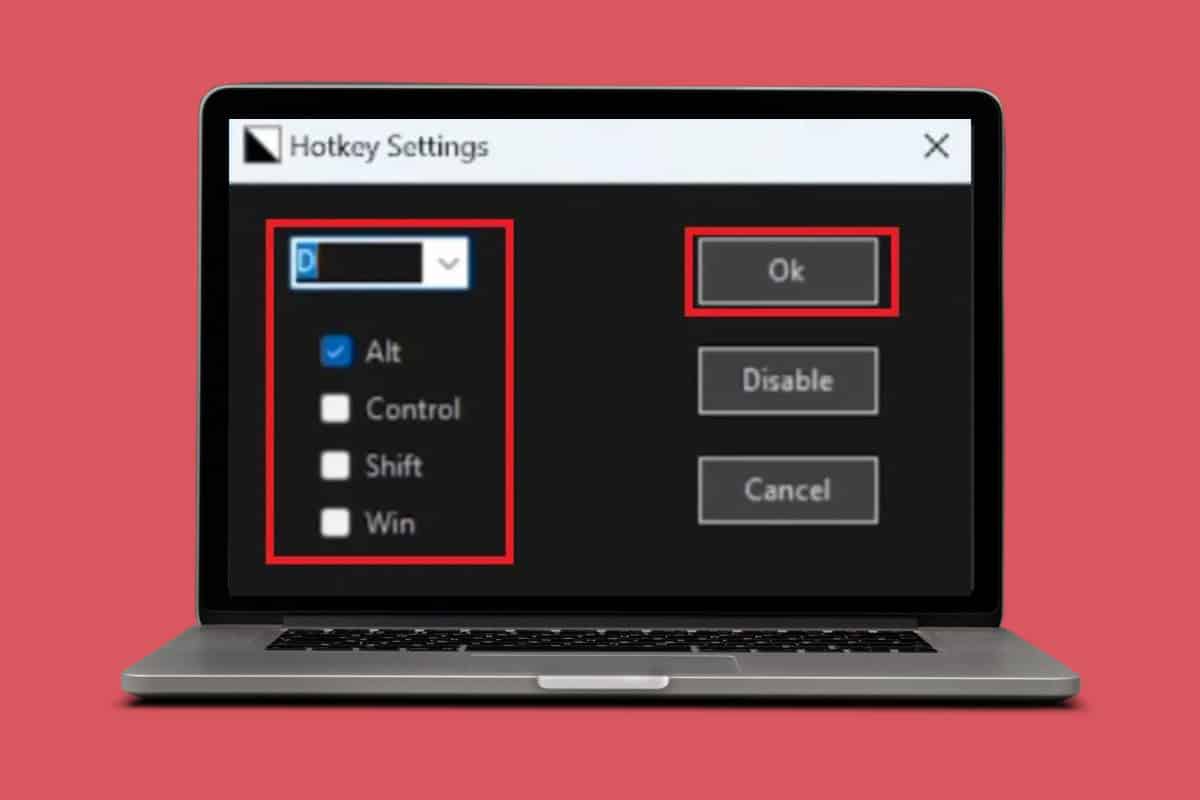
- Click the drop-down box and select any letter of your choice.
- Select the keyboard option of your choice.
- Now, click on Ok.
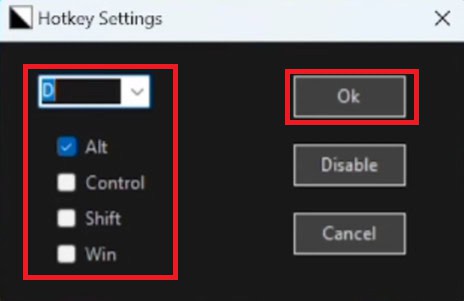
Now you can always use the selected shortcut to enable or disable dark mode on your desktop whenever you want.
Also Read: How to Download Windows 10 ISO File (Direct Links)
By following the method shown in this guide, we hope that you now know how to enable dark mode with a quick keyboard shortcut. Do not hesitate to drop a comment or suggestions in case you have any queries. Keep visiting TechCult to learn more tech-related walkarounds.