With so much online hacking rampant in digital spaces, protecting your privacy has become a leading concern. Your searches can be traced from any third-party apps or cyber criminals to be used against you. You may have started to wonder how to delete all your Google Activity to get a fresh start. Don’t worry, we are here to help you out!
How to Delete All Your Google Activity
Say goodbye to your digital footprint and welcome safe browsing.
- Open your browser and sign in to your Google Account.
- Tap on your profile at the top right corner and select Manage Google Account.
- Select Data & privacy from the left menu.
- Scroll down and tap on Web & App Activity under History settings.
- Click on Manage all Web & App Activity.
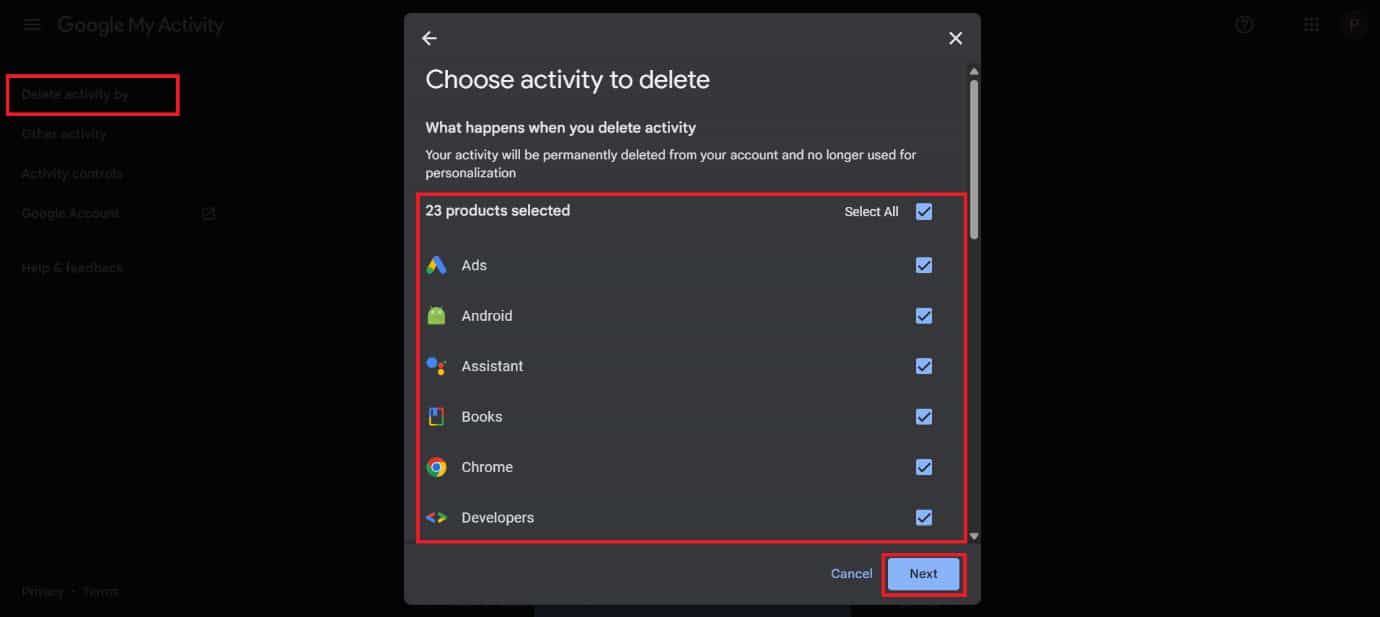
- Select Delete activity from the left menu.
- Click on Delete all activity.
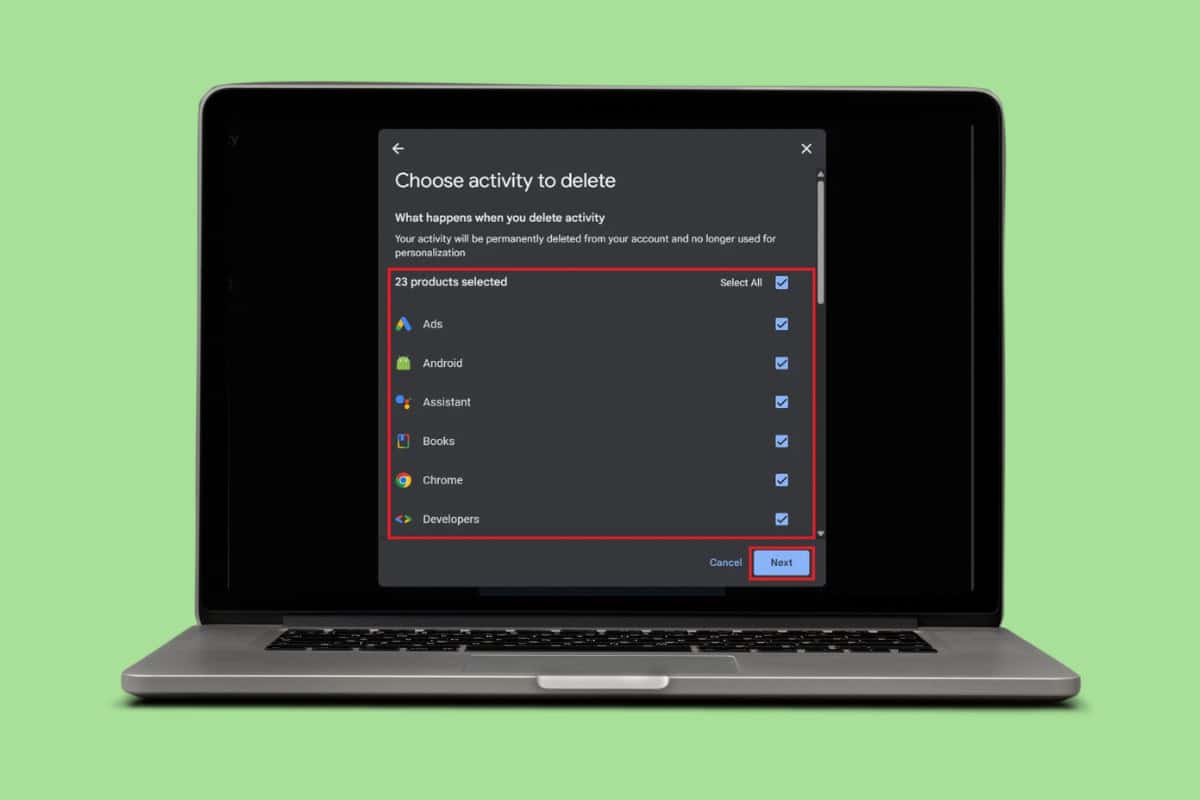
- Tick on all the devices you wish to remove your activity from.
- Click on Next.
- Now, select Delete.
Your entire Google activity will be removed.
How to Delete Specific Google Activity
You can choose not to erase your entire activity:
- Follow the steps 1-3 from the previous heading How to Delete All Your Google Activity.
- Click on Timeline under History Settings.
- Click on Turn off.
- Then, go back to History Settings and click on YouTube History.
- Untick on any Subsettings of your choice.
- Then, click on Turn off to completely stop tracking.
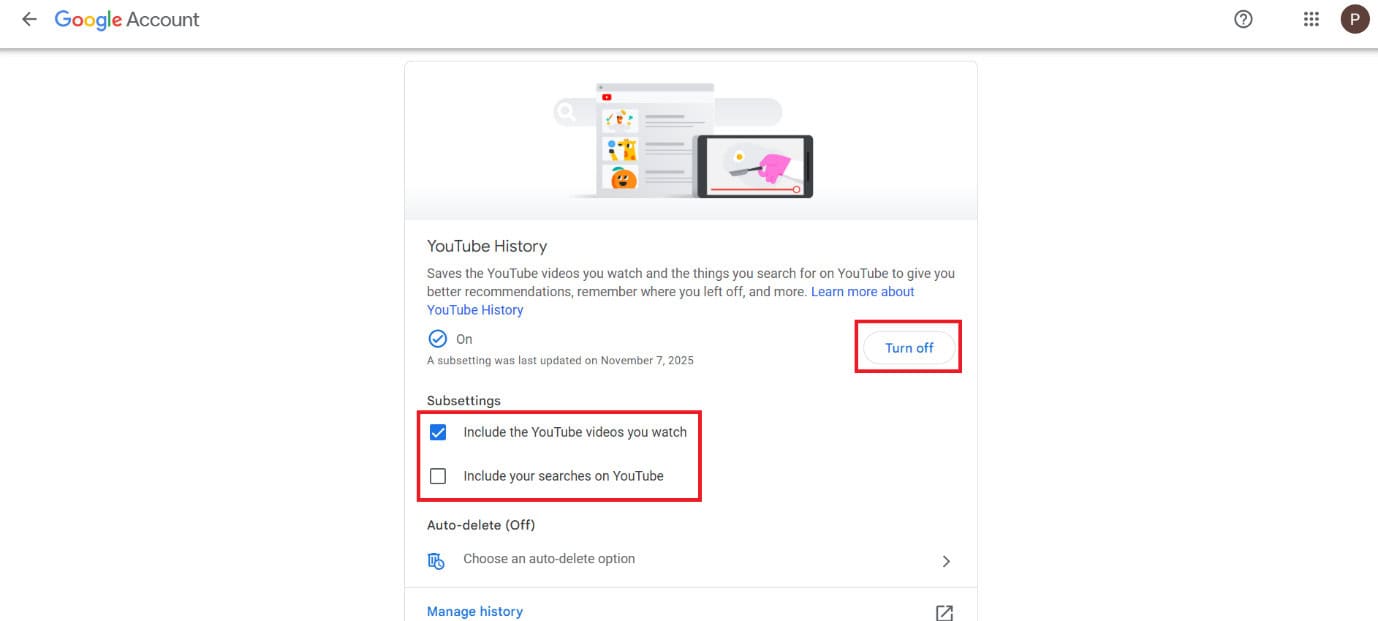
Google will no longer keep track of your activity.
How to Delete Your Digital Footprint and Manage Activity on Google
Even if you have removed your Google history, you can still choose to stop other apps from collecting your data in the future.
- Follow the steps 1-4 from the previous heading How to Delete All Your Google Activity.
- Then, click on Turn off under Web & App Activity.
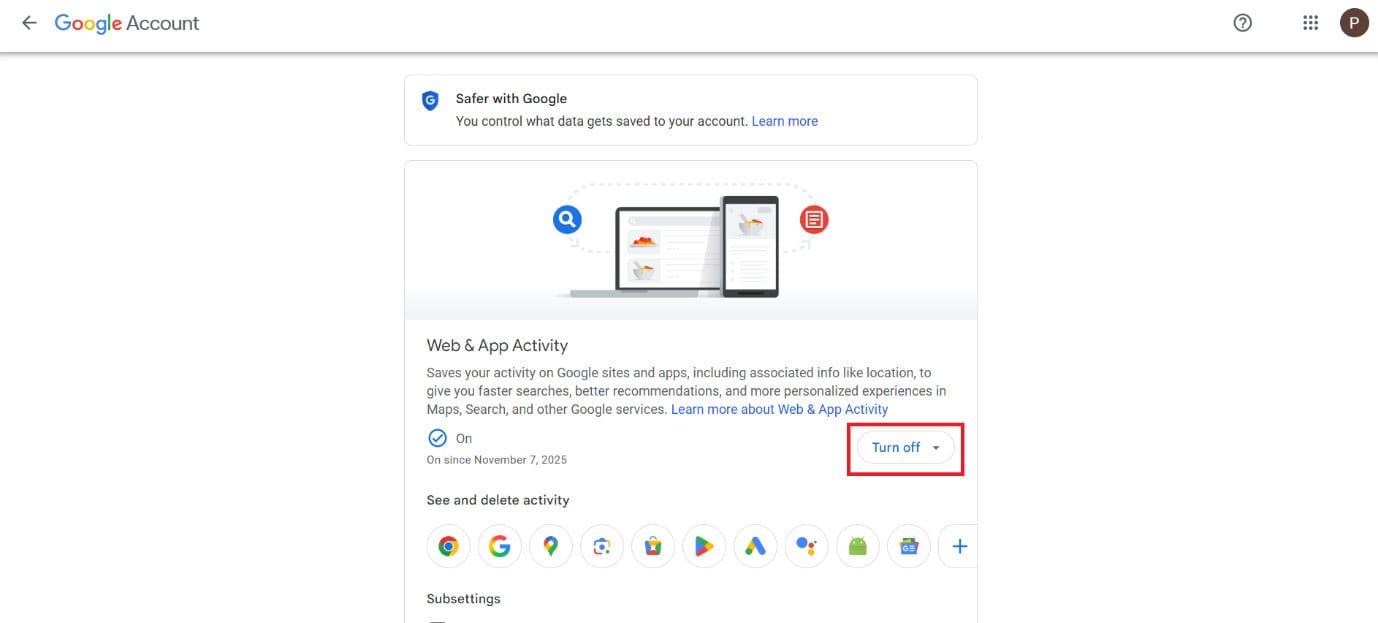
This will disable all activity sharing across platforms.
How to Restore Deleted Activity
Unfortunately, once you have deleted your activity, Google cannot restore it. This is a permanent action, so back up your activity.
Understanding Google’s Activity History
Google Activity History collects tons of information, such as:
- Search queries: Searches conducted through the Chrome browser or the Google search app.
- Browsing history: Websites seen with Chrome when signed in.
- Device usage: Google websites, apps, and services are accessed via devices.
- Location data: If location history was enabled, actual locations visited.
- App usage: Other apps used in Android-based devices.
- Google product interaction: Using YouTube, Google Maps, and other Google tools.
Also Read: Fix Google Chrome Blank White Screen on Windows 11/10
Now that you have seen how to delete all your Google Activity, we hope your doubts are cleared with the methods shown in this guide. Keep visiting TechCult to know the latest tech walkarounds. If you have any queries or suggestions, do reach out to us in the comment section.