With millions of businesses using Microsoft 365, Outlook has emerged as the most popular email platform. Your email signature becomes your identity when interacting with clients, coworkers, or other users. If you have recently changed roles or contact information, you must be wondering how to change your signature in Outlook across all devices. Today, we will show you just that. Let’s get started!
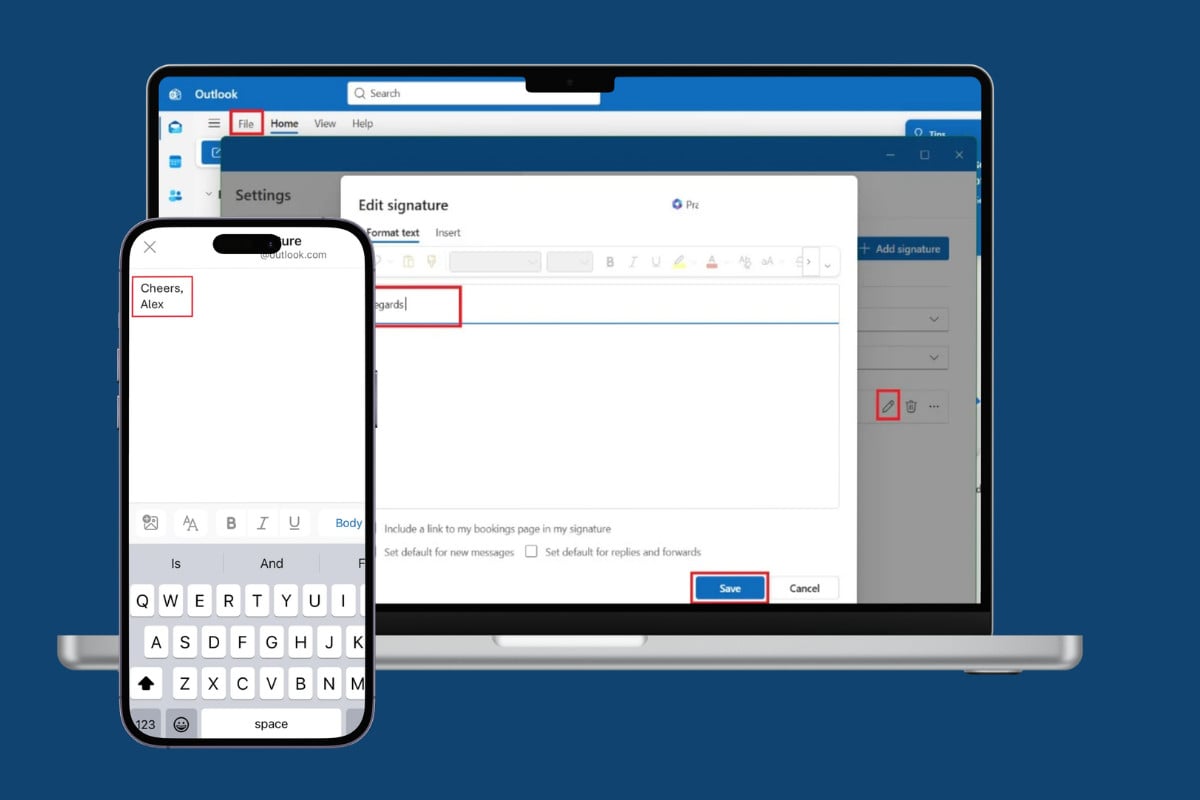
How to Change Signature in Outlook (Windows, Mac, and Mobile)
Maintaining professionalism and uniformity in all of your communications is a must; that’s why you should update the basics.
Method 1: Via Windows
You can easily access Outlook on your PC and change your signature.
- Open Outlook and click on File from the top left ribbon.
- Click on Settings.
- Select Accounts from the left menu.
- Click on Signatures.
- Click on the edit icon under the current signature.
- Type in your new signature in the box.
- Then, click on Save.
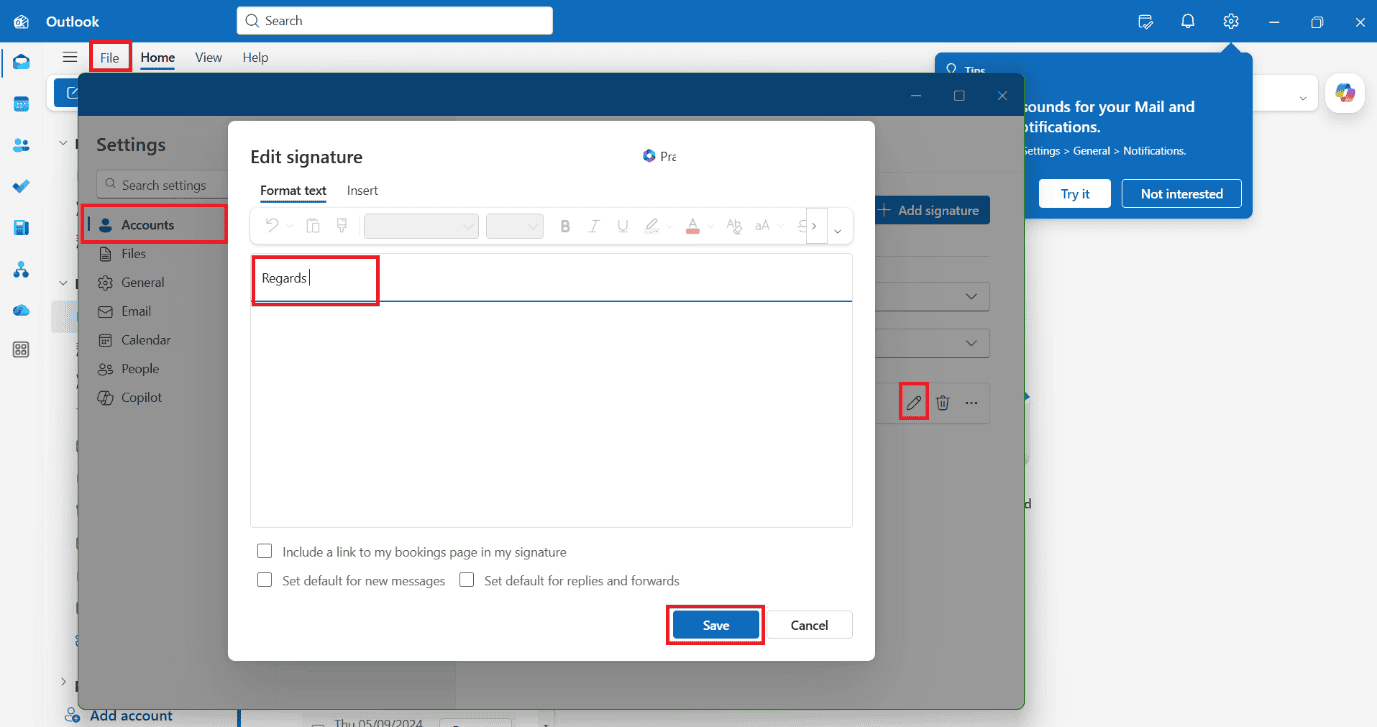
Your new signature will be updated.
Method 2: Via Mac
Similarly, the same options are available across Mac.
- Open Outlook and click on File from the top left menu.
- Click on Settings or Preferences if you are running on the older version.
- Click on Signatures under Email.
- Select any option from Standard, Sent from Outlook for Mac, or Personal.
- Then, click on Edit.
- Type in the new signature under the Signature Preview box.
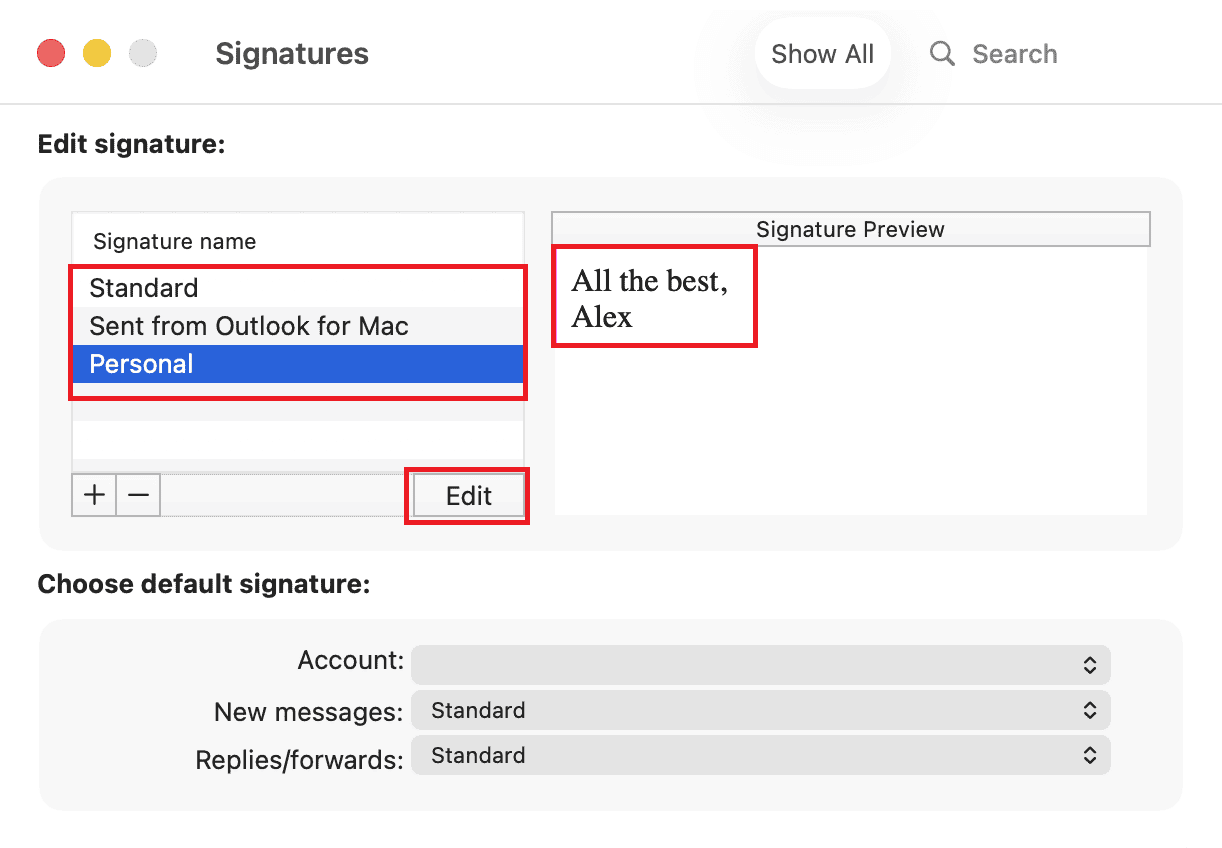
Your new signature will be automatically saved.
Method 3: Via Mobile
Lastly, let’s check out how to do the same from your phone:
- Open Outlook and tap on your profile in the top left corner.
- Select Settings.
- Tap on Signature under Quick Settings.
- Tap on the edit icon and type in your new signature in the box.
- Now, tap on the tick icon at the top right corner.
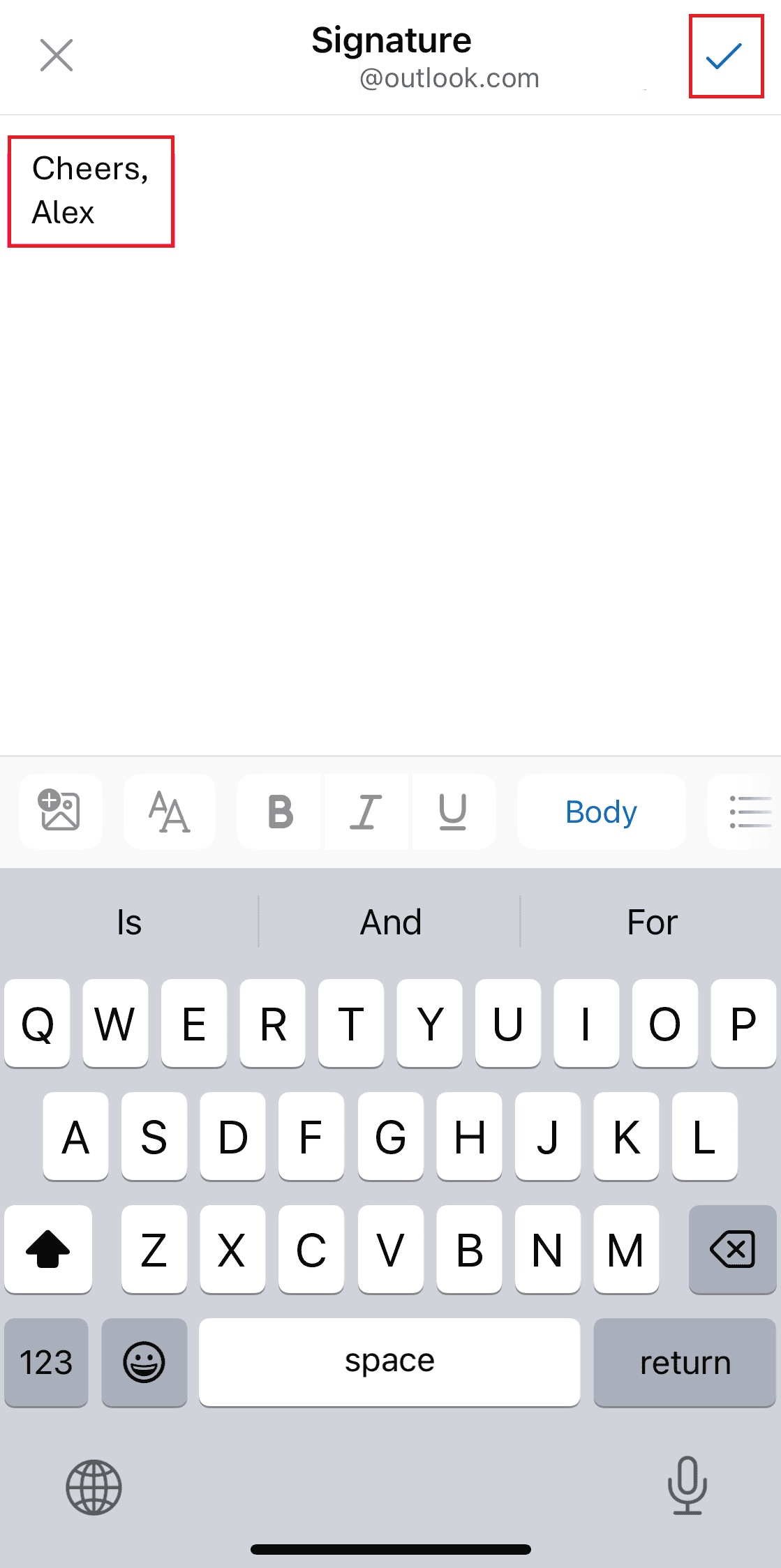
This way, your signature will successfully be changed.
Also Read: How to Turn Off Text Prediction on Outlook
Now you will no longer have a difficult time figuring out how to change your signature in Outlook across all devices after following this guide. For more helpful tips and tricks, stay tuned, and feel free to share your suggestions in the comments below.