Acer Chromebooks are popular budget-friendly laptops used by students to remote workers. Generally reliable and low-maintenance, these Chromebooks could also run into screen errors, making it frustrating to work with them. This is when you desperately need to fix Acer Chromebook display issues before you resort to factory resets or expensive repair shops. Don’t worry, let’s exhaust all your options before any big steps!

15+ Ways Fix Acer Chromebook Display Issues
These solutions tackle the most common Acer Chromebook display problems and get your screen working normally again.
Method 1: Check for Physical Stress
Examine the screen for signs of physical stress, such as tiny cracks or pressure imprints. Avoid using liquids and use a microfiber to clean lightly. You can detect Acer Chromebook display issues early by performing these kinds of physical inspections. If you continue to use it on a daily basis without taking precautions, it can stop the damage from getting worse.
Method 2: Reset Display Settings and Adjust Screen Brightness
Sometimes the problem is as simple as your screen brightness being turned all the way down. If the Chromebook is turned on but the screen is dark, press the sun icon on your keyboard until the screen shows a display.
Method 3: Reset Chrome Flags
Chrome Flags allow you to test out new features or activate debugging tools before they are available to all users. This allows testers to provide input on prospective new features in advance.
- Open Google Chrome and type in chrome://flags/ in the address bar.
- Click on Reset all.
- Then, click on Relaunch.
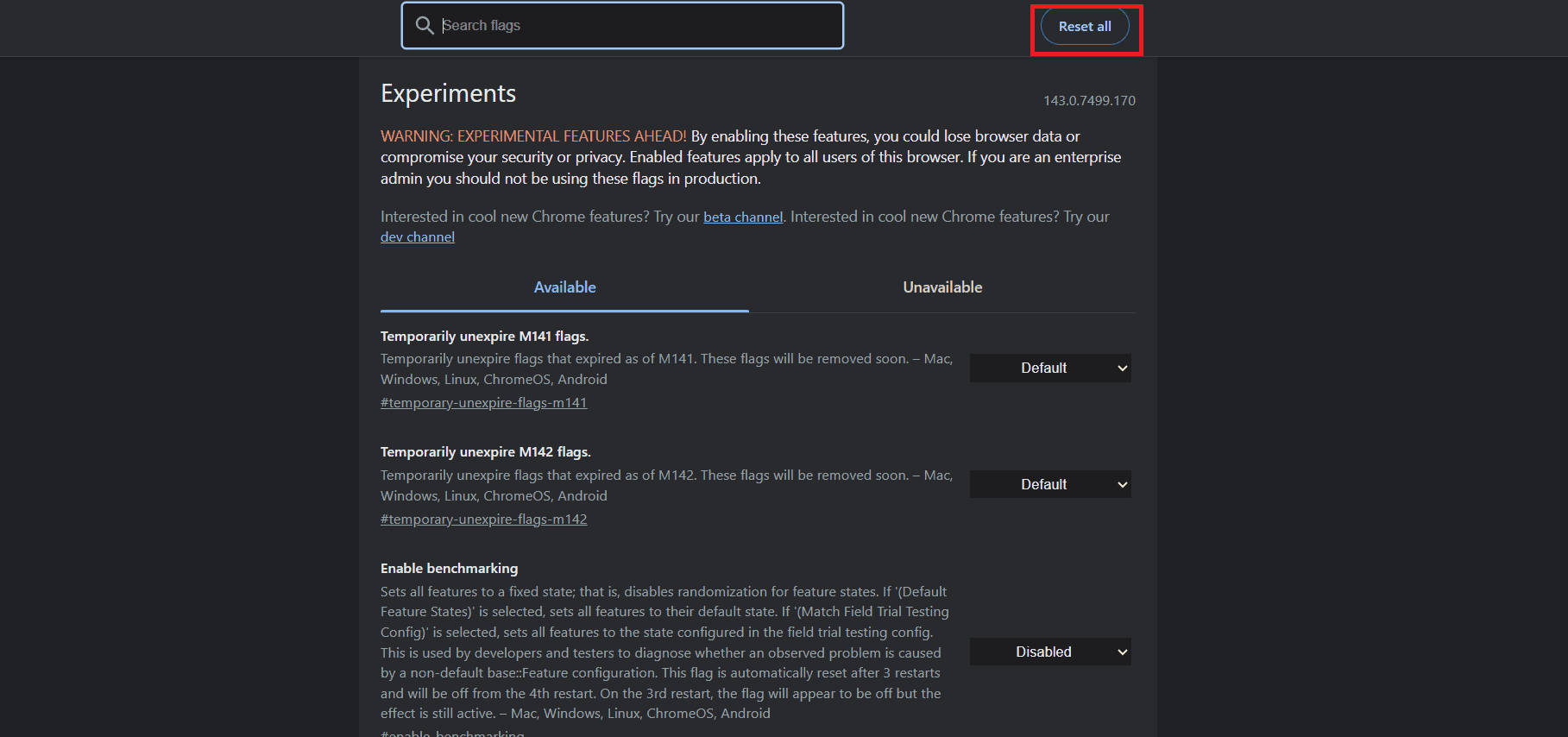
Check if this fixes your issue.
Method 4: Let Chromebook Cool
Your Chromebook may have turned off the screen to cool down if it seems heated. Close the lid, unplug it, and let it rest for 15 to 20 minutes because overheating can momentarily deactivate the display. Check to see if the screen lights up when you turn your device back on after it has cooled.
Method 5: Disconnect External USB Devices
Your Chromebook’s boot process may occasionally be interfered with by external devices such as USB drives, keyboards, or even the mouse. Therefore, unplug everything and restart your desktop if you have been using any external devices to turn it on. One of those accessories was the issue if your screen turned on.
Method 6: Drain the Battery
Allowing your Chromebook’s battery to run completely by keeping the lid open while it is powered on is another easy solution. After it has completely died, plug it back in and give it some time to charge before turning it back on. This can occasionally help resolve unusual power issues or screen glitches.
Method 7: Charge Chromebook Correctly
Ensure that the charging port is clean and free from dust, and that your charger is connected correctly. Your Chromebook has likely died if you have a loose cord or a broken connection. Before turning it back on, leave it plugged in for at least half an hour. Additionally, to ensure that the battery is receiving power, make sure the charging light is on.
Method 8: Check the Charger or Try a Different Charger
Sometimes the only problem could be a defective charger. Since weak adapters or damaged connections may not provide enough power, try using a different compatible charger to see if Chromebooks turn on after a while.
Method 9: Update Chrome OS
You will fall into display problems if you are running on an outdated version. Here’s how to update it:
- Click on the App Launch icon from the bottom left corner of the taskbar.
- Select Settings.
- Scroll down and click on About ChromeOS from the left menu.
- Click on Check for updates.
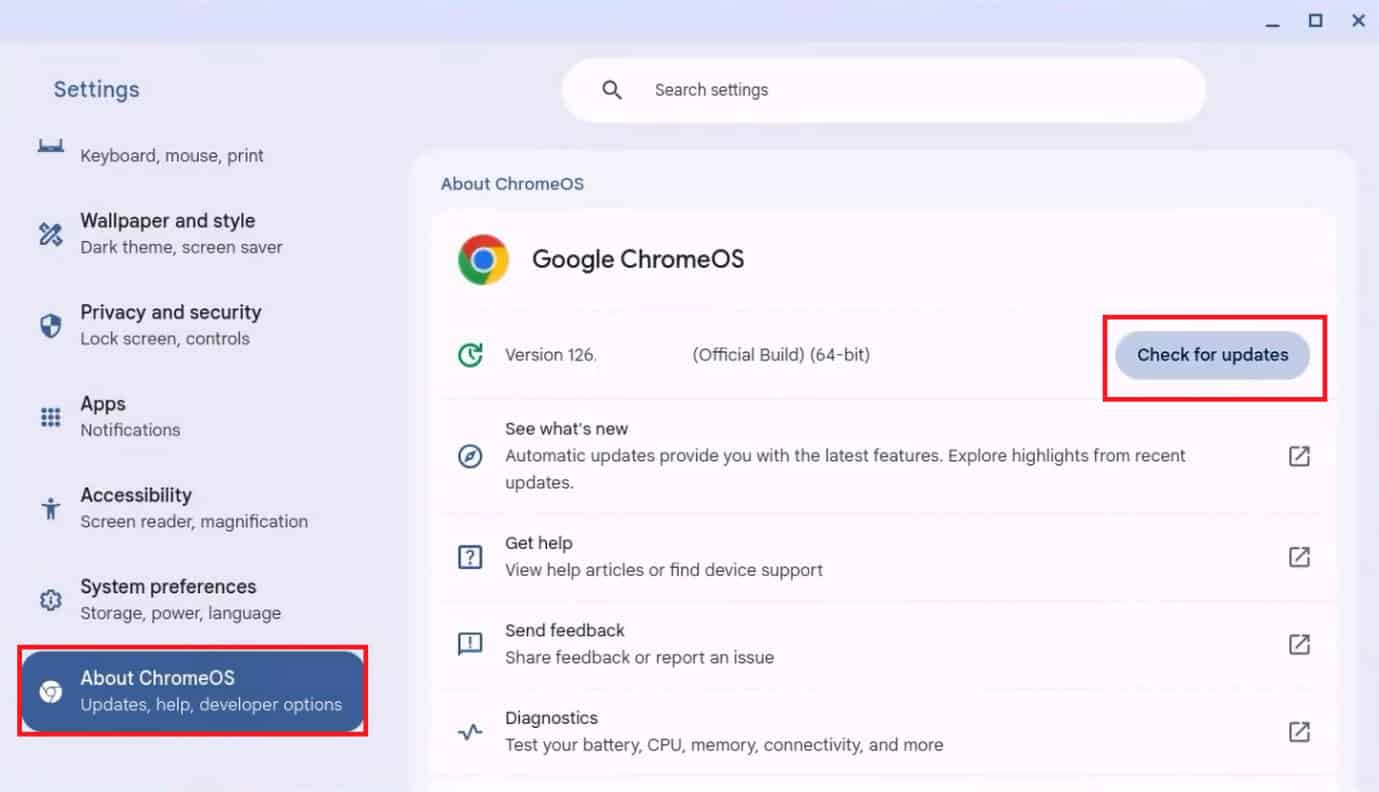
Your desktop will automatically be updated. Restart to see the updates.
Method 10: Check for System Lights
One of the best ways to determine whether your Chromebook’s display issues are functioning properly is to look for any exterior indicators of life, such as a charge indication, keyboard backlight, or power light. There may be a power problem if they are completely off. However, if they are lit or blinking, your device is probably just stuck.
Method 11: Connect an External Monitor
Try connecting your Chromebook to an external monitor via HDMI or USB-C if the screen is blank, but you hear startup noises or see keyboard lights. Your internal screen may be the problem if the external display functions. This method aids in determining whether the issue is with the screen or the hardware.
Method 12: Update Graphics Display Drivers
You can also install the latest version of your display driver.
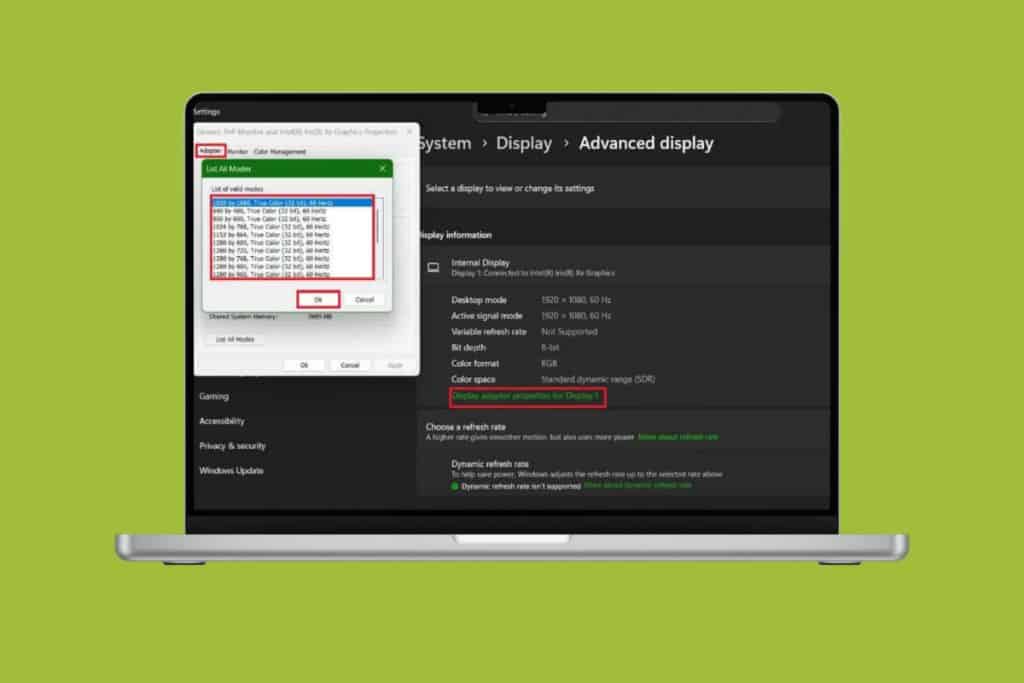
- Open Control Panel and click on Device Manager.
- Select Display Adapters from the left menu.
- Click on the display software.
- Then, click on Driver from the top ribbon.
- Now, select Update Driver.
- Click on OK.
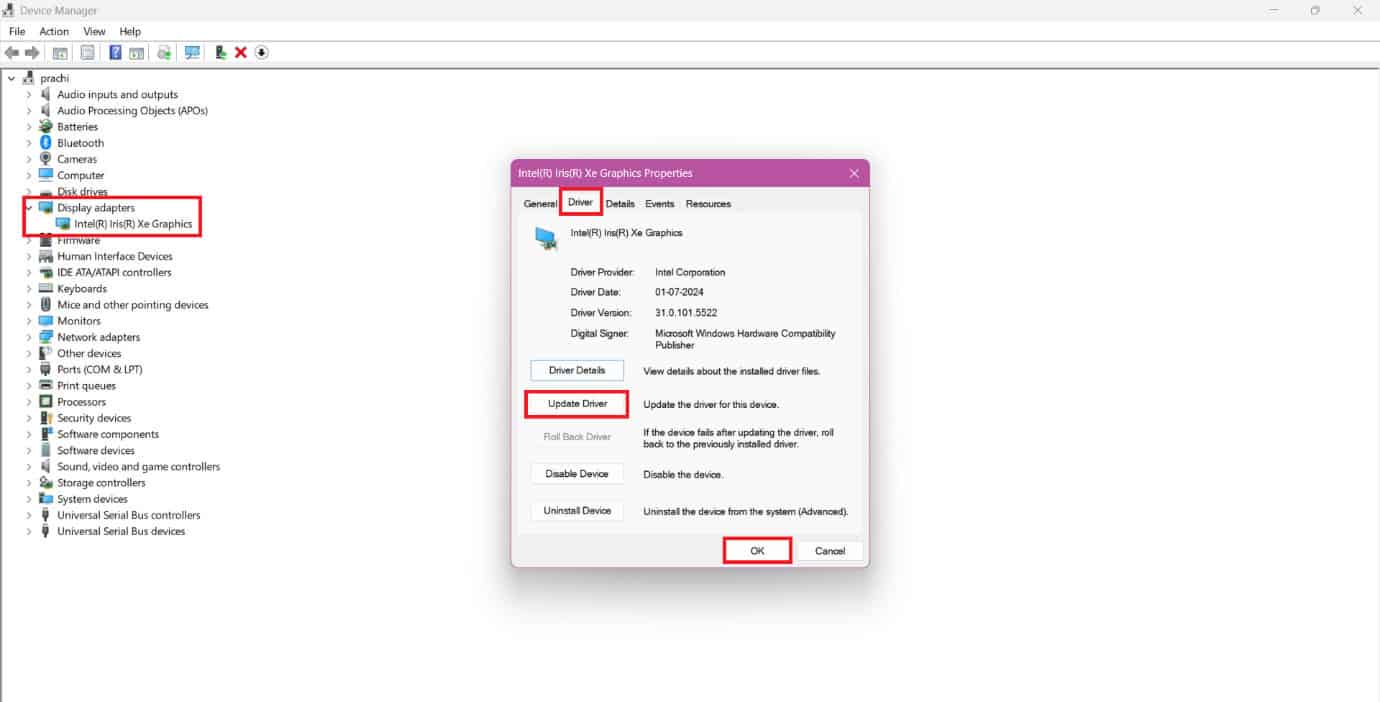
Your problem should be solved.
Method 13: Hard Reboot Your Chromebook
If the methods above are not working, then it may be time for a hard reboot. This will force your Chromebook to restart completely when it’s frozen or showing a black screen. Just press and hold the power button for about 10 seconds until it shuts down, then turn it back on.
Method 14: Powerwash or Hard Reset the Chromebook
Users can also try resetting the hardware without wiping their data. To do so, hold down the Refresh key and tap the Power button at the same time. It restarts the Chromebook and resets its hardware connections. This can solve problems with the battery, keyboard, or display issues.
Method 15: Do a Factory Reset
If nothing else works and the screen finally turns on, doing a factory reset or Powerwash can clean out deeper system problems. This erases everything and brings the Chromebook back to its original settings. Therefore, make sure to back up your data if possible.
- Press and hold the Power, Refresh, and Esc buttons simultaneously.
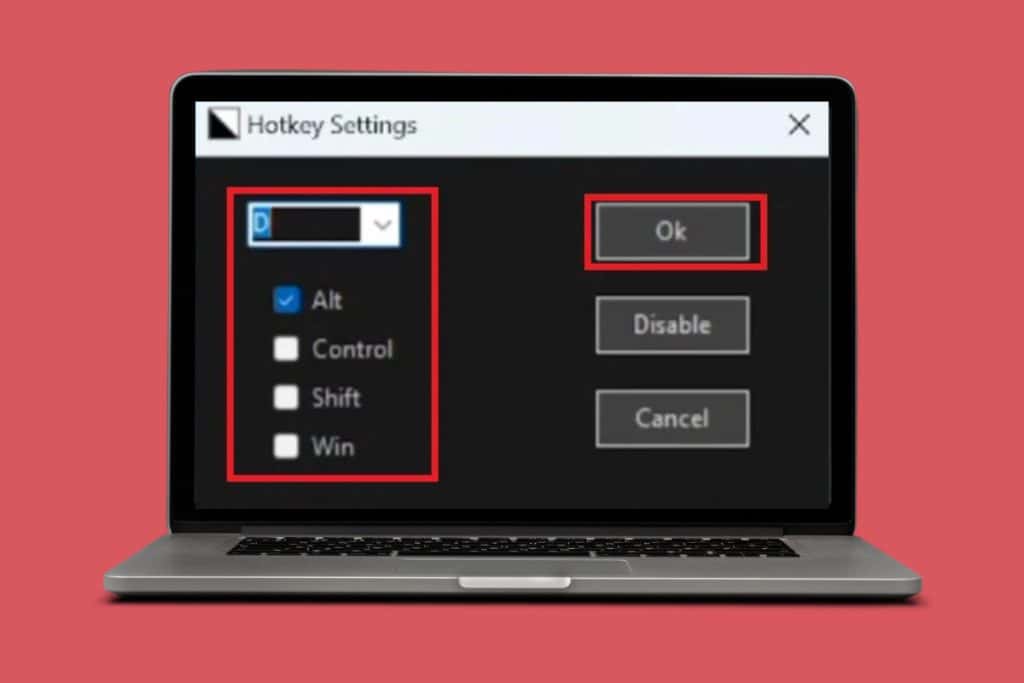
- Press Ctrl + D to enter the Recovery screen once the Chrome OS missing/damaged window pops up. Please note that if this display does not appear, then your monitor or hardware may be broken.
- Follow the on-screen instructions to reinstall ChromeOS.

Your Chromebook should automatically recover from any problems and work again.
Method 16: Visit Customer Service
Lastly, if none of the fixes work, it is best to let experts address the problems. Book a visit to Chromebook customer repair and get your device fixed directly.
Also Read: How to fix Blue or Red Tint on Monitor
Now that you have seen how to fix Acer Chromebook display issues, we hope your doubts are cleared with the methods shown in this guide. Keep visiting TechCult to know the latest tech walkarounds. If you have any queries or suggestions, do reach out to us in the comment section.