
We can browse the internet on Google Chrome in two modes. The first is normal mode, where Chrome saves your browsing history to improve speed and convenience. For example, when you type a few letters in the address bar, Chrome suggests websites you have visited in the past, so you don’t have to type the full web address again. The second is incognito mode, where no browsing history is saved. All login sessions end automatically, and cookies and site data are not stored after you close the incognito window.
While this feature is useful in many situations, there are times when you may want to disable it such as for parental control, workplace restrictions, or better browsing oversight. In this guide, we’ll walk you through how to disable Incognito Mode in Google Chrome using simple and effective methods across different devices.
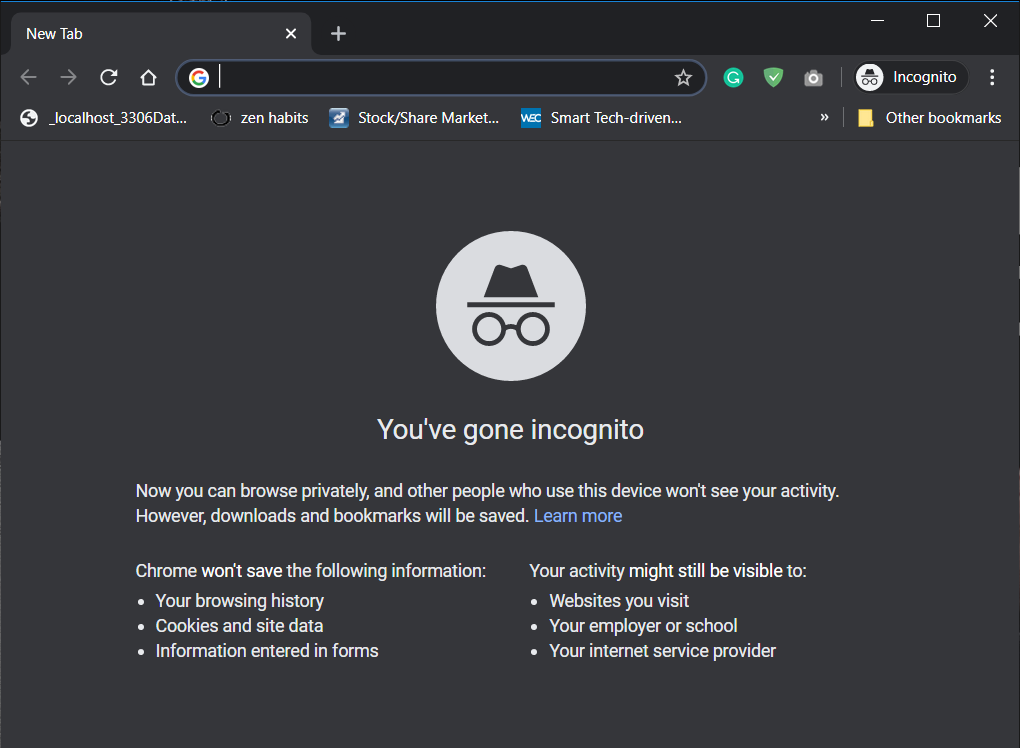
How to disable the Incognito Mode in Google Chrome?
There are two ways via which you can disable the incognito mode in Chrome, the first is using Registry Editor which is quite technical and the other one is using Command Prompt which is very straight forward. Also, on some devices, you may not have the required registry values or keys that are needed to disable private browsing mode and in that case, you can also use the second method which is quite easier.
Method 1: Disable Incognito Mode using Registry Editor
Let’s start with the steps required to disable the incognito window using Registry Editor:
1. Press Windows Key+R to open Run. Type “Regedit” in the Run window and press OK.
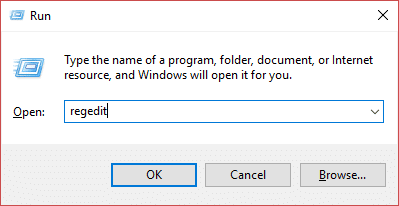
2. Now, the ‘User Account Control’ prompt will ask for your permission. Click on Yes.
3. In the registry editor, navigate to or copy-paste the below path and press Enter.
Computer\HKEY_LOCAL_MACHINE\SOFTWARE\Policies

Note: If you see the Google and Chrome folder under Policies folder then proceed to step 7, else follow the below step.
4. In case there is no Google folder under the Policies folder, you can easily create one by right-clicking on the Policies folder then navigate to New then select Key. Name the newly created key as “Google”.

5. Next, right-click on the Google folder you just created and navigate to New then select Key. Name this new key as “Chrome“.

6. Again right-click on Chrome key under Google then navigate to New then select “DWORD (32-bit) Value“. Rename this DWORD as IncognitoModeAvailability and hit Enter.

7. Next, you have to assign a value to the key. Double-click on IncognitoModeAvailability key or right-click on this key and select Modify.

8. A pop-up box shown below will appear. Under the value data field, change the value to 1 and click OK.
Value 1: Disable Incognito Mode in Google Chrome
Value 0: Enable Incognito Mode in Google Chrome

9. Finally, exit the Registry Editor. If Chrome is running then restart it or else start Chrome from Start Menu search.
10. And voila! you won’t be able to see the option “New Incognito window” anymore under the three dots menu of Chrome. Also, the shortcut for Incognito window Ctrl+Shift+N won’t work anymore which means that the Incognito mode in Chrome is finally disabled.

Method 2: Disable Incognito Mode in Chrome using Command Prompt
1. Open Elevated Command Prompt using any one of the methods listed here.

2. Type or Copy-paste the following command in the Command Prompt console, and press Enter.
REG ADD HKLM\SOFTWARE\Policies\Google\Chrome /v IncognitoModeAvailability /t REG_DWORD /d 1

3. Once you hit Enter, a message will display saying that the “The operation completed successfully”.
Note: If you want to undo your action, use the following command:
REG DELETE HKLM\SOFTWARE\Policies\Google\Chrome /v IncognitoModeAvailability /f
4. Close all the running window of Chrome and restart Chrome. Once Chrome launch, you will see that you successfully disable the incognito mode in Chrome as the option to launch “New Incognito Window” in the three-dot menu won’t appear anymore.
Method 3: Disable Incognito Mode in Chrome on Mac
1. From the Go menu under Finder, click on Utilities.
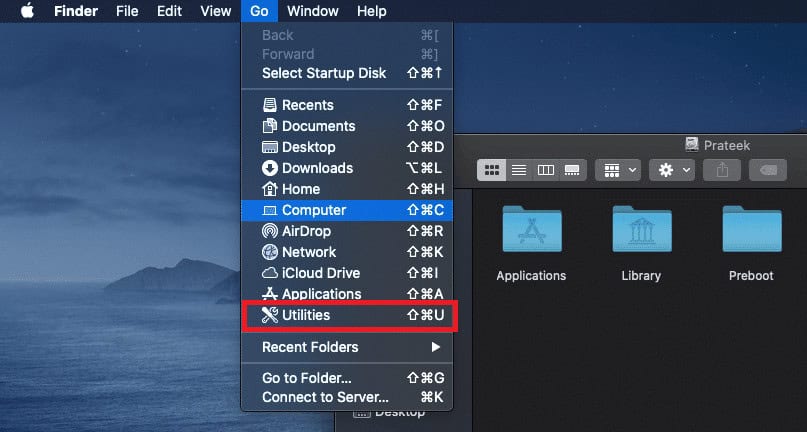
2. Under Utilities, find and open the Terminal app.

3. Type the following command in the Terminal and hit Enter:
defaults write com.google.chrome IncognitoModeAvailability -integer 1z

4. That’s it, once you successfully execute the above command, the incognito window on Chrome will be disabled.
Method 4: Disable Chrome Incognito Mode on Android
Disabling Chrome incognito mode on Android is a little different than on Computers since you can’t use commands or Registry Editor on your Android Phone. So the solution is to use a third-party app to block the Incognito mode in Google Chrome.
1. Start the Google Play Store app on Android Phone.
2. In the search bar, type Incoquito and install the Incoquito app by Lemino Labs Developer.

Note: This is a paid app, you need to purchase it. But if you change your mind, then according to Google Refund Policy, you can ask for a refund within the first two hours.
3. Once the installation is complete, open the app. You need to give permission to the app, so click on Continue.

4. After giving the necessary permission, turn on the toggle button at the top right corner next to Incoquito.

5. As soon as you enable the toggle, you will need to select a mode among the following options:
- Auto-close – Automatically closes the incognito tab when the screen is off.
- Prevent – This will disable the incognito tab which means no one can access it.
- Monitor – In this mode, the incognito tab can be accessed but logs of history, events, and activities is kept.
6. But as we are looking to disable incognito mode, you need to select Prevent option.

Now open Chrome, and in the Chrome menu, the New Incognito tab won’t be visible anymore which means you have successfully disabled Chrome Incognito mode on Android.
Also Read: Google Chrome Crashes? 8 Simple Ways to fix it!
Hopefully, you will be able to disable the incognito mode in Google Chrome using these above methods but if you still have any queries regarding this tutorial then feel free to ask them in the comment section.



I want to add my previous email account but I forgot my username