With its easy photo editing features to create content from scratch, Canva quickly took the world by storm ever since its launch. However, as it became more popular, its features started falling behind paid versions, which didn’t sit well with users who didn’t want to burn a hole in their pockets. If you are one of them, you also may be looking for the best Canva alternatives to save some bucks. Don’t worry, today you will find all available options!

Best Canva Alternatives (Free & Paid) in 2026
From free versions that give you the full experience, to paid versions with double features, we will show you every possible option.
1. Snappa

Want to create amazing graphics without a degree? Meet Snappa. You get pre-sized templates for every social platform and tons of stock photos ready to drag and drop. Need to clean up an image or remove a background? That’s covered, and you can upload your own fonts for custom branding. Snappa is perfect for bloggers and small biz owners who need eye-catching images in a snap.
Features:
- Simple drag-and-drop editing
- Templates sized for every social network
- Millions of stock photos included
- Background remover for fast edits
- Font uploads and easy social sharing
Pros:
- Fast graphics creation
- Great for bloggers and solopreneurs
- Plenty of templates and stock images
Cons:
- Pricier than some quick-edit apps
- Advanced photo editing tools are limited
- Mobile app feels basic
Pricing: Starter Free, Pro $10/month, Team $20/month.
2. MiriCanvas

If you want tons of templates and see all your design options right in your browser, MiriCanvas is a treat. Over 36 million templates and assets mean you’ll never run out, and you can turn your work into animations or videos in a few clicks. Sharing and team drives make collaboration easy, so your work buddies will love it too!
Features:
- Millions of templates, sizes, and design assets
- Quick video and animation conversion
- In-browser design. No downloads needed
- Brand kit for consistent colors and logos
- Team folder sharing and background remover
Pros:
- Monster asset library
- Teams can manage files together
- No install. Just open it in your browser
Cons:
- Advanced photo tools are a bit limited
- Video features good, not top-tier
- Subscription unlocks the best stuff
Pricing: Free plan, Pro $10.83/month
3. BeFunky

BeFunky is great if you want to edit photos without getting tangled in menus. You can whip up collages or use their touch-up tools to make your pictures look pro. There’s a bunch of artsy filters that turn your shots into sketches or paintings. Need to fix up a whole batch of photos? BeFunky’s batch editing will save you a ton of time, therefore coming up in third position as one of the best Canva alternatives. The free version gets you pretty far, but if you want more edits, you’ll have to pay.
Features:
- Collage maker with customizable layouts
- Photo effects for artistic transformations
- Batch editing for busy days
- Easy crop, resize, and retouch tools
- Huge library of stock images, icons, and vectors
Pros:
- Super simple for quick edits
- Batch work speeds up big projects
- A lot of power for free
Cons:
- Plus plan unlocks the coolest features
- Limited teamwork options
- Not built for detailed business infographics
Pricing: Free plan, Plus $14.99/month or $6.99/month (annual).
4. Adobe Express

We all know that Adobe Express is packed for real creative work. It’s perfect if you want something more serious than Canva’s free tools. AI-powers help you build, change, and export without watermarks. So, now anybody can make graphics on their laptop or phone, pull in fonts and templates, and splash on effects from Photoshop!
Features:
- Desktop and mobile design apps
- Photoshop-level effects and overlays
- AI design helpers
- Mega library of templates and fonts
- Asset management library
Pros:
- No watermarks, even in free plan
- Excellent effects templates
- Instant jump-start with tons of templates
Cons:
- Some complex features are only for paid users
- Collaboration isn’t the best
- Expect a learning curve if you’re new to Adobe
Pricing: Free, Premium $8.33/month, Teams $4.17/month per user.
5. Visme
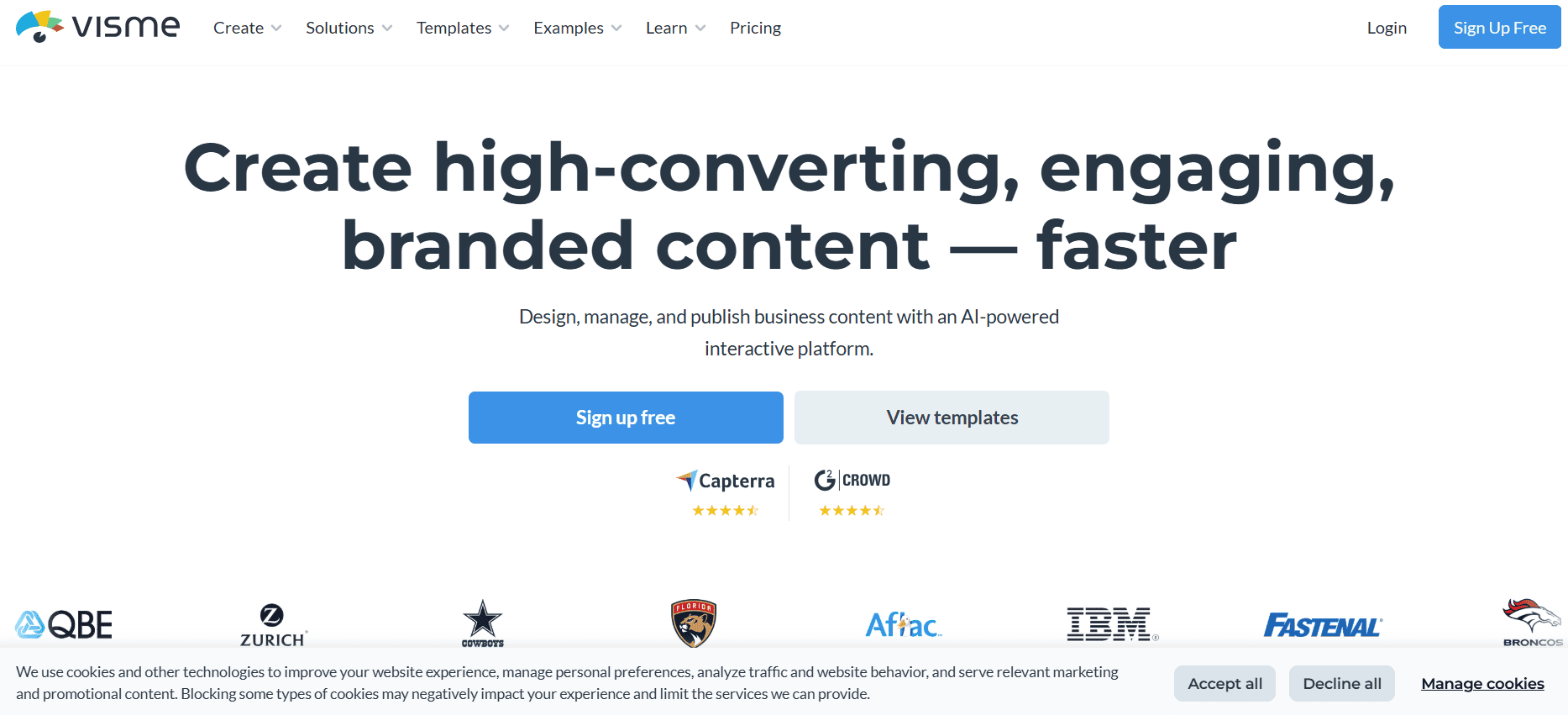
Visme is your go-to for infographics and charts. It is perfect for marketers who want more than just pretty pictures. You get a pile of handy templates plus options for reviews and privacy controls, making teamwork easy. It’s good for building presentations that don’t put people to sleep, but be ready to pay more for pro use.
Features:
- Templates for everything from charts to full-on reports
- Easy import/export to PowerPoint
- Privacy controls and permission settings
- AI content and image tools
- Team reviews and collaboration in real time
Pros:
- Spot-on for data-driven designs
- Deep team tools keep everyone in sync
- Loads of images, GIFs, and videos
Cons:
- Costs more than some other graphic makers
- The mobile app is decent but not outstanding
- Free version is pretty basic
Pricing: Free plan, Starter $12.25/month, Pro $24.75/month
6. VistaCreate
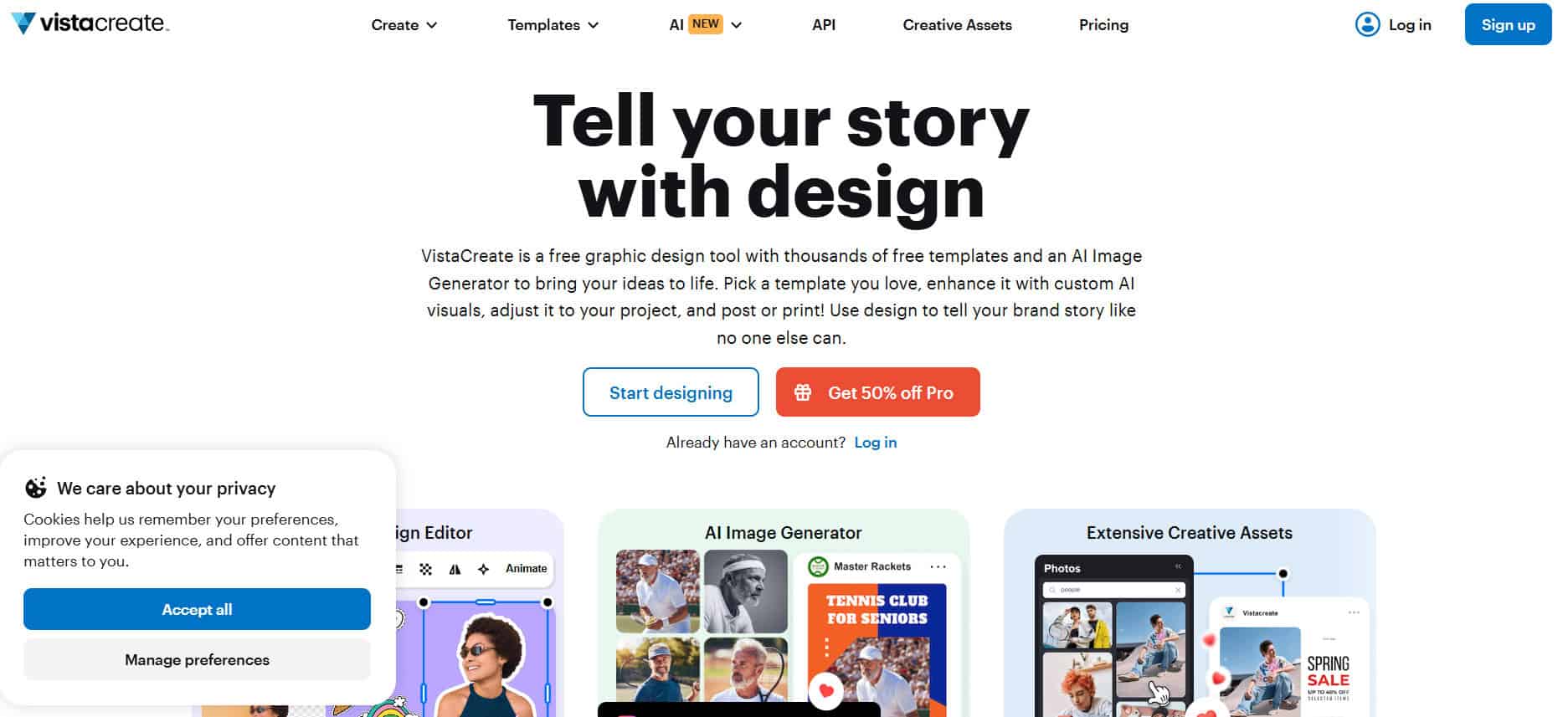
VistaCreate is for those who love a big collection. It’s filled with social media templates and scheduling tools, along with a print delivery option. What makes it a bigger catch for freelancers and solo creators who want modern vibes without much hassle, are ready-made overlays, stickers, and easy brand kit management.
Features:
- Social templates and content scheduler
- Print delivery service
- Overlays, stickers, and customizable shapes
- Brand management tools
- Apps for designing on the go
Pros:
- Loads for free users, more for pros
- Built-in planning tools
- Perfect for freelancers, bloggers
Cons:
- Extra features require upgrade
- Collaboration is basic
- Takes a while to set up a brand kit
Pricing: Starter Free, Pro $10/month
7. Fotor

Fotor is an online editor that’s friendly even if you’ve never worked with photo software. It has an AI features to better your headshots or remove backgrounds, with simple layouts. You’ll get quality edits fast, but remember, templates for social media may not cover every niche.
Features:
- AI tools for generating images and headshots
- Instant background and object removal
- Simple edit interface
- Good for basic enhancements and layouts
- Affordable even for casual users
Pros:
- Great for fast touch-ups
- Cheap, with a helpful free tier
- Layout tools easy to master
Cons:
- AI sometimes gives mixed results
- Template variety is smaller than in bigger apps
- Social template options are decent, but not deep
Pricing: Basic Free, Pro $3.99/month, Pro+ $7.49/month
8. MolyPix.AI

MolyPix.AI makes designing faster with AI layouts and color suggestions. It has a big library of templates tailored for marketing and social media. You’ll find a simple drag-and-drop editor combined with tools to help you keep your brand consistent using brand kits. It’s growing, but already a solid choice for marketers and creatives as one of the best Canva alternatives.
Features:
- Large collection of marketing and social media templates
- AI-based suggestions for layouts and colors
- Drag-and-drop customization easy enough for beginners
- Brand kit tools for consistent branding
- Multiple format support from posters to logos
Pros:
- Helps speed up the design process
- Simple enough for beginners and pros
- Keeps your branding uniform
Cons:
- Customization options aren’t as deep as advanced software
- Some AI features behind a paywall
- No real-time team collaboration yet
Pricing: Free; Starter $5/month; Pro $20/month; Ultimate $70/month.
9. Easil

Easil makes it easy for teams to work together, thanks to its bright and clean design layouts. Its features, like content locking, layers drag-and-drop, and rich libraries of photos and videos, mean perfect collaboration. Animated GIF creation rounds out its creative arsenal, ideal for fresh marketing teams or small creative groups. Truly one of the best Canva alternatives.
Features:
- Large variety of vibrant templates and design elements
- Real-time collaboration with locked content and layered editing
- Manage photos and videos efficiently
- Create animated GIFs within the tool
- Track projects easily with ‘My Workspace’ across devices
Pros:
- Great choice for team projects and beginners
- Strong collaboration features
- Cross-device access and management
Cons:
- Support response can be slow sometimes
- Editing adjustments are occasionally tricky
- Limited export options
Pricing: Free; Plus $7.50/month; Edge $59/month; Enterprise custom.
10. Piktochart

When you want a quick way to turn data into neat visuals, Piktochart is a solid choice. It comes with customizable templates for infographics, reports, and presentations, which means no starting from scratch. Their AI visual generator means your layouts can be made in no time with icons and charts tailored to your data and style.
Features:
- AI-generated layouts based on your prompt
- Converts numbers into eye-catching charts automatically
- Large library of templates for many formats
- AI-driven icon and image generation
- Easy drag-and-drop customization
Pros:
- Huge variety of infographic and presentation templates
- Speeds up design planning and brainstorming
- Friendly editor for users of all skill levels
Cons:
- AI text occasionally feels generic
- Limited font options on free plans
- Animation tools are less developed than some competitors
Pricing: Free; Pro $14/member/month; Business $24/member/month; Enterprise custom.
11. Pixazo
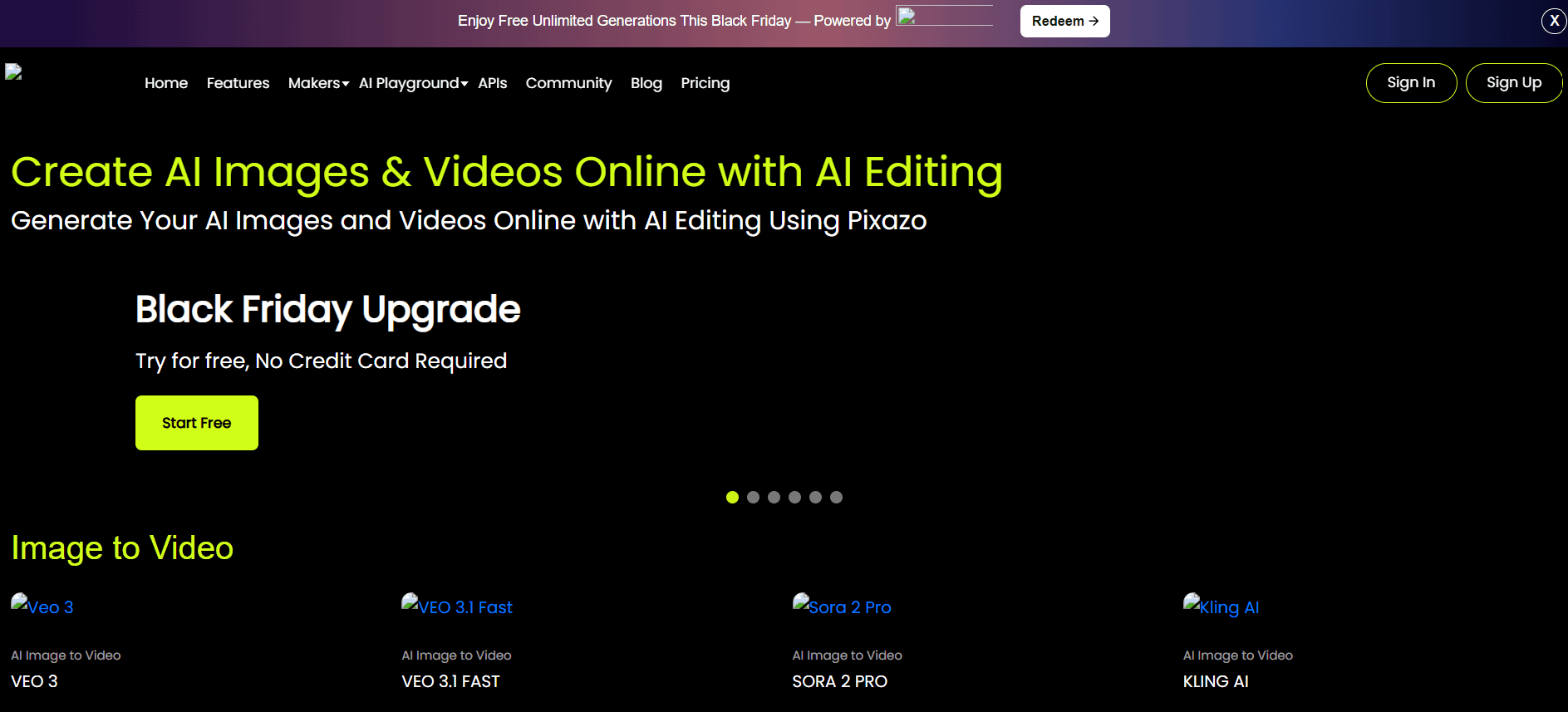
Pixazo focuses more on social media and business graphics through AI art generation. It’s easy to use and creates amazing visuals very quickly. Though customization is not deep and support could be better, it’s one of the best Canva alternatives for users who want simple AI design help for social channels.
Features:
- AI art generator tailored for social media graphics
- User-friendly and simple editing tools
- Supports multiple output formats
Pros:
- Helps create engaging social posts quickly
- No steep learning curve
Cons:
- Customization options are limited
- Customer support is reportedly inconsistent
Pricing: $84/year ($8/month); 7-day free trial.
12. Stencil
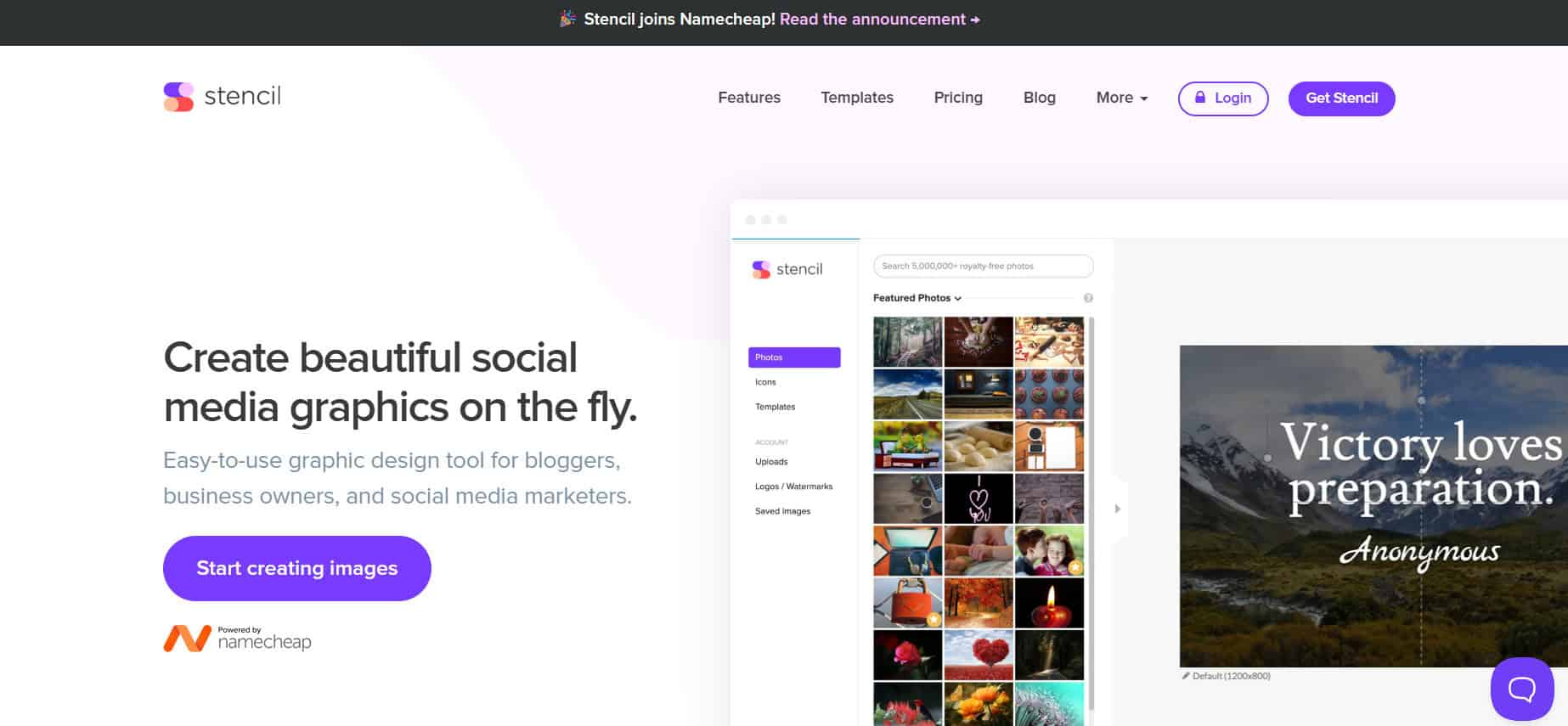
Stencil offers an easy way to create visuals with over 1,300 templates and thousands of Google fonts. So, you can upload your fonts to match your brand perfectly! It makes social media and online post creation easy because of quick exports and direct sharing.
Features:
- 1,350+ ready-made premium templates
- Google Fonts plus custom font upload
- Download high-resolution images for print and web
- Royalty-free icons and graphics
- Direct social media sharing
Pros:
- Fast work for social media graphics
- Strong font tools to match branding
- Easily share and export designs
Cons:
- Limited animation and video tools
- Minimal options for team collaboration
- Free plan features are limited
Pricing: Free; Pro $9/month; Unlimited $12/month.
13. Pixlr X

Pixlr X blends quick photo editing with graphic design, all within your browser. You get access to tons of stock images, overlays, and stickers without installing software. It’s cheap, fast, and great when you want to change images or create designs on the fly.
Features:
- Advanced photo editing tools right in browser
- Massive library of stock images and stickers
- No software download required
- Export in high quality
- Good for quick creative work
Pros:
- Low-cost and instantly accessible
- Great for editing and adding effects quickly
- Simple enough for new users
Cons:
- Less focused on templates than Canva
- Might feel confusing at first
- Collaborations features are limited
Pricing: Free: $0, Plus: $1.49/month, Premium: $6.49/month, and Team: $11.99/month
14. Krita

Krita gives digital artists and illustrators a playground filled with creative features. Beyond traditional photo editing, Krita is built for drawing, animation, matte painting, and even comic book creation. Its clean interface, customizable brushes, and support for animation make it a favorite among concept artists and illustrators on any desktop platform.
Features:
- Customizable brushes and engines
- Layer management for edits
- Keyframe animation support
- Wrap-around mode for textures and patterns
- Raster and vector editing tools
Pros:
- Excellent for digital painting, comics, and concept art
- Free, open source, and always evolving
- Very active community and plenty of tutorials
- Works smoothly on Windows, macOS, and Linux
Cons:
- Desktop-only, with no web or mobile version
- No official customer support. Community only
- Some advanced features have a learning curve
Pricing: Completely free.
15. Darktable

For photographers who want in-depth control without spending money, Darktable is your best friend. It’s open source and lets you edit RAW files without ever changing the original. Organizing, tagging, and powerful photo correction features make it a serious best Canva alternatives for photo pros who work on all Windows, Mac, and Linux.
Features:
- Non-destructive RAW editing
- Tethered shooting support
- Excellent sorting and tagging tools
- GPU acceleration for speed
- More than 30 modules for advanced corrections
Pros:
- Completely free and open source
- Made by photographers for photographers
- Works on all major operating systems
Cons:
- Can be intimidating for newcomers
- No mobile or web versions available
- Not designed for graphic design tasks
Pricing: Free.
16. PicMonkey

PicMonkey is a solid the best Canva alternatives for those who want both design templates and photo editing tools in one place. It works well for social media posts, blogs, and branding projects with an easy layer system that makes editing simple. Whether you’re touching up photos or drawing new graphics, it handles it all.
Features:
- Vast templates and font selections
- Easy-to-manage layer editing
- Photo enhancement and touch-up tools
- Direct imports from Instagram, Flickr, or Google Photos
- Drawing tools for creative freedom
Pros:
- User-friendly and approachable
- Great for combo of photos and graphics
- Works well for beginners and pros
Cons:
- Free version has limited features
- Background remover isn’t very consistent
- Undo/redo options could be better
Pricing: 7-day free trial; Basic $7.99/month; Pro $12.99/month; Business $23/user/month.
Also Read: How to Use AI in Canva
Now that you have seen the best Canva alternatives, we hope your doubts are cleared with the methods shown in this guide. Keep visiting TechCult to know the latest tech walkarounds. If you have any queries or suggestions, do reach out to us in the comment section.