Chromebooks run on Chrome OS, Google’s operating system, designed for users seeking budget-friendly desktops. But most users only ever open Chrome and download a few apps from the Play Store. Did you know that a secret tool known as CROSH can allow you to do diagnostics and resolve issues that standard settings are unable to address, all from a simple text-based command? If you have heard someone mention CROSH commands or seen it pop up while googling Chromebook problems, then you might be wondering what the deal is about. Let’s get you all the answers!
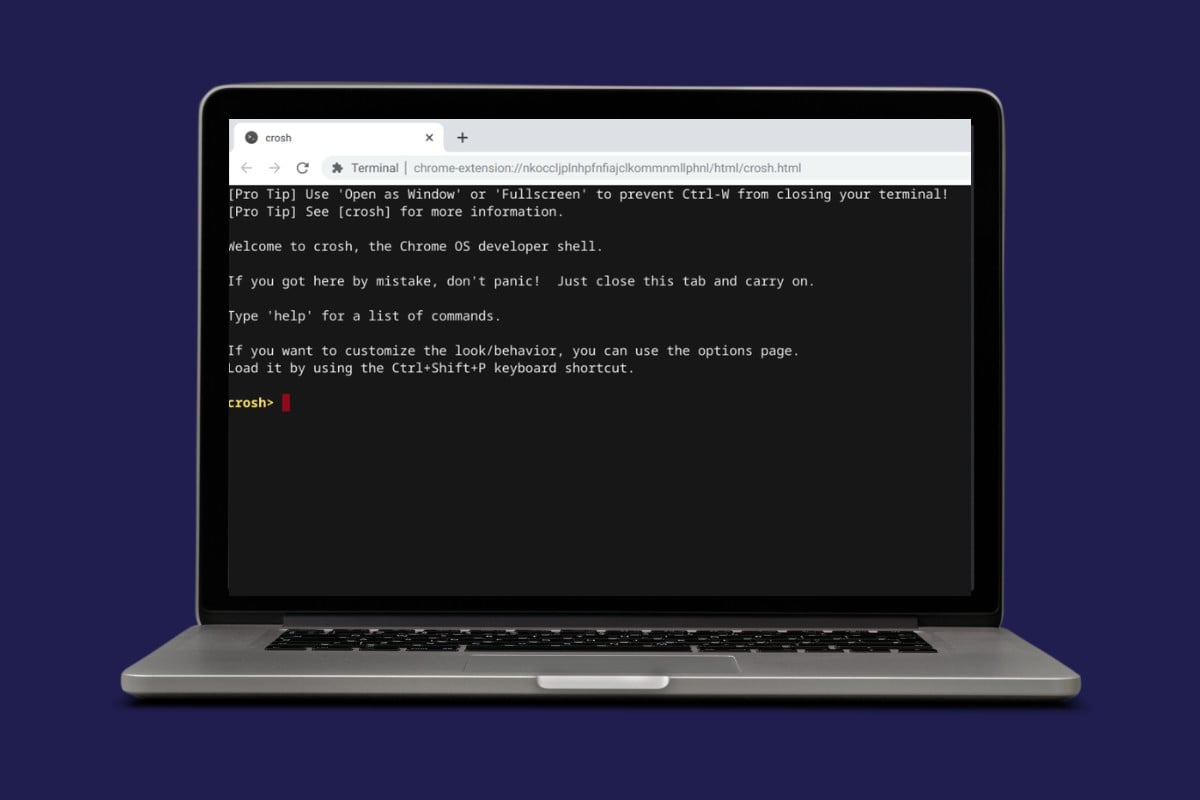
CROSH Commands – A Guide for Your Chromebook
From the most important to the least known commands, you will find all about CROSH.
Basic and Imporant Crosh Commands
You can start using these commands after opening CROSH by pressing the Ctrl + Alt + T keys simultaneously. Once done, type the following commands:
- exit: Closes the Crosh shell.
- uptime: Shows how long the system has been running, plus the number of other logged-in users.
- Ctrl+C: Not a command, but press it to instantly stop any running operation in Crosh.
- help: Displays a list of basic commands you can run.
- connectivity: Checks your connection status and extra details (on supported devices).
- inputcontrol: Manually tweak touchpad or mouse settings (works on some devices).
- set_time: Allows manual time setting.
- help <command>: Get details on what a specific command does.
- help_advanced: Lists advanced and debugging commands.
Other System Crosh Commands
Now let’s take a look at some of the important and rarely used commands on Chromebook:
- top: Opens Chrome OS’s task manager to view all running processes.
- ipaddrs -4: Quickly shows your Chromebook’s IPv4 address.
- bt_console: Opens a Bluetooth debugging console on your Chromebook.
- memory_test: Tests the available free memory on your device.
- rollback: Reverts to the previous Chrome OS update (note: it will powerwash your device).
- battery_test <seconds>: Checks battery details and usage over a set number of seconds.
- vmc start termina: Starts the Linux container on Chrome OS.
- set_wake_on_lan true: Turns on Wake on LAN (use false to disable; needs Ethernet port).
- ipaddrs -6: Reveals your Chromebook’s IPv6 address with this simple command.
- vmc stop termina: Force-closes the entire Linux container if apps or files freeze.
- vmc start –enable-gpu: Starts Linux with GPU enabled for smoother visuals in apps.
Network Crosh Commands
There are also network-related commands that can help you out.
- ssh: Starts an SSH connection right from Crosh (add user, host, and port as needed).
- network_diag: Runs full network tests and saves results to a text file.
- set_apn: Configures APN settings for cellular data (on Chromebooks with cellular).
- ping website: Tests network connectivity, just like on other OS for troubleshooting.
- p2p_update: Turns peer-to-peer update sharing on or off.
- tracepath website: Traces the network path to a website.
- dns: Looks up info on a DNS server.
- network_diag –wifi: Debugs WiFi problems, including driver details.
- p2p_update –show-peers: Checks the number of active P2P connections.
- modem help: Helps set up a connected modem.
- set_cellular_ppp: Sets PPP username and password for cellular (on supported Chromebooks).
Developers Crosh Commands
For developers who need complex commands, here are some you can use:
- storage_status: Checks your storage device’s health, including vendor info, SMART status, and error logs.
- ssh_forget_host: Removes a saved SSH host from your Chromebook.
- syslog <message>: Logs a custom message to the system log.
- meminfo: Displays memory details like total RAM, swap space, and free memory.
- route: Shows the current routing tables.
- tpm_status: Reports the status of your Trusted Platform Module.
- shell: Unlocks developer commands (requires Developer mode).
- storage_test_1: Runs a basic test on your Chromebook’s storage.
- rlz: Turns RLZ tracking on or off.
- sudo edit-grub-config: Edits the GRUB config file in Developer mode to tweak hardware and features.
- evtest: Tests input devices like styluses with touch diagnostics.
- update_over_cellular: Allows or blocks updates over cellular data (on supported Chromebooks).
- upload_crashes: Sends crash reports to Chrome’s servers.
- live_in_a_coal_mine: Switches your Chromebook to the Canary channel for early updates.
Also Read: Fix the Security Module Not Working Error on This Device in Chromebook
Now you will no longer have a difficult time figuring out any CROSH commands after following this guide. For more helpful tips and tricks, stay tuned, and feel free to share your suggestions in the comments below.